Chapter 11 Troubleshooting 114
Chapter
11
Troubleshooting
Paper is jammed
Removing jammed paper
If <CLEAR PAPER JAM> is displayed on the LCD, follow this procedure to clear the paper jam.
Clearing jams in the paper output tray
Follow this procedure:
Clearing jams from the multi-purpose tray
Follow this procedure:
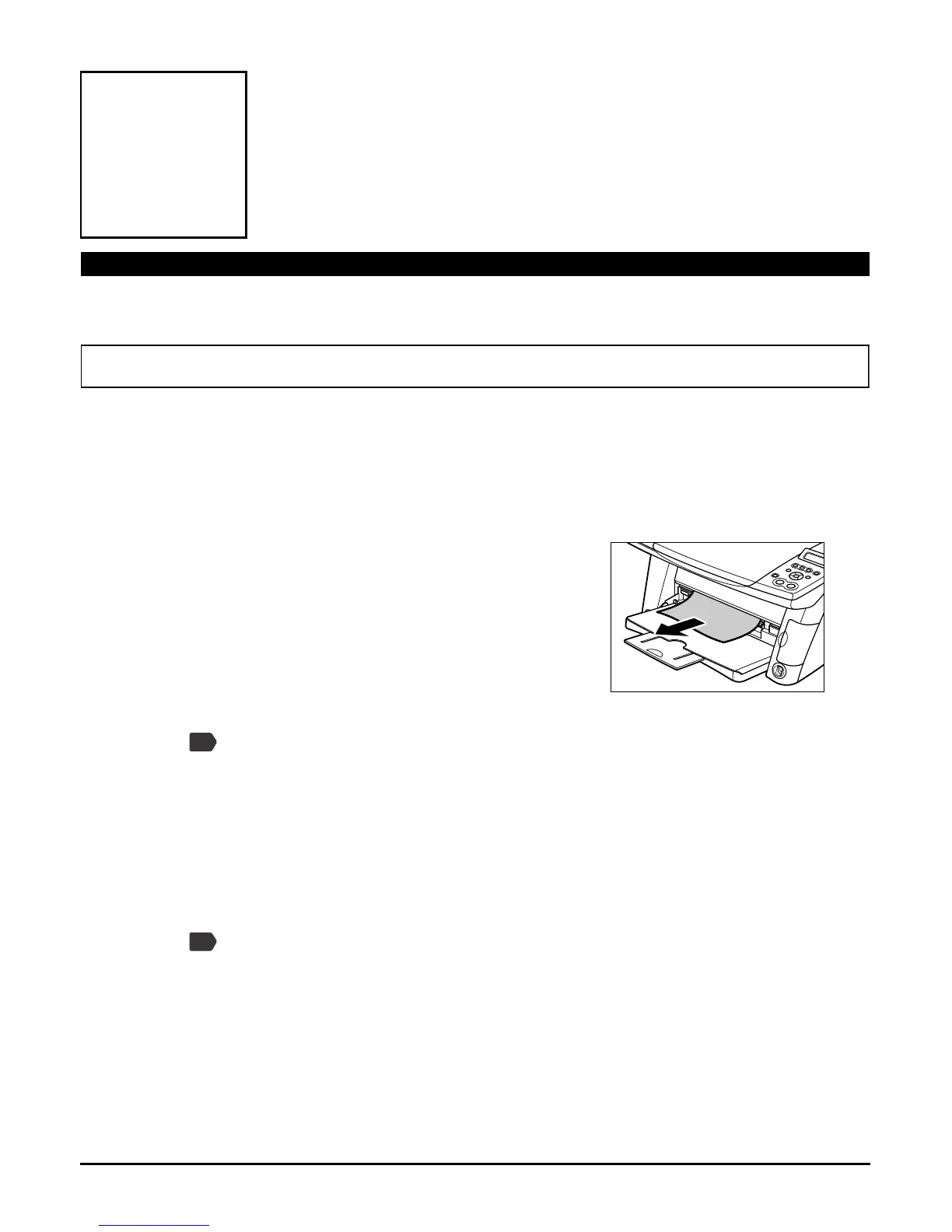
1 Gently pull any jammed paper out of the
paper output tray.
• If you cannot see any jammed paper in the paper
output tray, remove it from the machine’s interior.
2 Press [OK/Set].
• If you are printing from an application software, follow the instructions displayed on your
computer.
1 Gently pull out any jammed paper from the multi-purpose tray.
2 Press [OK/Set].
• If you are printing from an application software, follow the instructions displayed on your
computer.
PC
PC








 To Next Page