Chapter 8 Printing from Your Computer 90
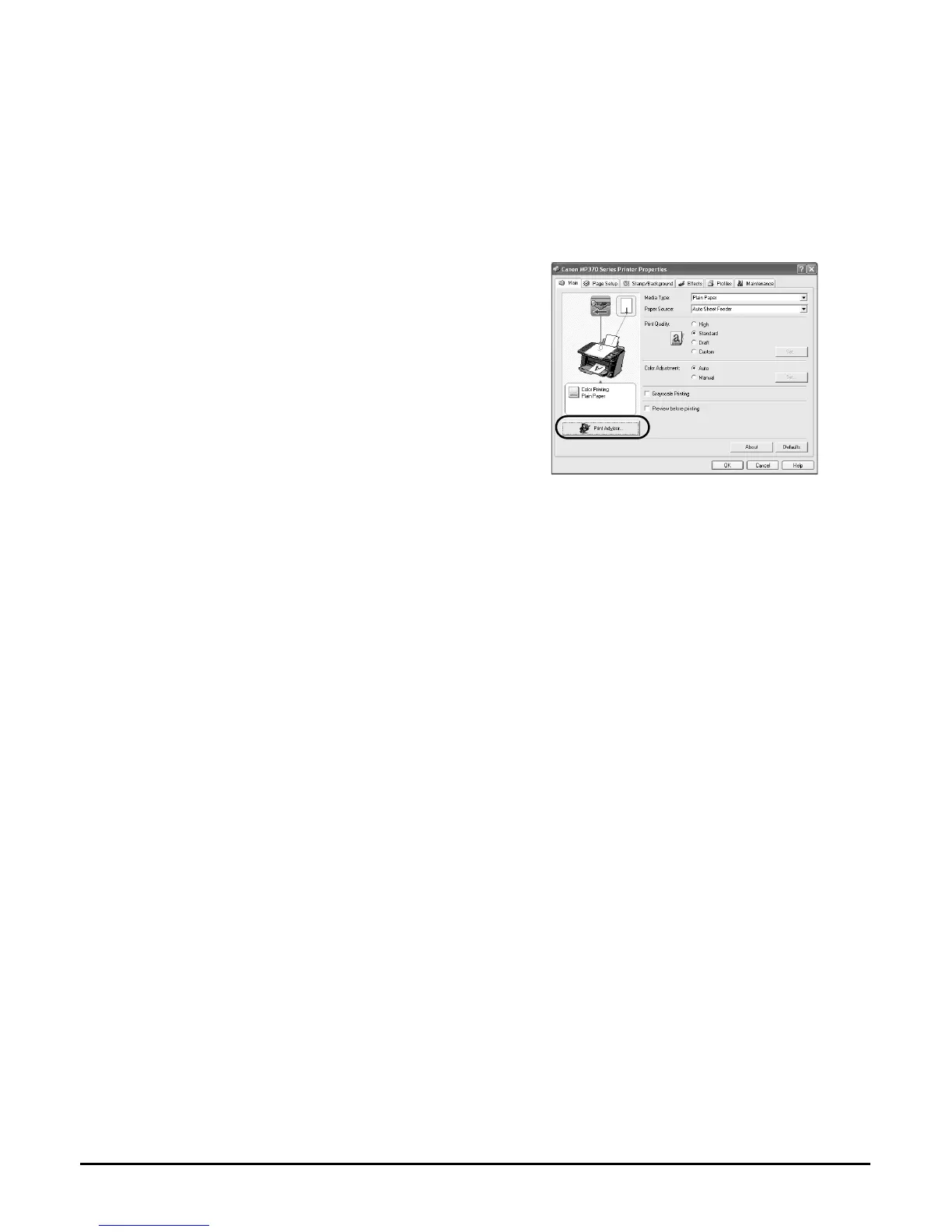
Changing print settings with the Print Advisor
Follow this procedure:
Changing print settings manually
Follow this procedure:
1 Open the document in the application software, and select the command
to print.
• This in most cases will be [Print] in the [File] menu or toolbar.
2 In the [Print] dialogue box, click [Properties].
3 In the [Properties] dialogue box, on the
[Main] tab, click [Print Advisor].
4 Follow the instructions on the screen.
1 Open the document in the application software, and select the command
to print.
• This in most cases will be [Print] in the [File] menu or toolbar.
2 In the [Print] dialogue box, click [Properties].
3 In the [Properties] dialogue box, change the settings on the relevant tab or
screen.
• To restore the original settings after changing them, click [Defaults].
4 Confirm, then click [OK] to apply the changes and close the dialogue box.
• The changes are applied to the settings, and the dialogue box closes.
• To cancel changing the settings and close the dialogue box, click [Cancel].







 To Next Page