101
Printing
E
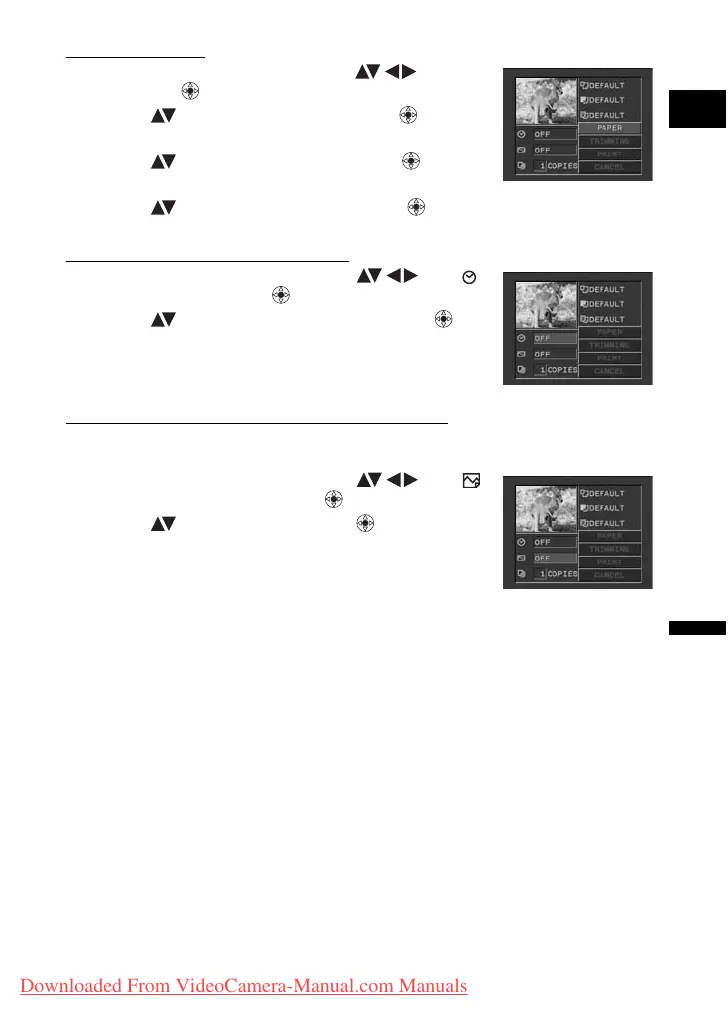
Paper Settings
1. In the print setting menu, select ( ) [PAPER]
and press ( ).
2. Select ( ) the paper size and press ( ).
Select the paper size of the paper set in your printer.
3. Select ( ) the paper type and press ( ).
Select the paper type of the paper set in your printer.
4. Select ( ) a layout option and press ( ).
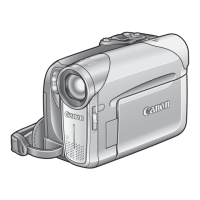
Including the Date in the Print
1. In the print setting menu, select ( ) the
(date) icon and press ( ).
2. Select ( ) a date print option and press ( ).
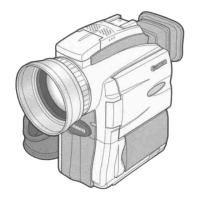
Setting the Print Effect (Image Optimize)
This function uses the camcorder’s recording information to optimize the image data,
yielding high quality prints.
1. In the print setting menu, select ( ) the
(print effect) icon and press ( ).
2. Select ( ) a setting and press ( ).
Downloaded From VideoCamera-Manual.com Manuals



 To Next Page