25
Preparation
E
Step 9: Setting the Time Zone, Date
and Time
Setting the Time Zone/Daylight Saving Time
1. Turn the switch to CAMERA or PLAY.
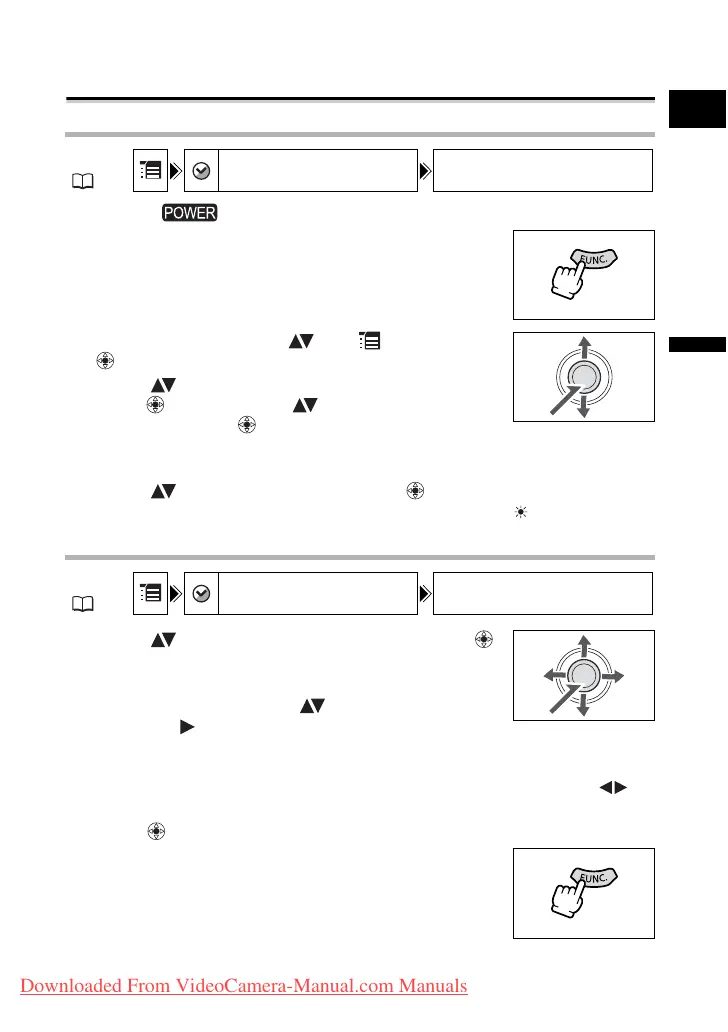
2. Press the FUNC. button to open the FUNC. menu.
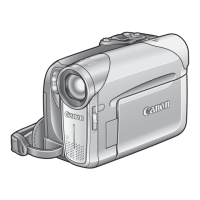
3. With the joystick select ( ) the icon and press
().
4. Select ( ) the [DATE/TIME SETUP] menu and
press ( ). Then, select ( ) the [T.ZONE/DST]
option and press ( ).
The time zone setting appears (see table on the next page). The default setting is
Paris or Singapore depending on the region.
5. Select ( ) your time zone and press ( ).
To adjust for daylight saving time, select the time zone with the “ ” next to the area.
Setting the Date and Time
6. Select ( ) the [DATE/TIME] option and press ( ).
A selection frame will be displayed around the date and the
selection arrows around the day will flash.
7. With the joystick change ( ) the day as required
and move ( ) to the next field.
• The selection arrows will flash around the next field of the date/time.
• Set the month, year, hours and minutes in the same way.
• If you do not need to change all settings, you can use the joystick to move ( ) to
the specific setting you want to change.
8. Press ( ) to start the clock.
9. Press the FUNC. button to close the menu.
MENU
( 63)
DATE/TIME SETUP T.ZONE/DST
PARIS
MENU
( 63)
DATE/TIME SETUP
DATE/TIME 1.JAN.2006
12:00AM
Downloaded From VideoCamera-Manual.com Manuals



 To Next Page