30
Recording on a Memory Card
Recording Still Images on a Memory Card
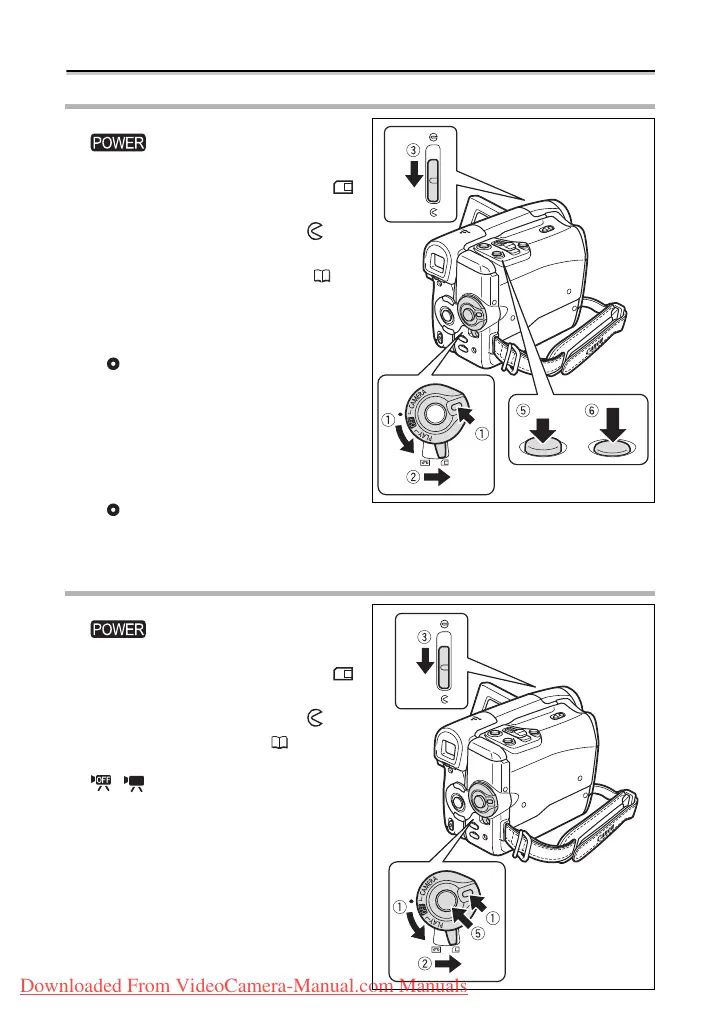
1. Holding the lock button on the
switch pressed down, set
the switch to CAMERA.
2. Set the TAPE/CARD switch to .
3. Open the lens cover (move the
lens cover switch down to ).
4. Change the size and quality of the
still images, as necessary ( 75).
The default image size and quality is
L 1152x864.
5. Press the PHOTO button halfway.
• “ ” turns green when the focus is
adjusted and a green frame appears.
The beep sounds.
• When you press the PHOTO button on
the wireless controller the still image is
recorded immediately.
6. Press the PHOTO button fully.
• “ ” and the focusing frame disappear
and you hear a shutter sound.
• The CARD access indicator flashes.
Recording Movies on a Memory Card
1. Holding the lock button on the
switch pressed down, set
the switch to CAMERA.
2. Set the TAPE/CARD switch to .
3. Open the lens cover (move the
lens cover switch down to ).
4. Select the movie size ( 75).
Set a size other than the default
[ MOVIE REC OFF].
5. Press the start/stop button to
begin recording.
• The CARD access indicator flashes.
• Press the start/stop button to stop
recording.
Downloaded From VideoCamera-Manual.com Manuals



 To Next Page