103
Printing
E
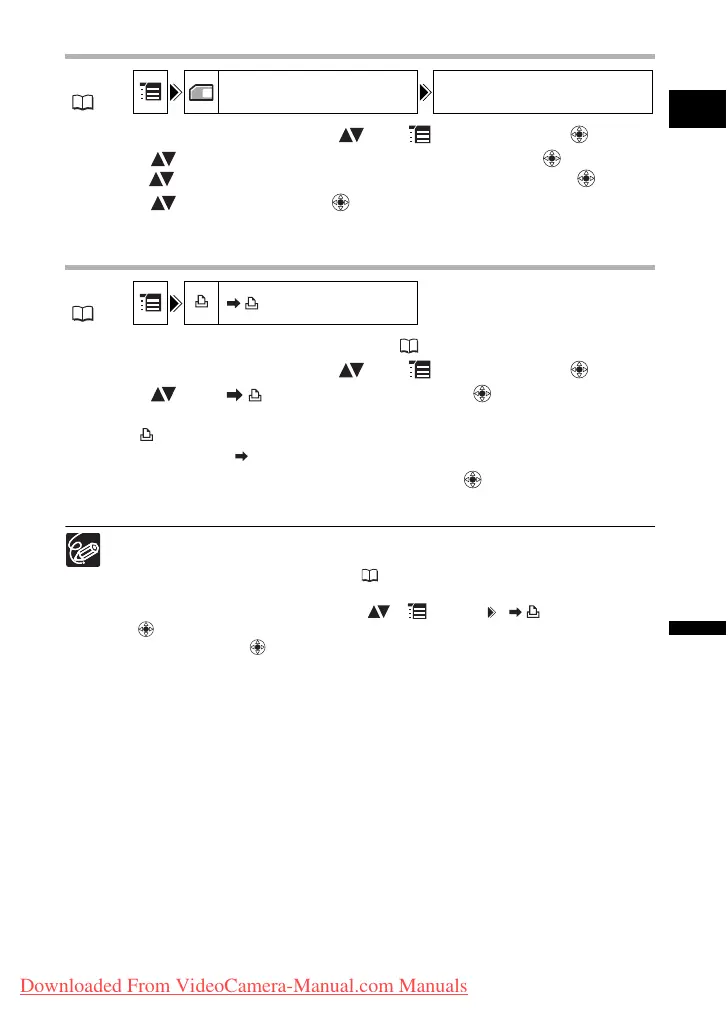
Erasing All Print Orders
1. Open the FUNC. menu, select ( ) the icon and press ( ).
2. Select ( ) the [CARD OPERATIONS] menu and press ( ). Then,
select ( ) the [PRINT ORD.ALL ERASE] option and press ( ).
3. Select ( ) [YES] and press ( ) to erase all the print orders, then
close the menu.
Printing
1. Connect the printer to the camcorder ( 97).
2. Open the FUNC. menu, select ( ) the icon and press ( ).
3. Select ( ) the [ PRINT] menu and press ( ).
• The print setting menu appears.
• “SET PRINT ORDER” appears, when you connect a printer with direct print
function and select [ PRINT] without having set the print order.
4. Make sure that [PRINT] is selected and press ( ).
Printing starts. The print setting menu disappears when printing is complete.
Depending on the connected printer, you can select style or paper settings
before step 4.
Cancel Printing/Printing Errors ( 99)
Restarting Printing
Open the FUNC. menu and select ( ) [ MENU] [ PRINT]. Press
( ) and close the menu. Select [RESUME] or [CONTINUE] in the print setting
menu and press ( ). The remaining images will be printed.
Printing cannot be restarted in the following cases:
- When you change the print order settings.
- When you delete a still image with print order settings.
MENU
( 63)
CARD OPERATIONS
PRINT ORD. ALL ERASE
MENU
( 63)
PRINT
Downloaded From VideoCamera-Manual.com Manuals



 To Next Page