76
Selecting the Still Image Size and Quality
Available only in the mode (the image quality only can also be set in the
mode).
1. Press the FUNC. button.
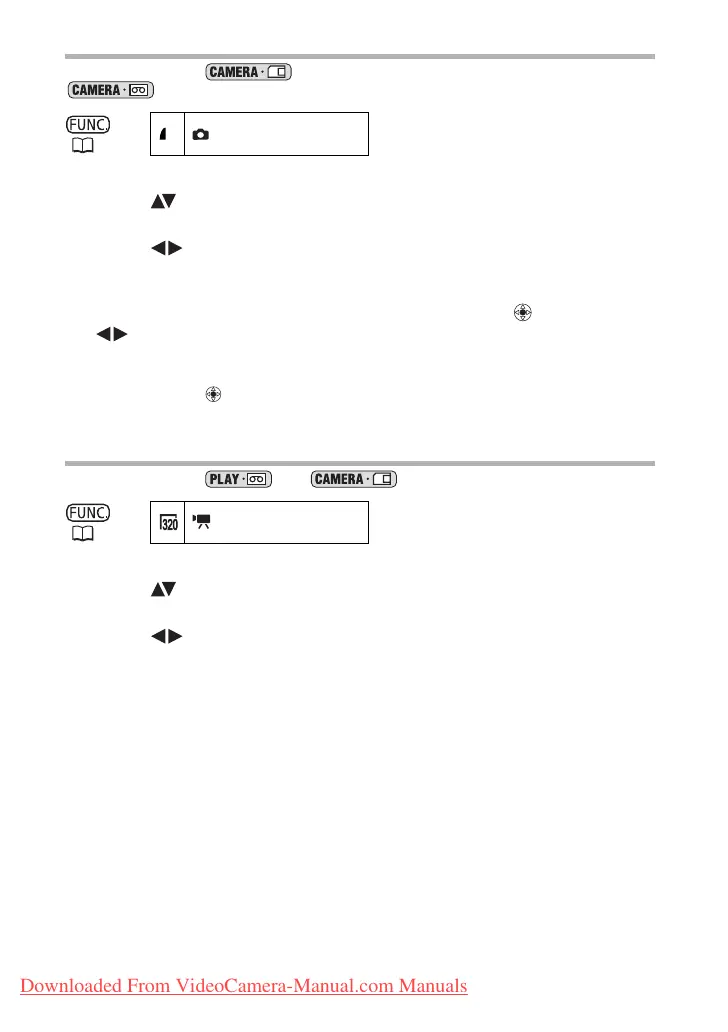
2. Select ( ) the still image size/quality symbol.
The symbol of the current setting is displayed.
3. Select ( ) the still image size.
The number on the right indicates the approximate number of images that can be
recorded on the memory card at the current image size/quality setting.
4. If you want to change also the image quality: Press ( ) and select
( ) the desired still image quality.
• The number on the right indicates the approximate number of images that can be
recorded on the memory card at the current image size/quality setting.
• You can press ( ) again to go back to select the image size (step 3).
5. Press the FUNC. button.
Selecting the Movie Size
Available only in the and modes.
1. Press the FUNC. button.
2. Select ( ) the movie size symbol.
The symbol of the current setting is displayed.
3. Select ( ) the movie size.
The number on the right indicates the approximate remaining recording time for
movies on the memory card at the current movie size.
4. Press the FUNC. button.
( 53)
L 1152x864/FINE
( 53)
320x240
Downloaded From VideoCamera-Manual.com Manuals



 To Next Page