61
Shooting
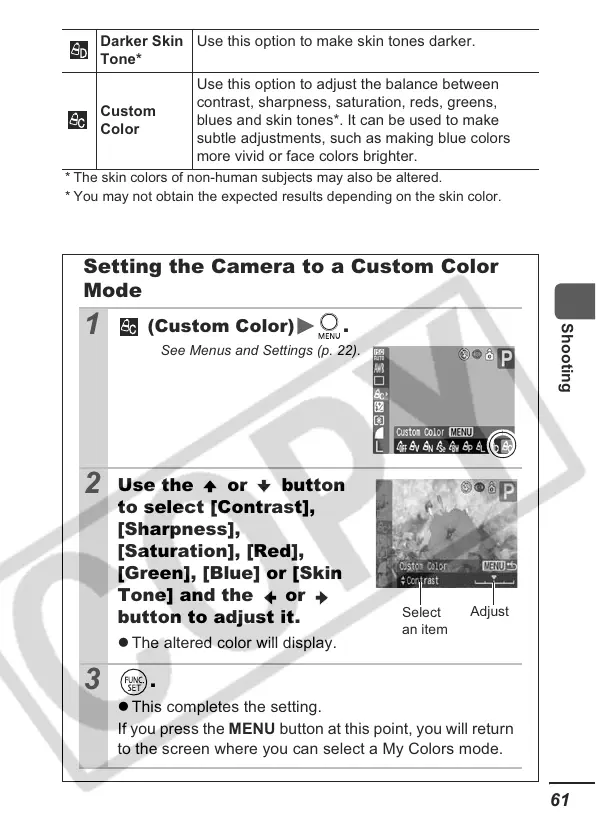
* The skin colors of non-human subjects may also be altered.
* You may not obtain the expected results depending on the skin color.
Darker Skin
Tone*
Use this option to make skin tones darker.
Custom
Color
Use this option to adjust the balance between
contrast, sharpness, saturation, reds, greens,
blues and skin tones*. It can be used to make
subtle adjustments, such as making blue colors
more vivid or face colors brighter.
Setting the Camera to a Custom Color
Mode
1
(Custom Color) .
See Menus and Settings (p. 22).
2
Use the or button
to select [Contrast],
[Sharpness],
[Saturation], [Red],
[Green], [Blue] or [Skin
Tone] and the or
button to adjust it.
z The altered color will display.
3
.
z This completes the setting.
If you press the MENU button at this point, you will return
to the screen where you can select a My Colors mode.
Select
an item
Adjust





 To Next Page