20
Methods
Methods
Pre-installed One Touch Methods take the guesswork out of method creation and sample preparation. If there is
not a current One Touch Method to digest a sample, visit our website for Method and Application Notes.
One Touch Method Creation
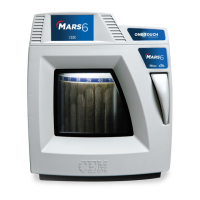
The MARS 6 has preinstalled methods to cover a large variety of samples. If there is not a current One Touch
Method to digest a sample, a One Touch method can be programmed as outlined below. The operating parameters
are vessel specic and are included in the “Important Safeguards” section of each vessel manual.
1. From the MARS 6 home screen, select “One Touch Methods.”
2. Select “+” at the top of the screen to begin creating a One Touch Method.
3. Select “Method Name” and enter in a name.
4. Select “Temperature” and enter the desired temperature.
5. Select “Sample Type” and choose the appropriate sample type from the list.
• “Organic” is the recommend sample type for most samples. Contact CEM before selecting any other sample
types.
6. Select “Hold Time” and enter in the appropriate hold time.
7. If applicable, select “Sample Prep Notes.”
8. The MARS 6 will complete all other necessary information to perform the method.
9. Select “Next.” View the method by scrolling down. If any parameters require revisions, select “Previous” and
make appropriate revisions.
10. Once the method parameters are entered properly, select the Save icon located in the top right corner.
11. Once the method is saved, the method may be run by selecting the Play icon.
CAUTION
Observe the entire digestion sequence when establishing a procedure for the rst time.
Classic Method Creation
Contact CEM Corporation before creating Classic Methods.
Edit Method
One Touch Methods cannot be edited.
Delete Method
The original method and run data are no longer available when a method is deleted.
1. Select and hold (long touch) the method to be deleted.
NOTE
Multiple methods can be deleted at a time by highlighting “Multi Select.”
2. Select the Delete icon.


 To Next Page