Using the First Time Configuration Wizard
Configuring Check Point 4000 Appliances Page 23
Starting the First Time Configuration Wizard
To start the First Time Configuration Wizard:
1. Connect a standard network cable to the appliance's management interface and to your
management network.
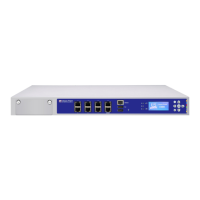
The management interface is marked MGMT. This interface is preconfigured with the IP
address 192.168.1.1.
2. Connect to the management interface by connecting from a computer on the same network
subnet as the management interface (for example, with IP address 192.168.1.x and net
mask 255.255.255.0). This can be changed later through the WebUI.
3. To access the administration interface, initiate a connection from a browser to the default
administration IP address: https://192.168.1.1:4434.
Note - Pop-ups must always be allowed on
https://<appliance_ip_address>.
The login page appears.
4. Log in to the system using the default login name/password: admin/admin and click Login.
Note - The features configured in the wizard are accessible after
completing the wizard via the WebUI menu. The WebUI menu can be
accessed by navigating to
https://<appliance_ip_address>:4434.
5. Change the administrator password, as prompted. The default password gives you access
to the appliance. For security purposes, you must change it to a more secure password.
In the Password recovery login token section, you can download a Login Token that you
can use if you forget the password. We highly recommended to save and safely store the
password recovery login token file.
6. The First Time Configuration Wizard runs.
The First Time Configuration Wizard presents windows that help you to configure the
appliance.
Welcome
The Welcome page summarizes the steps of the First Time Configuration Wizard.
Appliance Date and Time Setup
Configure date and time in the Date and Time Setup page. Click Apply.
CP_Toxotai_GettingStartedGuide_423 23CP_Toxotai_GettingStartedGuide_423 23 05 July 2011 1:21:11 PM05 July 2011 1:21:11 PM



 To Next Page