14
Please note current command is grey if current series product does not support this function. Double click
the PTZ menu head to hide it.
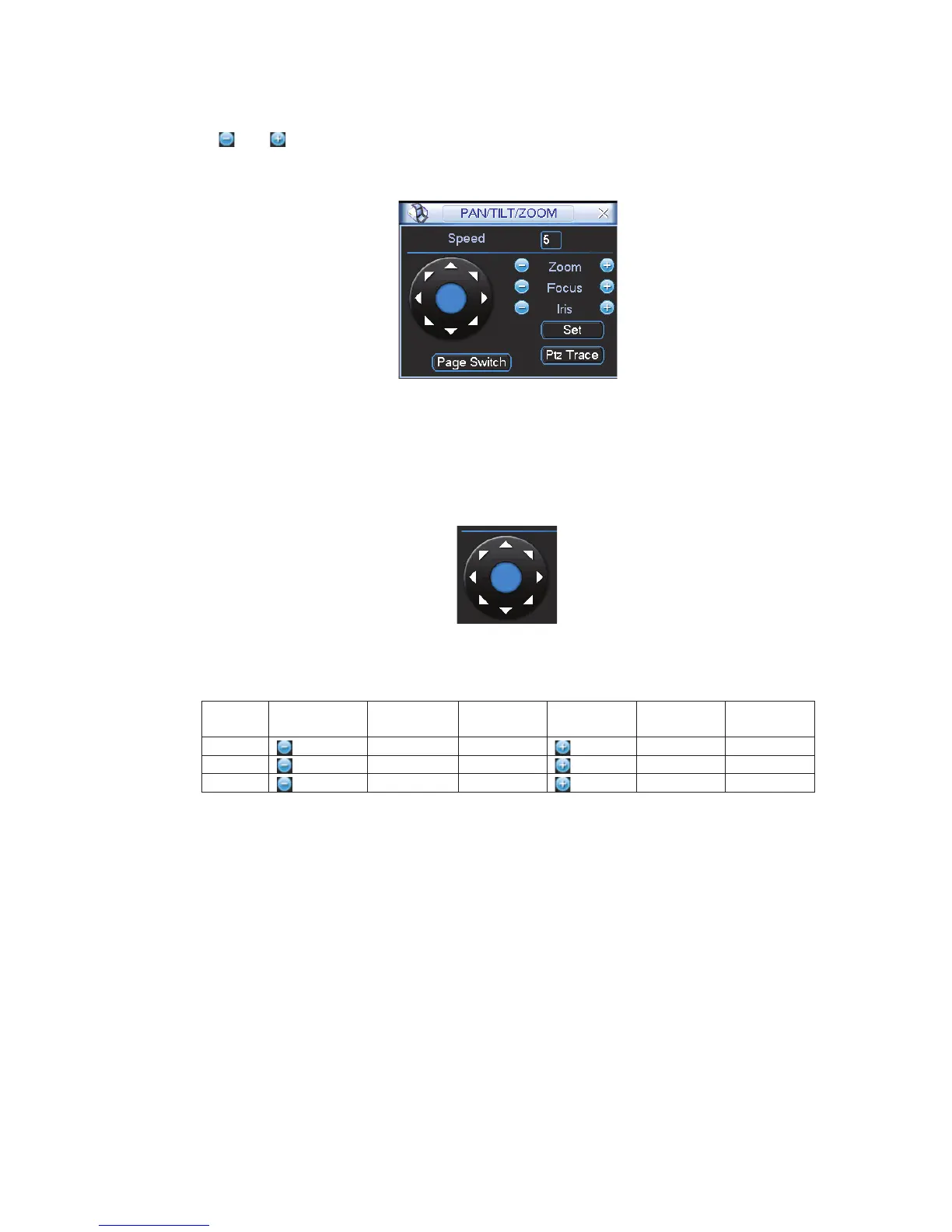
Click icon
and to adjust zoom, focus and iris.
Here you can set PTZ direction, speed (step), focus, zoom, iris, preset, tour, pattern, scan, aux call,
light, rotation and etc. Please use the direction keys to set.
Figure 2-11
In Figure 2-11, please click direction arrows (See Figure 2-12) to adjust PTZ position. There are total 8
direction arrows. Please note if you use front panel, you can use just four directions (Up/down/left/right).
The speed value ranges from 1 to 8. You can click the software keyboard or the front panel to input. The
speed 8 is faster than speed 1.
Figure 2-12
Here is a sheet for you reference.
Name Function
key
function Shortcut
key
Function
key
function Shortcut
Key
Zoom
Near Ź
Far
Focus
Near
_
Far Ź
Iris
close
W
Open
f
You can click set button in Figure 2-11 (or click REC button in the front panel) to set preset, tour, and
pattern.
You can click page switch button in Figure 2-11 (or click Fn button in the front panel) to call main function.
Important
Do not connect the switch to the PoE port, otherwise the connection may fail!
2.6.1 UPNP
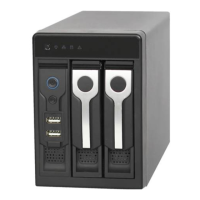
Please connect the network camera to the PoE port of the device rear panel (Figure 2-13), system can
auto connect to the network camera. Please note the following figure is for reference only.


 To Next Page