OPERATING MANUAL
800.749.2761 www.coachcomm.com
59
5. Customize the prole settings to t your needs using the various drop-down and text entry elds on this
screen.
Note: Some of the prole settings are not currently used for X-System devices, (e.g., Call Alert and
the RP Function Buttons). Leave these elds at their factory default. Other settings are used
with X-System, but they SHOULD NOT be changed from the factory settings (e.g., Scan List).
CoachComm recommends contacting customer support if you have questions about prole
settings or conguration details.
6. When your settings are done, click the
Upload Changes
button at the top of the prole detail screen.
7. If you’re editing your .ccf ofine, save the .ccf and load it to your top (master) CU using the procedures detailed on
page 46.
Editing or Cloning Proles
To edit an existing prole, double-click the prole name from the list on X-Ware’s Prole Management tab, then complete
the desired edit and click the
Upload Changes
button at the top of the prole details screen. In addition, if you’re editing
your .ccf ofine, save the .ccf and load it to your top (master) CU using the procedures detailed on page 46.
To create a copy of the prole, click the
Clone Prole
button at the top of the prole detail screen.
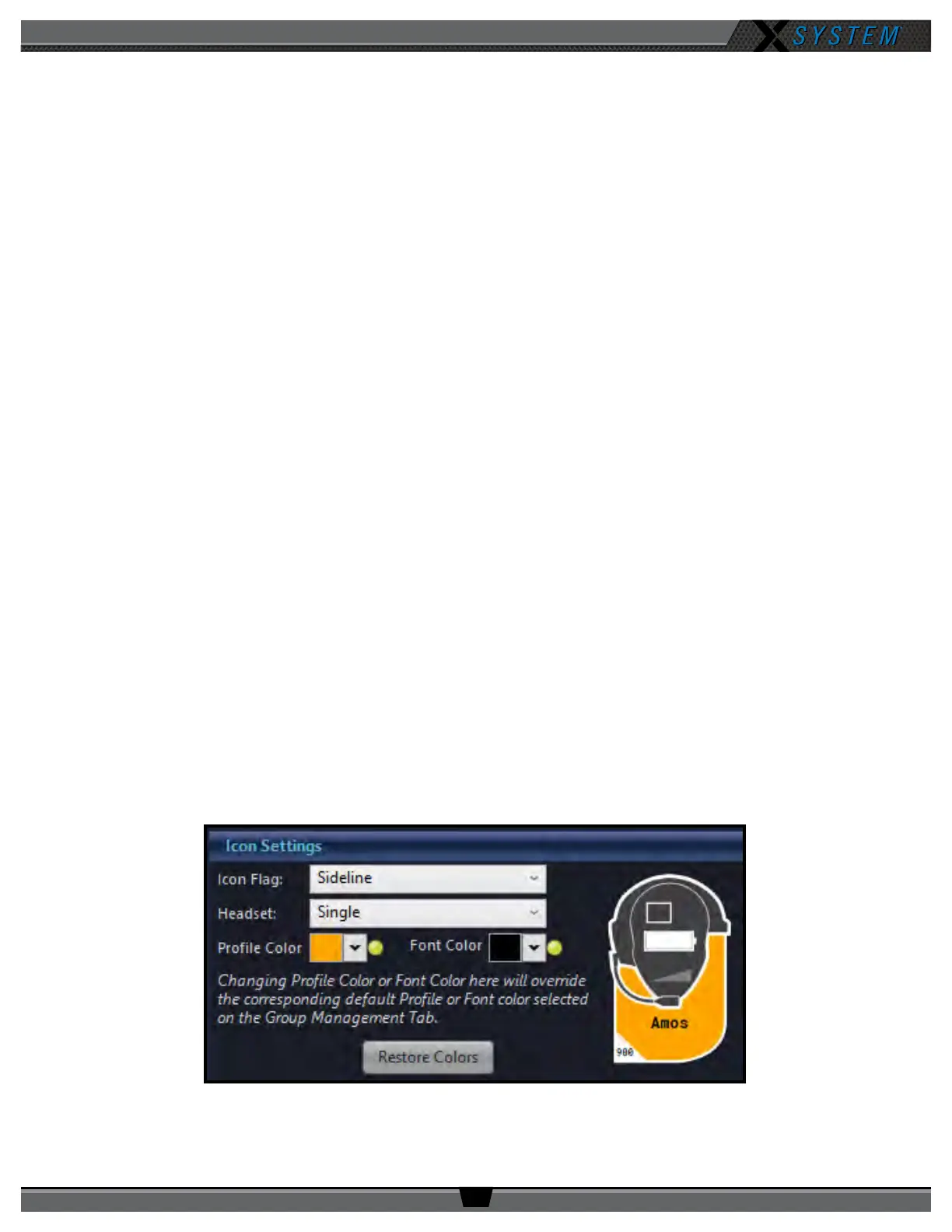
Customizing RP Icon
Customize an RP Icon’s shape by changing the
Icon Flag
,
Headset
,
Prole Color,
and
Font Color
elds on the relevant
Prole’s detail view. Changes will be reected on every RP Icon for Radio Packs using that prole. In addition, if you’re
editing your .ccf ofine, save the .ccf and load it to your top (master) CU using the procedures detailed on page 46.
• Icon Flag: Choose from
Sideline
or
Pressbox
, and the icon’s curved rectangle area will move above or below the
icon’s face accordingly.
• Headset: Choose from
Single
,
Double
, or
Listen-Only
, and the icon’s headset will match the selection. (Listen-
only removes the headset’s boom, and the headset will never illuminate green for active Talk.)
• Prole Color and Font Color: Override the colors determined by the Prole’s Group assignment by choosing a
color from this eld. You can also click on the green circle or the
Restore Colors
button to restore the Prole icon
to the Group’s colors. See “Customizing Prole Groups” on page 60 for more information about Group
assignments.
Figure 80: Icon Settings Section of Prole Detail View



 To Next Page