13
1300 663 907
After Sales Support
help@cocoonproducts.com.au
Model number:
HE210303
02/2022
8CH 1080P SECURITY CAMERA SYSTEMDVR OPERATION
DVR Operation
Powering on the DVR unit
1. Connect the ‘to DVR’ power adaptor to the back of the DVR unit
2. Plug the power adaptor into a mains power outlet and switch the outlet ON
3. Once the power adaptor is connected to the DVR unit, it will proceed through the
boot sequence
Mouse
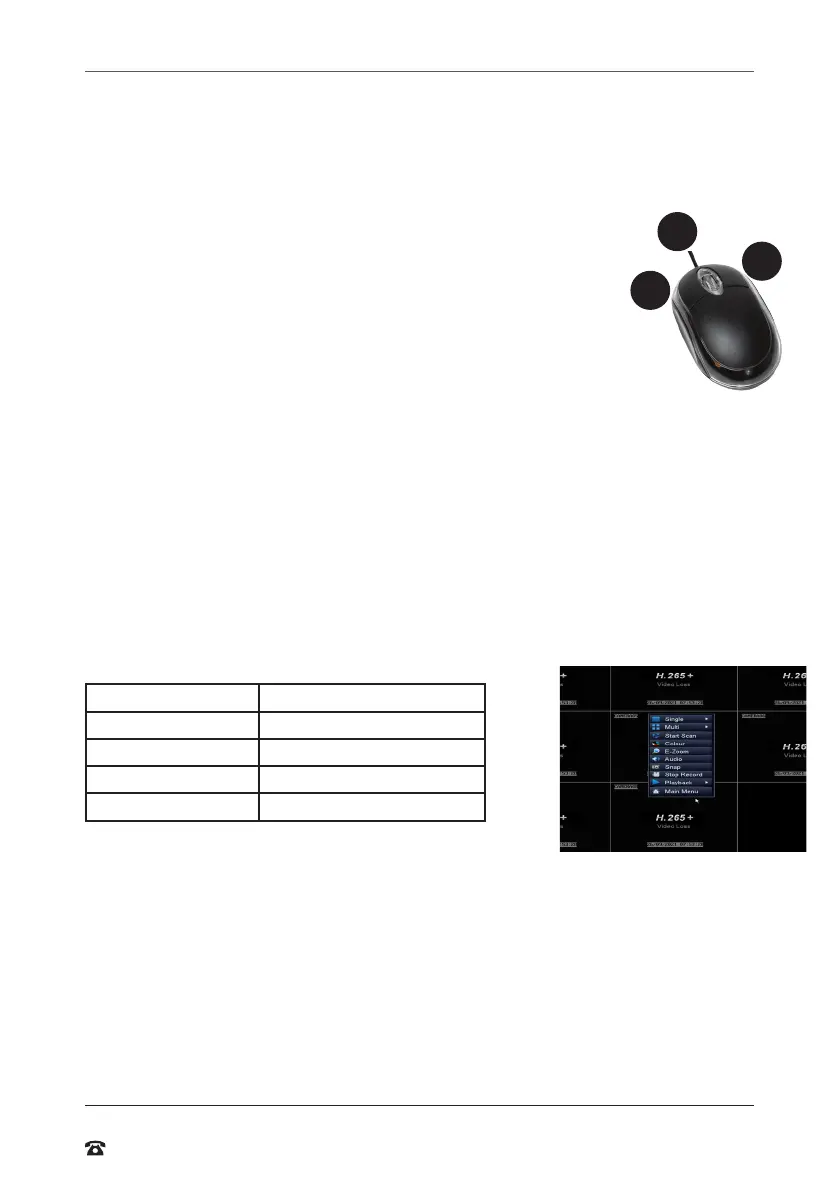
1. USB Connection – ensure the mouse USB cable is connected to the
back of the DVR unit
2. Le Mouse Button (LMB) – click to see main menu and
make selections
3. Right Mouse Button (RMB) – click to return to previous screen or exit
Menu
Setup Wizard
Before viewing footage on your monitor, smarphone or PC screen, the DVR must be fully
setup and conigured. Once the DVR has booted up and the star-up screen is displayed,
the Cocoon DVR System will run a setup wizard to assist in setting up key features of the
unit such as time & date format and language. You can enable or disable the setup wizard
to be shown on star-up screen by selecting or unselecting the check box.
Main Screen
Once the DVR unit has inished the boot sequence and you have completed the setup
wizard, the main split screen display will appear. Each camera will be labelled CH1 to CH8.
A small green square will appear in the cameras that are active. If you have not connected
a camera correctly, you will see ‘video loss’.
TIP: Once you’re logged in, double clicking a camera view with LMB will switch to single full
screen mode. Double click again to go back to split screen mode
Symbol Meaning
Green square Active 24/7 recording
Yellow square Motion activated recording
MD Motion detected
Broken network symbol No network connection
Navigating the DVR Menu & Logging in
The way to navigate the DVR menu is by using the mouse. The mouse operates in much
the same way as on your computer. Le-click to make selections and choose options.
Right-click (RMB) operates as a cancel or previous menu button.
NOTE:
• This manual assumes the user has connected the mouse to control the DVR unit
• Any standard wired USB mouse will work with the DVR unit
To enter the main menu, use RMB on the viewing screen and a quick pop up menu will
appear.
Click on the main menu option and a log in box will appear.
For initial system setup, you will need to access the main menu and login.
1
2
3



 To Next Page