16
1300 663 907
After Sales Support
help@cocoonproducts.com.au
Model number:
HE210303
02/2022
8CH 1080P SECURITY CAMERA SYSTEMMOBILE PHONE SETUP
Mobile Phone Setup
Use Apple or Android mobile to access footage
Footage can be viewed on your mobile using the ‘Cocoon HD’ iOS and Android compatible
application. Before setting up the application, ensure your DVR is connected to the
internet using the supplied ethernet cable. The DVR must have a constant, smooth and
stable internet connection via your modem to work. To connect:
• Ensure an ethernet cable is plugged into the back of the DVR in the network por.
• To check your network settings (i.e. is your DVR connected to the internet), go to Main
Menu Setup Network then press the “Test” button. If a message on the on the
le hand side says “ok” your DVR is connected to the internet
Download the Cocoon HD app on your Mobile
1. On the DVR main menu, press ‘Information’, then ‘System’ – here you will ind the
device ID and QR codes
NOTE: Your device ID can only be accessed via the Main Menu when connected to a screen/
monitor (not a laptop or computer)
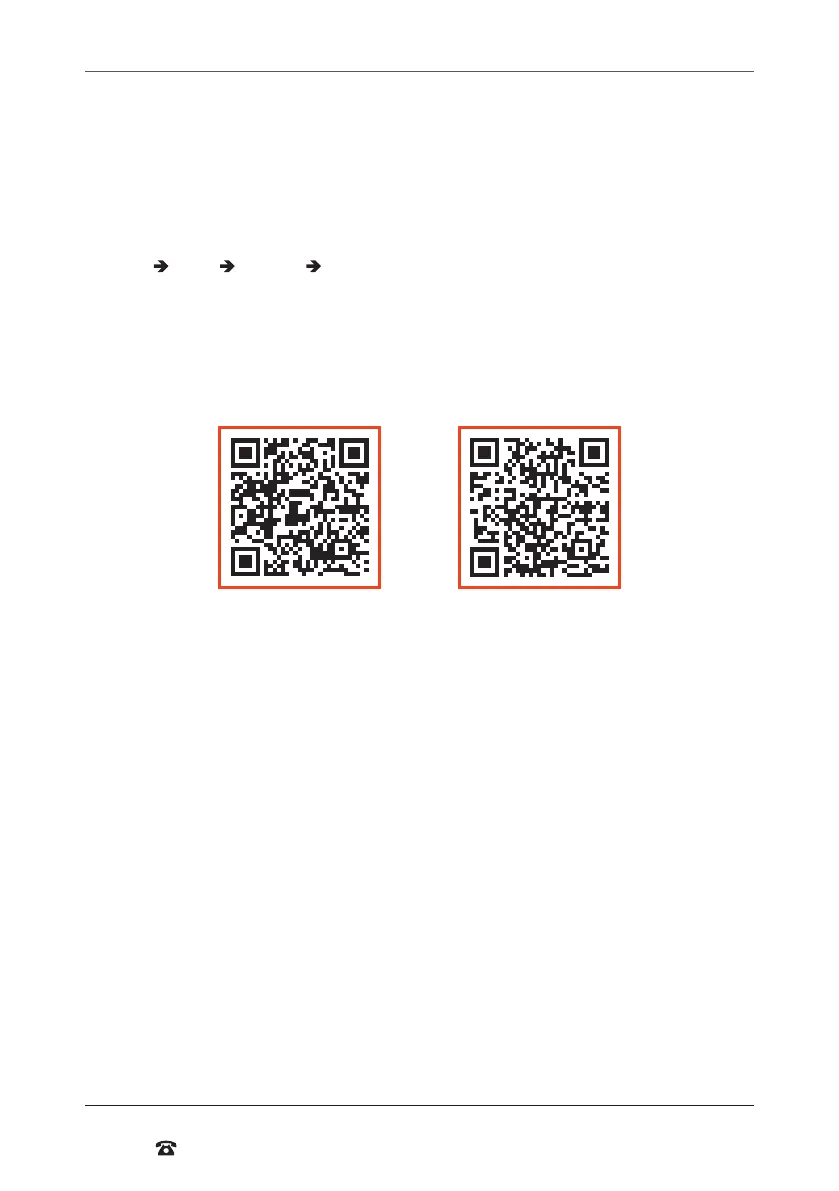
• iOS: Using a QR code reader, scan the iOS QR code to download the app ‘Cocoon
HD’ Alternatively search and download the “Cocoon HD” app in the iOS App Store
• Android: Using a QR code reader, scan the Android QR code. Alternatively search
and download the Cocoon HD app in the Google Play Store
2. Click on the app icon to launch the app
Logging into or creating a Cocoon HD account
1. Ensure your DVR is connected to the internet via the supplied ethernet cable as per
DVR Initial Setup 9.b
2. If you don’t have a Cocoon HD account, use the ‘Register’ button and input the
required ields to create one
NOTE: Your DVR’s username and password cannot be used to log into the app. If you have
never used the app, you will need to create a new username and password on the app. The
DVR User Account and the Cocoon HD App Account are separate accounts and must use
diferent usernames.
3. Follow the prompts for setup
4. Enter validation code and email address
5. Create a password. Enter twice to make sure they match and hit “register”
6. Enter your login email and password into their respective ields
7. Press the login button to login
Please write down your Cocoon HD app password
Login email:___________ Password:___________
iOS Android



 To Next Page