17
1300 663 907
After Sales Support
help@cocoonproducts.com.au
Model number:
HE210303
02/2022
8CH 1080P SECURITY CAMERA SYSTEMMOBILE PHONE SETUP
Adding your DVR device to the App
Enabling your DVR footage to be watched and recorded on your
smarphone is simple via the app.
1. Within the DVR Main Menu, navigate to Information System.
You will notice a ‘Device ID’ QR code on the bottom right hand
side. Keep this menu option open and complete the below
instructions.
2. On the Cocoon HD App select the + symbol in the top-right
hand corner and select ‘add device’ to add the Cocoon HD
security system. From there you will be within the add device
sub-menu
3. Select type of device you wish to add. In this case it will be
“DVR”
4. Pair your device using one of two methods:
a. Scan QR Code Device ID
On the app, click on the Scan QR Code button. Your camera
should pop up which will allow you to scan your DVR’s unique
QR code found on the DVR’s Main Menu (as above in point 1). It will scan your device
and input your device ID automatically.
b. Manually type the Device ID
From the QR code scanning page select ‘Enter device UID by manual’. Type the
Device ID (as written above QR codes).
5. Name your DVR system or select from the ‘common names’ ofered in the application
eg. home, oice, etc. Once named select ‘Next’.
6. Ensure your DVR is connected to the internet via the supplied ethernet cable as per
DVR Initial Setup 9.b and select ‘Next’.
7. The pairing process will now begin, this may take several minutes to register.
NOTE: Step by step prompts are located within the app to help you through this process.
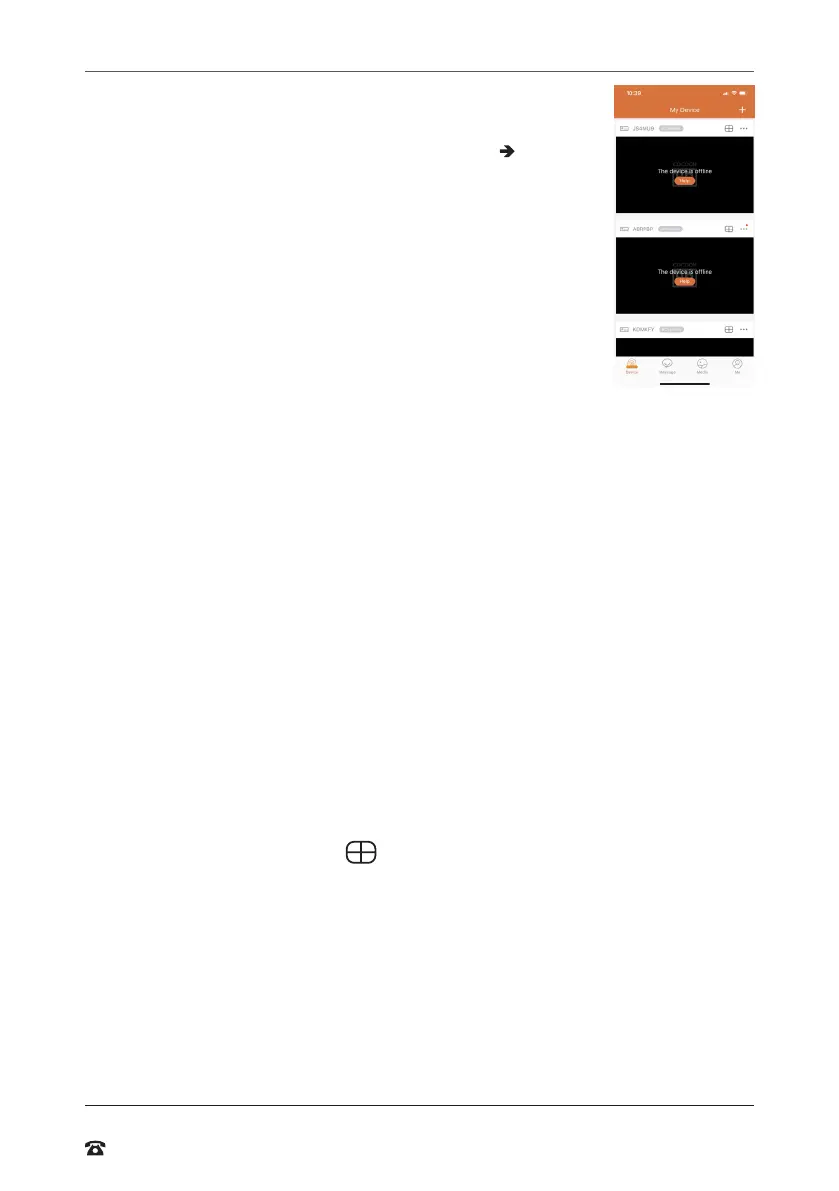
Once paired, return to your app and return to the ‘My Device’ menu.
Navigating the App menus
Device – This screen shows you basic information about your device and allows you to
access footage
Message – Receive and view messages from with your APP
Media – View photos on videos from the APP you have manually recorded and saved into
the app on your Smarphone
Me – Update details such as app password and logout of the APP.
Viewing your DVR footage
1. On the ‘Device’ menu click the icon next to your DVR’s name to begin live
steaming
2. If paired correctly you will be able to see your footage.
NOTE: If you receive a ‘Oops, connection failed due to password error, please try again’
select ‘Retry password’.
3. Enter the DVR system password as per page 15 and conirm.
4. Click the screen to bring up your sub menu at the bottom of the screen. Select the
number in the middle of the menu to change to 1, 4 or 8 camera view.
5. Hit the return button in the top le-hand corner when you wish to return to your
device page.



 To Next Page