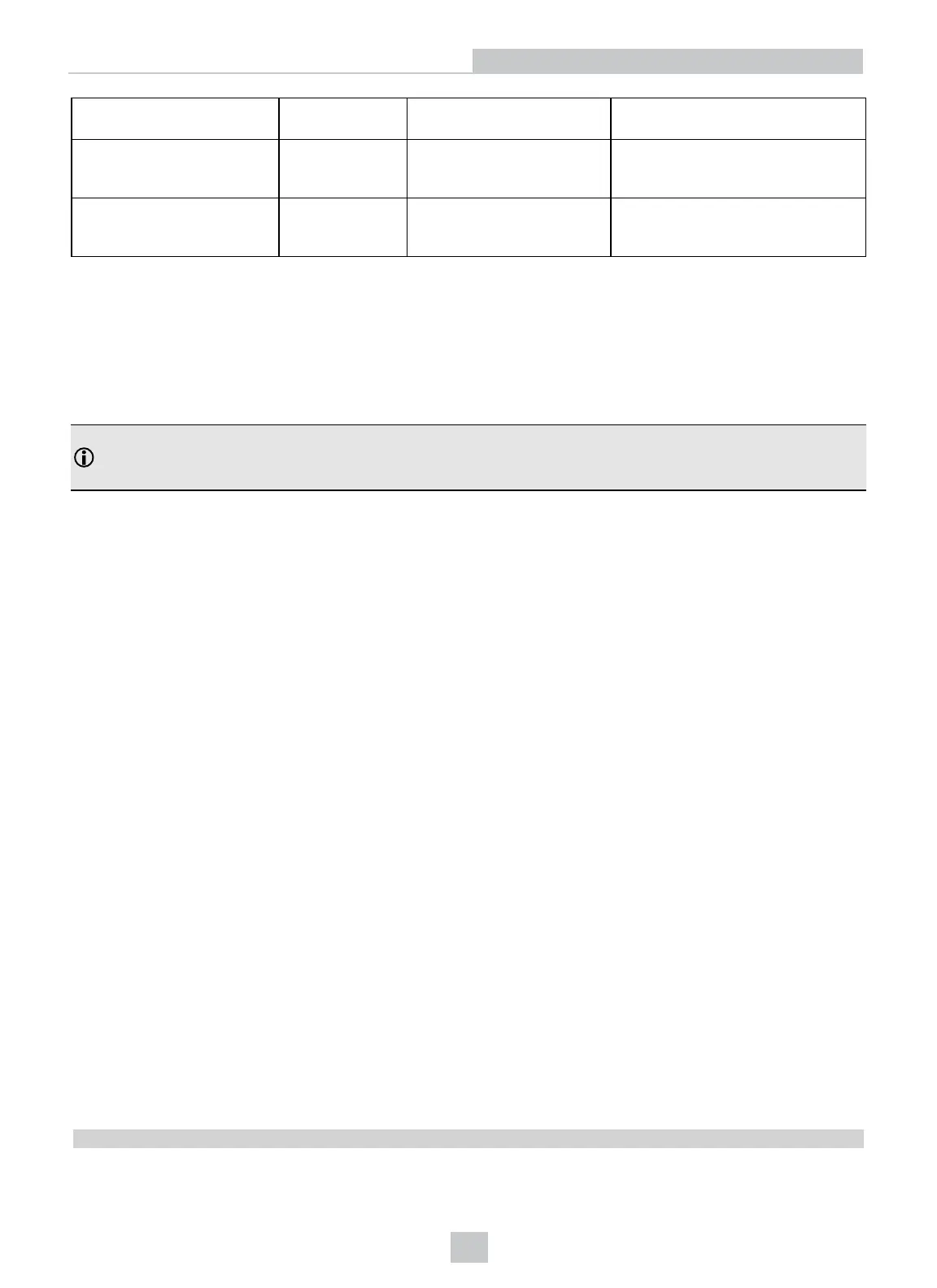
||>GET
SYMBOL.DATAMATRIX\r\n
ON
||[0]ON\r\n
Is the DataMatrix symbology
enabled?
||>SET
SYMBOL.DATAMATRIX
ON\r\n
no response
||[0]\r\n
Enable the DataMatrix symbology.
||>TRIGGER ON\r\n
decoded data or
no-read response
||[0]\r\n ||[1]decoded
data or no-read
response in base64\r\n
Trigger Command
DataMan SDK Development
You can use DMCC as an application programming interface for integrating a reader into a larger automation system.
You can also use the DataMan SDK (hereafter referred to as SDK). The following sections give detailed information
about installing the SDK, its contents, building the SDK sample application, and about the utility source codes provided
with the SDK.
Note: If you want to create your own application from scratch and you want to communicate with the DataMan
reader through the serial port, make sure you set port.DtrEnable = true, if the port is an instance of the SerialPort
class.
DataMan SDK Contents
The DataMan SDK comprises the SDK binary files and their documentation, along with code sources of some helper
utilities and a sample application.
The binary files are available for two platforms: one for Microsoft .Net (PC) and one for Microsoft .Net Compact
Framework (CF). The name of each file corresponds to the platform it belongs to (PC/CF). There are two components for
each platform, one is the DataMan SDK core itself (Cognex.DataMan.SDK), the other is for discovering available devices
to be used with the SDK (Cognex.DataMan.Discovery).
The source codes are provided in the form of complete Microsoft Visual Studio projects. In order to build the SDK sample
application, open the sample code’s solution in Microsoft Visual Studio and choose Build solution.
Using the SDK
Usual steps in a typical DataMan SDK application
1. Discover the device (may be omitted if the device address is known in advance).
2. Subscribe to the events you are interested in (e.g. result string arrived event).
3. Connect to the device.
4. Send DMCC commands to the device (e.g. trigger).
5. Process the incoming result data (e.g. show result string).
Accessing the DataMan SDK library
To use the SDK for your own purposes, perform the following steps:
1. In Microsoft Visual Studio, click Create Solution/Project.
2. Under Project, right-click References and choose Add Reference…
3. In the pop-up window, click the Browse tab and look for the Cognex.DataMan.SDK.*.dll file (where * refers to the
platform you are working on, either PC or CF) in the directory where you installed or copied the binary files.
4. You can add the following line to the beginning of your code:
using Cognex.DataMan.SDK;
20
DataMan Application Development





 To Next Page