configure your reader and your PC.
Link Local Addressing automatically requests and assigns an IP address. In the DataMan Setup Tool, this corresponds
to the DHCP Server communication option. This is the default, you do not have to make any changes.
You can also manually configure your DataMan device to reside on the same subnet as the PC. This option is detailed in
the following section.
Configuring the DataMan to Reside on the Same Subnet as the PC
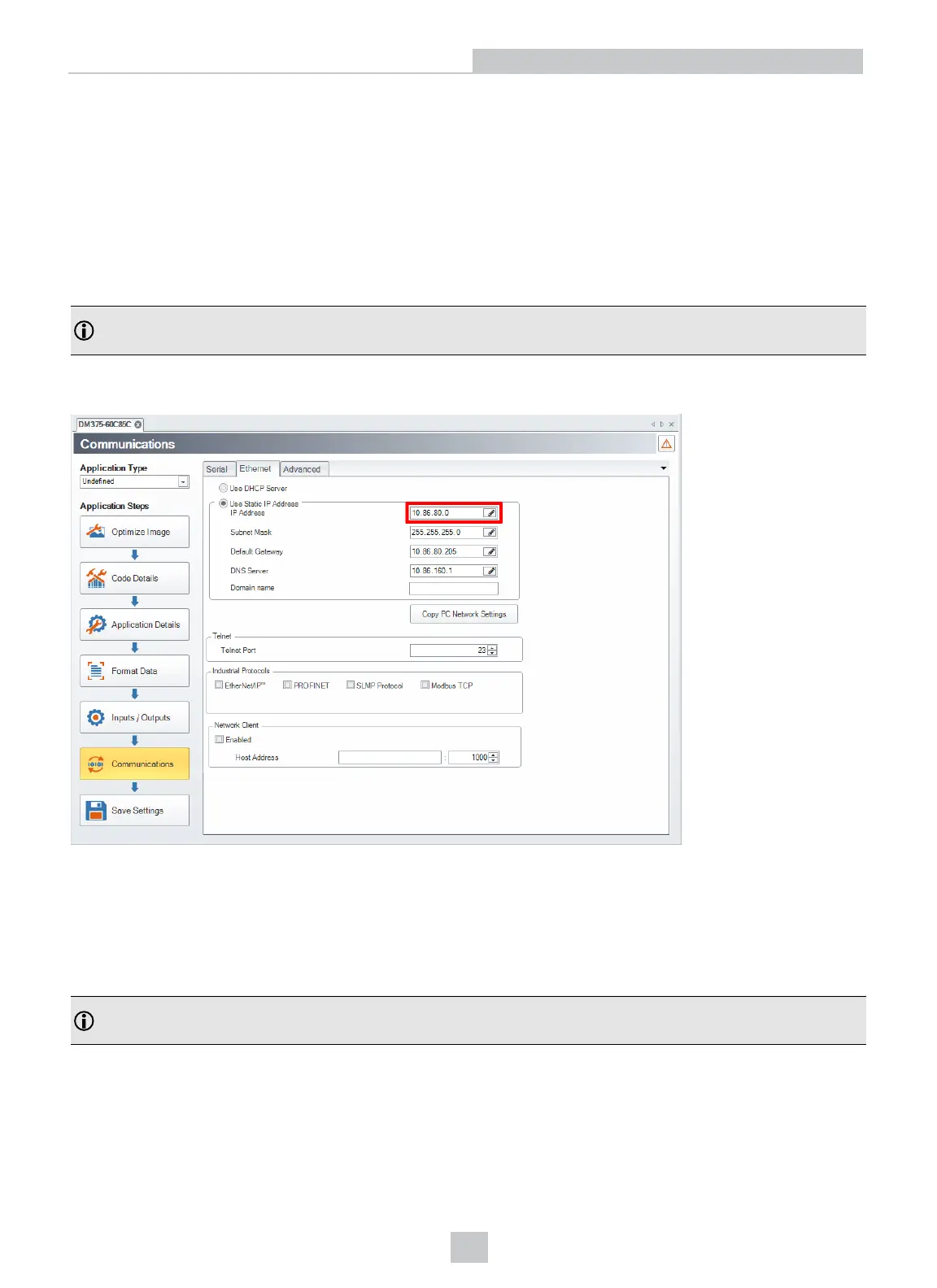
In the DataMan Setup Tool's Communications application step's Ethernet tab, click the Copy PCNetwork Settings
button. Choose the network you want to use and the settings will be copied in the Use Static IPAddress window.
Note: Remember to update the IPaddress of your DataMan device. The IPaddress that is copied belongs to your
PC.
A triangle with an exclamation mark in the upper right-hand corner reminds you that you have to reboot the device in
order for the changes to take effect.
To force the network settings on your DataMan, select Use Static IPAddress and enter an IPAddress and Subnet Mask
that will be on the same subnet as the PC. Make sure this IP address is not yet in use (for example, test by pinging it). For
example:
l IP Address: 169.254.135.200
l Subnet Mask:255.255.0.0
Note: The default Subnet Mask is 255.255.255.0. You can set it back to default by scanning the Reset Scanner to
Factory Defaults Configuration Code.
12
Networking




 To Next Page