ComNav G3 GPS Compass Installation & Operation
Document PN 29010092 V2.3 - 20 -
The heading sensor in your network may send out heading in Magnetic or True. Often you will let
G3 display the heading as-is in either Magnetic or True, therefore the Heading in Settings is set
as Auto.
Sometimes you may prefer the heading be displayed in Magnetic, even though your sensor
sends it out in True. In such situation you will have to change Heading setting from Auto to
Magnetic.
G3 need to know the magnetic variation to convert a magnetic heading to true, or vice versa.
Some heading sensors have the capability to provide the magnetic variation, some don’t. If G3
cannot get the magnetic variation from the network, you can enter the value of Magnetic Variation
manually in variation setting.
Entering a number or texts
With only 5 buttons on the device, it can be difficult to enter a large number, such as the magnetic
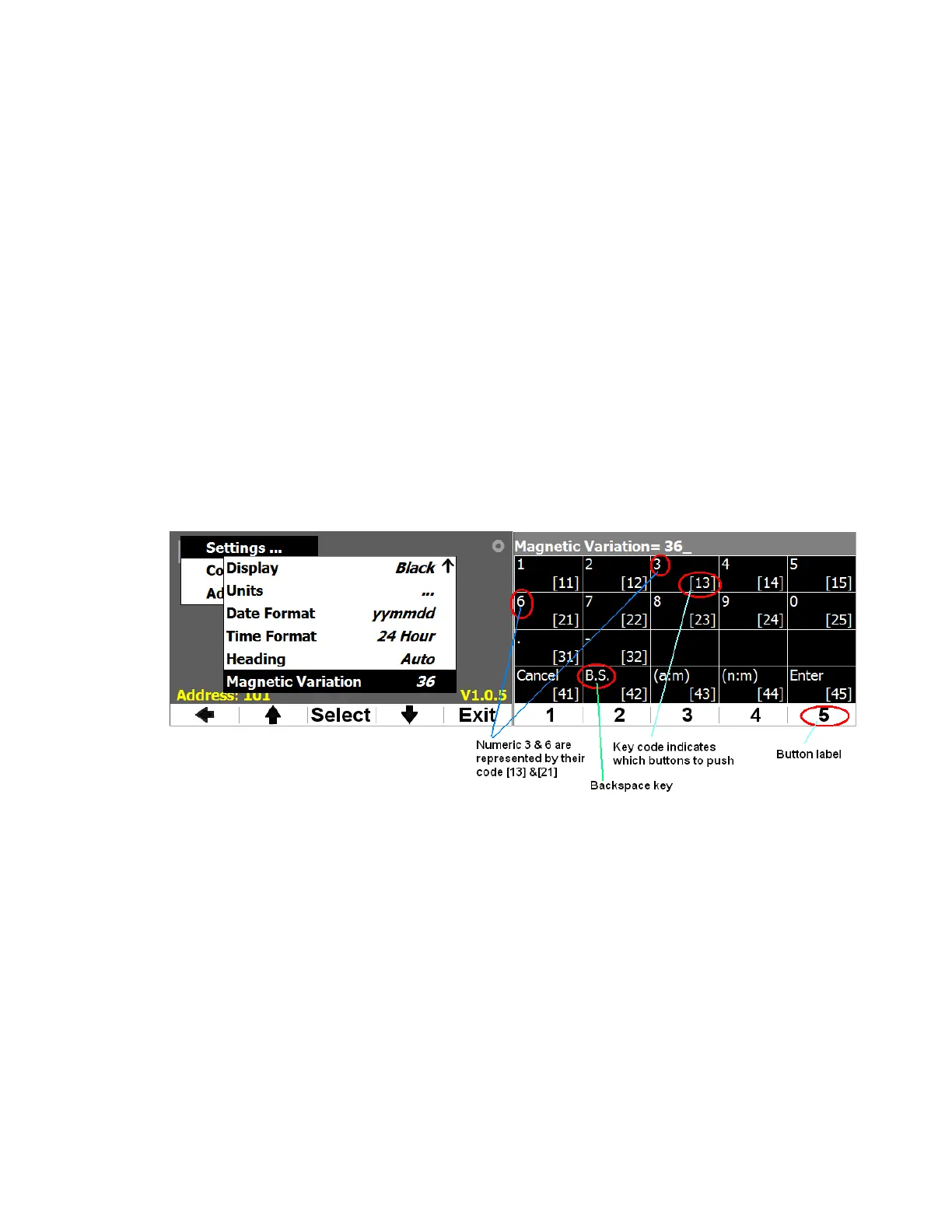
variation. For this reason, G3 provides a virtual keypad. Once you push Select when Magnetic
Variation is highlighted, you will see the screen in the right of Figure 19.
The virtual keypad is very intuitive. The buttons are labeled from 1 to 5. A 2-digit code in the
square bracket represents a numeric or function key. For example, to enter 36 for the variation,
you press button 1 and button 3 to enter “3”, and then press button 2 and button 1 for “6”. To
finish the operation, you press button 4 and 5 as “Enter”. Once Enter or Cancel is received, G3
goes back to the Main menu.
The softkey Edit is often used to bring up the virtual keypad whenever needed.
Figure 19 - Virtual Keypad
Control your display
You can change the backlight level to any intensity level through the menu. Or you can check the
backlight level by the menu. There are 4 levels for Backlight setting.
Using menu you can also select a Display mode from Blue, Green, Black, and Night.
Blue, Green and Black gives 3 different background color; they are all day vision
mode. In Night mode the screens are shown mostly in black or red to minimize the
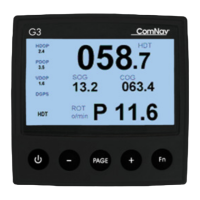
light to the environment. The screen below (Figure 20) shows the compass screen in
Night mode.


 To Next Page