EasyManua.ls Logo

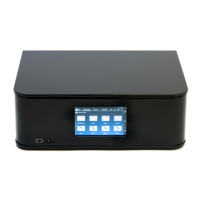
Convert Technologies PLATO - Front View; Rear View

Convert Technologies PLATO
102 pages
Print Icon
To Next Page IconTo Next Page
To Previous Page IconTo Previous Page
Loading...
Plato Complete Guide V1.3.0
Convert Technologies 11
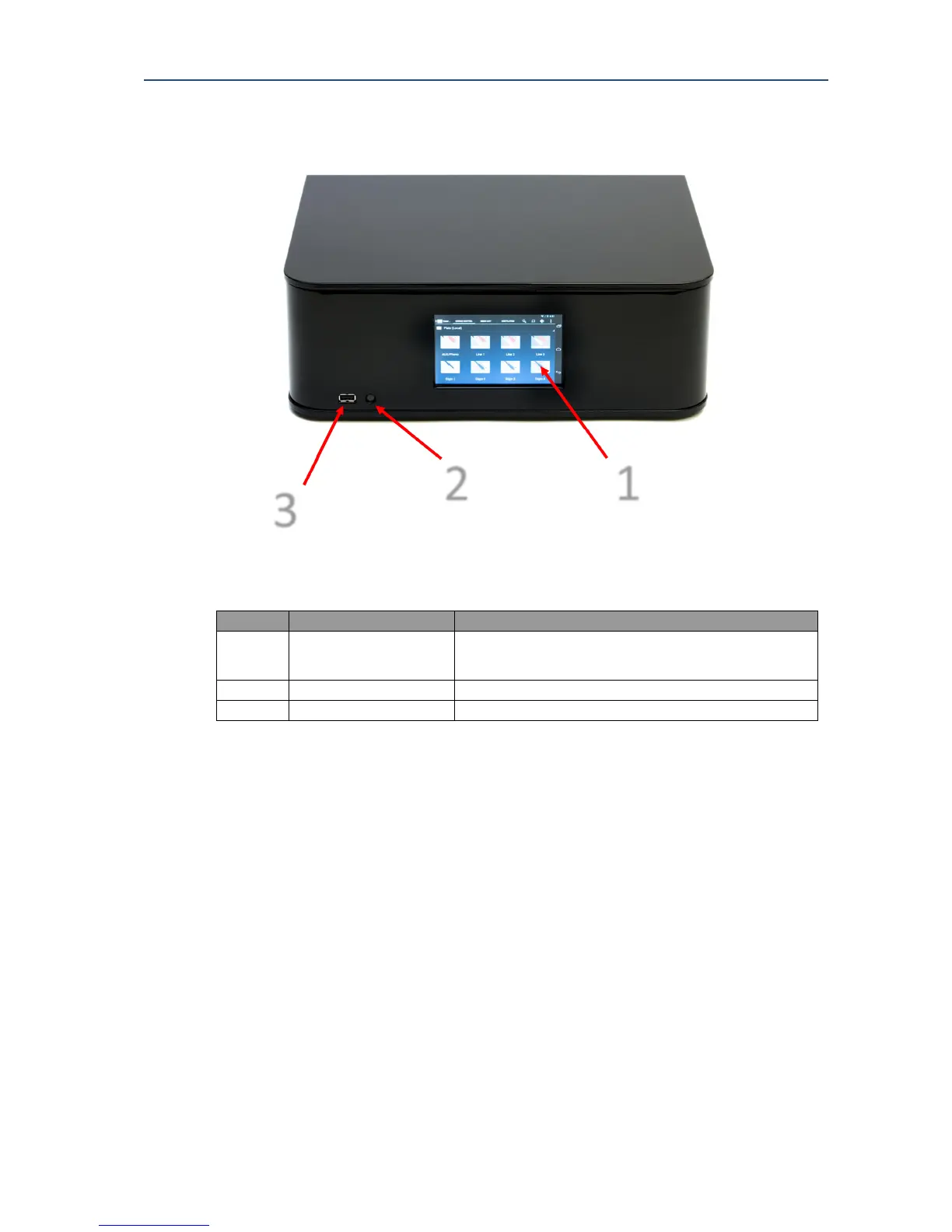
2.1. Front View
Item No
Item
Description
1
Android Display
A touchscreen display and app controller to operate
your Plato unit.
2
System On/Off Button
To switch your Plato unit to standby mode.
3
USB Connector
To connect a USB device to transfer media files.
Plato is set by default to go to sleep after 10 minutes of inactivity using the display. This can
be changed by selecting the android settings/display/sleep timer or by selecting “standby
timer” in the Plato App
If your Plato units goes to sleep, simply tap the screen to wake it up. Should tapping the
screen not wake the unit, simply single press the System On/Off Button once and wait
approx. 7 seconds.
2.2. Rear View
The design of Plato is highly modular. There are separate modules for:
Pre-amplifier
Power amplifier
Power supply
3

1
2

Table of Contents