56
16-1-5 SUB SYSYTEM UTILITY BUTTONS
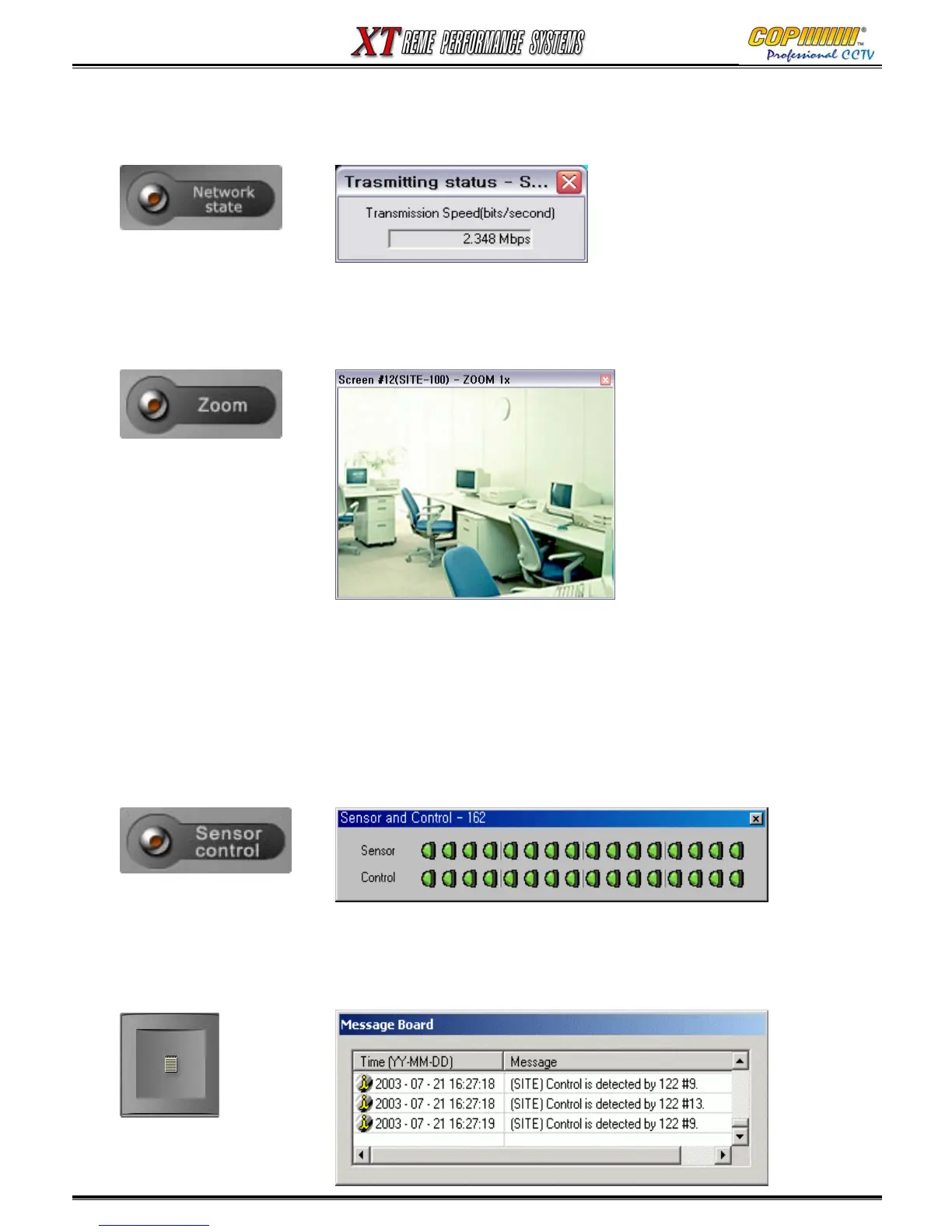
Network Status button : displays the current data rate which is being received by the CMS Software.
Zoom : The selected segment image can be zoomed-in up to X5 magnification.
Select the screen segment, then click the ‘ZOOM’ button. The segment will be displayed in a
separate window. Click the right mouse button on the centre of the area in that segment you want
to zoom into. Click again to zoom closer. Click right mouse button 5 times to return to X1.
Sensor & Control : Not available: May 2006.
This will be able to control devices at the DVR site using the alarm outputs.
Message Board : Not available: May 2006.
The details are displayed of sensor and control detection events in the message board in real time.
Click the Message Board Icon to show the Message Board Window, click the Icon again to close
the window.
ICON
16. CMS
PTZ Control: This must be enabled in the DVR and CMS Setup Menus. (Refer to each Manual Section)
If a camera has this capability, a colour PTZ icon will be displayed in the top left corner of the camera
display segment. To open the control window click on this icon.
Note: With the inherent latency of control over any network, it is advised that the camera speed be set to
a suitably slow speed to avoid “overshoots”.



 To Next Page