Part No. 4801-5338 Rev 2-2015 Evolution 4000 13 of 86
** PASSWORD PROTECTED **
You must enter the current controller
Password to continue.
Press the ENTER button to proceed.
Password: XXXX
5.4 Status Display
The following is an example of Main Display screen displaying a portion of the standard Alarm status
screen. The Main Display screen displays both status and programming screens.
5.5 Locks
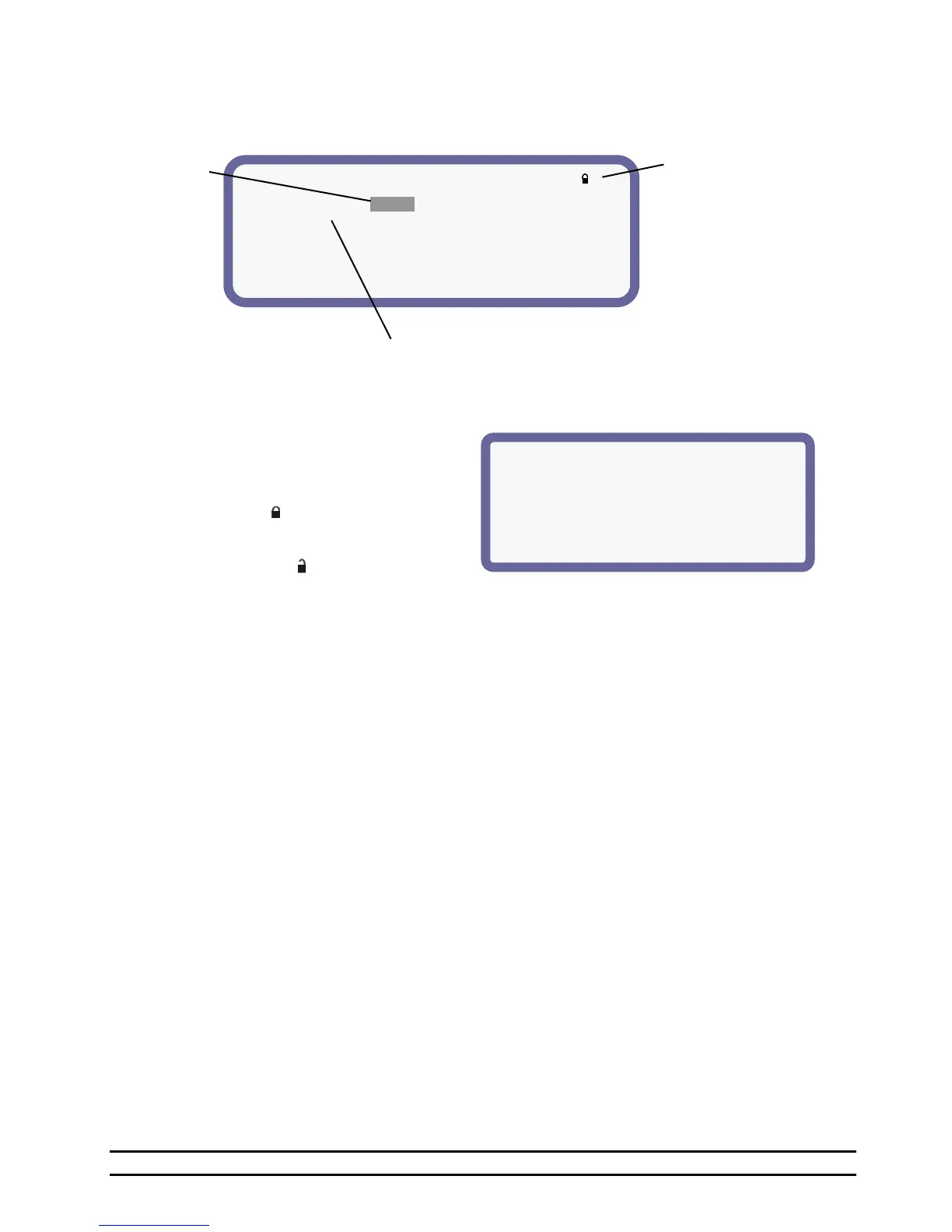
A lock feature has been included for additional
security to the Evolution 4000 settings. This
feature locks the Program Setup screens to
prevent changes. Locked screens are noted by
a lock symbol ( ) in the upper right of the
screen. The Target Conditions and Minimum
Vent screens are not lockable. When the lock
feature is disabled ( ), all screens will show
unlocked until the password is changed. See
Section 7.14.
NOTE: The Diagnostics screen can only be unlocked using the HHI Service Code; Contact your local
dealer for assistance.
6. Viewing Navigator Status Screens
The following seven screens are available: Current Conditions, Target Conditions, Timers & Clocks, Stage
Conditions, Historical Data, Alarm Status, Program Setup. The Navigator selects the desired status screen
by pressing the up and down SELECT arrows. The first screens display status information and various
setup options. The last screen is the Program Screen. To change program parameters the Program Setup
Screen must be selected.
TEMPERATURE LIMIT STATUS LAST ALARM
(1)High Temp 85.0° OK 08/15-10:36p
(2)Low Temp 65.0° OK 08/10-03:36p
PRESSURE LIMIT STATUS LAST ALARM
(3)Cycle Press 0.04 Off 08/09-07:36p
(4)High Press 0.15 Off 07/22-01:36p
(5)Low Press 0.03 Off 07/13-06:36p
The Scroll Symbol is a
flashing down arrow () that
indicates more text outside
of display screen. Use
up/down editor arrow keys
to scroll text or use the
Page Button.
The Link Symbol ( ) is a right
pointing arrow and indicates a
link to another display screen.
To change
parameter:
Select parameter
using editor
arrow keys. Use
+ and - keys to
change value.



 To Next Page