C Display panel. (This remains blank unless used by the current function)
D Sub-categories available for further selection. (In this example, clicking the Accept
button will drill down further into the highlighted Favourites sub-category.)
E Tab-based main menu.
4.2 CZone Functions by Group
4.2.1 Modes
The Modes group is very simple to navigate because it has only one level. This is deliberate:
changing modes is intended to reconfigure the systems operation as easily as possible. Modes will
vary between vessel or vehicle and are usually configured by the builder, although can be modified at
a later date with the CZone Configuration Tool.
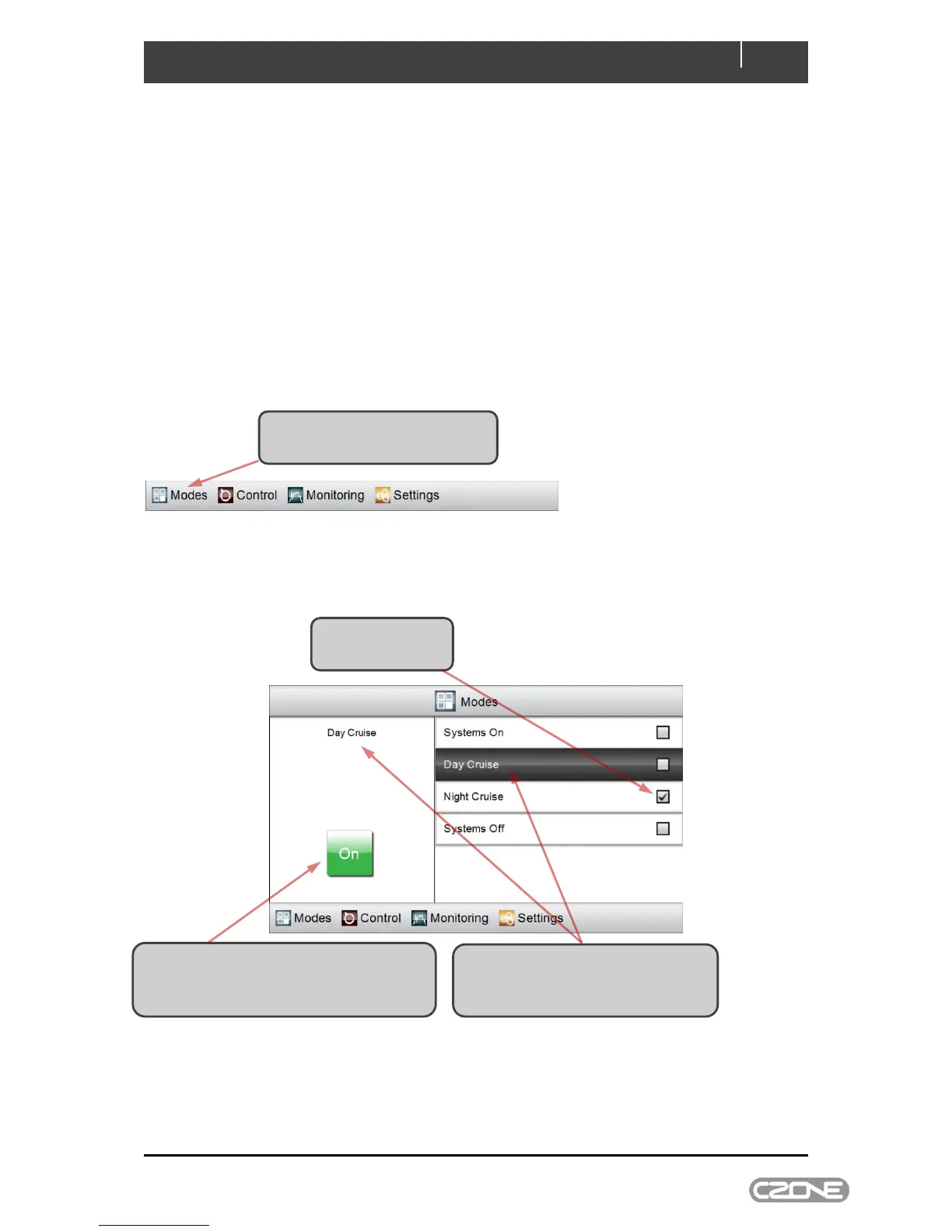
The Modes home-page appears, listing all available operating modes that have been configured for
the system. The topmost mode is highlighted. The following is an example screen showing how to
change modes:
2 Click to highlight the mode that you
want to change to. Its name is
tracked in the display pane
3 Click On to confirm the mode change.
The tick moves to the new mode and
CZone changes the systems operation



 To Next Page