37D-Link DAP-2690 User Manual
Section 3 - Conguration
Schedule
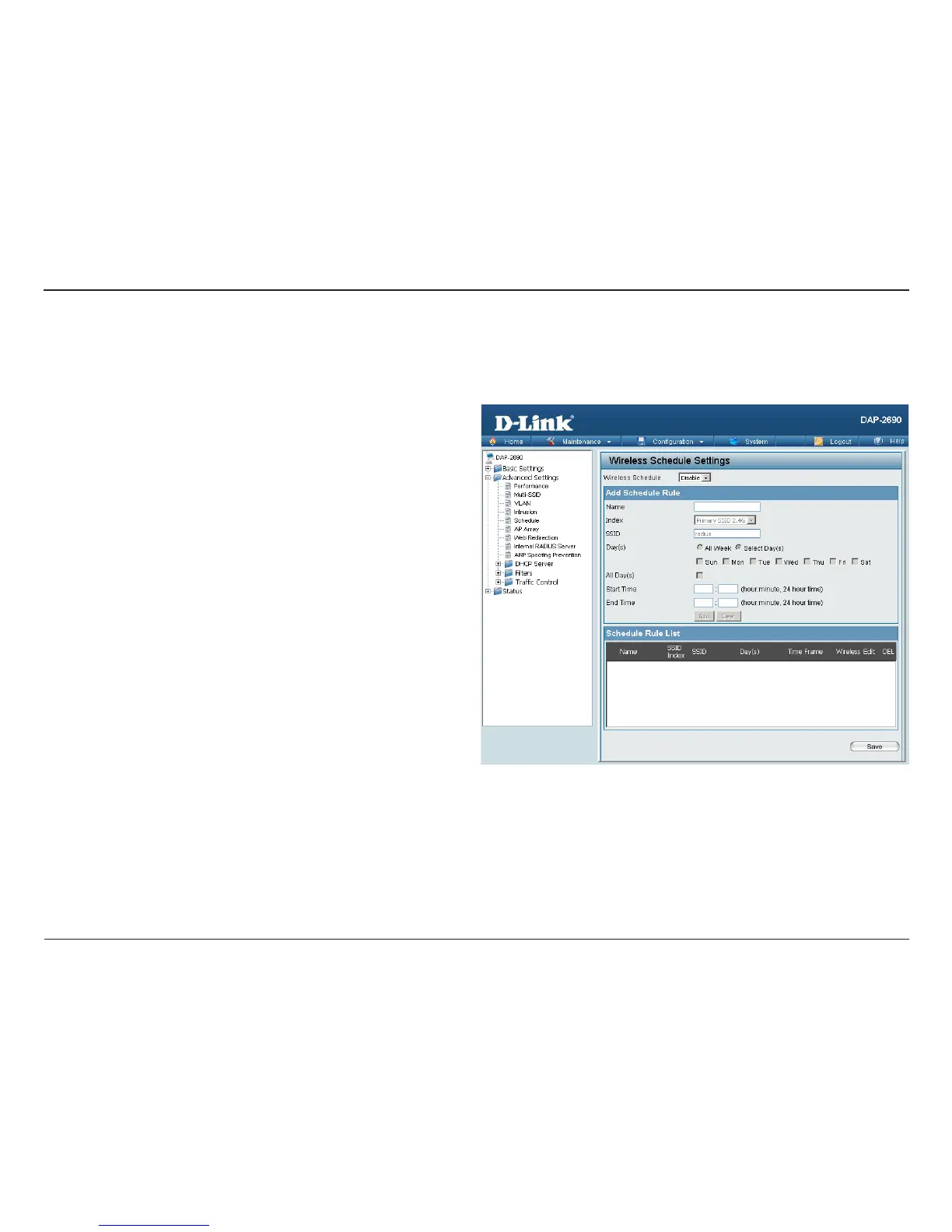
Use the drop-down menu to Enable the device’s scheduling
feature.
Enter a name for the new scheduling rule in the eld provided.
Use the drop-down menu to select the desired SSID.
This read-only eld indicates the current SSID in use. To create
a new SSID, go to the Wireless Settings window (Basic Settings
> Wireless).
Toggle the radio button between All Week and Select Day(s).
If the second option is selected, check the specic days you
want the rule to be eective on.
Check this box to have settings apply 24 hours a day. If the
settings are not to apply 24 hours a day, enter the desired
starting and ending times in the next two elds.
Enter the beginning hour and minute, using a 24-hour clock.
Enter the ending hour and minute, using a 24-hour clock.
Wireless
Schedule:
Name:
Index:
SSID:
Day(s):
All Day(s):
Start Time:
End Time:
The Wireless Schedule Settings window is used to add and modify scheduling rules on the device. When the information for the new schedule rule is
nished, click the Add button. To discard the new schedule rule settings, click the Clear button. Click the Save button to let your changes take eect.




 To Next Page