EasyManua.ls Logo

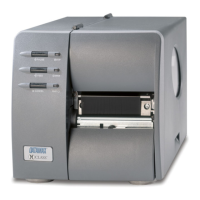
Datamax M-Class Mark II Series - User Manual

Datamax M-Class Mark II Series
100 pages
Print Icon
To Next Page IconTo Next Page
Loading...
Operator’s Manual

Questions and Answers

  • K
    Kenneth SmithJul 28, 2025
    How to fix a blank LCD screen on Datamax M-Class Mark II Printer?
    • R
      Robert VaughnJul 28, 2025
      If the LCD screen on your Datamax Printer is blank but the Ready Indicator is on, the display contrast may be set too low. To resolve this, press and hold the MENU Key for 10 seconds, or until the display reappears.
  • N
    Natalie RodriguezAug 1, 2025
    Why is my Datamax Printer printing light on one side?
    • C
      Cole PerezAug 1, 2025
      If your Datamax Printer is producing light prints on the right side of the label, the Media Width Adjustment may be incorrectly set; see Section 5.3. Also, the Printhead or Platen Roller may be dirty or worn. Clean them, or call for service.
  • T
    thomas58Aug 5, 2025
    What to do if Datamax M-Class Mark II Printer is feeding erratically?
    • B
      Bryan KirbyAug 6, 2025
      If you are experiencing erratic feeding with your Datamax Printer, it may require Calibration. See Section 3.5.
  • J
    James HunterAug 10, 2025
    What to do if Datamax M-Class Mark II Printer cannot load media through the cutter?
    • J
      Jennifer RothAug 10, 2025
      If your Datamax Printer cannot load media through the optional cutter, turn ‘Off’ and unplug the printer before proceeding. Ensure that the cutter is properly installed. Plug in and turn ‘On’ the printer. You should hear the cutter blade rotate and position itself properly. However, if the problem continues call for service.
  • A
    Allison MuellerAug 14, 2025
    What to do if my Datamax M-Class Mark II Printer is printing strange characters?
    • D
      Dylan CampbellAug 14, 2025
      If your Datamax Printer is printing strange characters instead of the label format, it might be in Hex Dump Mode. Refer to Section 6.3. Alternatively, if you're using the serial port, verify that both the host and printer port settings are aligned. The printer may be set to eight data bits while the host is set to 7 (or vice versa).
  • C
    Craig SimsAug 19, 2025
    Why Intellifont™ will not print on Datamax Printer?
    • E
      Emily WilliamsAug 19, 2025
      If Intellifont™ will not print on your Datamax Printer, note that the Intellifont™ format is Little/Big Endian specific, and the printer uses Big Endian. Consult your font supplier for more information.
  • P
    Phillip WallAug 22, 2025
    How to troubleshoot parallel port communication on Datamax M-Class Mark II?
    • P
      Patrick NealAug 22, 2025
      If you cannot communicate through the parallel port of your Datamax Printer, observe the Ready Indicator as the format is sent to the printer. If it does not flash, check the parallel cable type. Also, check the protocol and port settings between the printer and host.

Summary

Getting Started

Introduction

Provides an overview of the printer's features and manual content.

Unpacking

Details the items included with the printer and additional requirements.

Printer Setup

Printer Connections

Explains how to connect the printer via USB, serial, parallel, or network interfaces.

Loading Media

Provides step-by-step instructions for loading various types of media into the printer.

Media Sensor Adjustment

Guides users on how to adjust the media sensor for optimal label detection.

Loading Ribbon

Details the procedure for loading thermal transfer ribbon correctly into the printer.

Printer Operation

Front Panel (Non-Display Printers)

Describes the lights and buttons on the front panel of non-display models.

Front Panel (Display-Equipped Printers)

Details the control panel, display, and soft keys for display-equipped models.

Windows Driver

Covers the installation and use of the Windows printer driver.

Printer Configuration Utility (DMXConfig)

Explains how to use DMXConfig for printer setup and configuration.

Media Calibration

Provides procedures for quick, empty, and standard media calibration.

User-Defined Label

Explains how to create and populate labels with variable data.

Menu System

Menu System Overview (Display-Equipped Printers)

Introduces the three primary menu branches: User, Advanced, and Test.

The User Menu

Covers basic printer settings and functions accessible via the User Menu.

The Advanced Menu

Details all setting, control, and functional selections in the Advanced Menu.

The Test Menu

Outlines the various test and informational label selections available in the Test Menu.

Menu Details

Explains specific menu selections like Media Settings, Print Control, and more.

Maintenance and Adjustments

Cleaning Procedures

Outlines recommended maintenance schedules and printhead cleaning instructions.

Printhead Adjustments

Covers media width, burn line, pressure, and darkness adjustments for the printhead.

Printhead Replacement

Provides a step-by-step procedure for replacing a damaged printhead.

Printer Resets and Updates

Describes printer resets and how to download firmware and fonts.

File Handling Messages

Lists common file handling messages and their possible solutions.

Troubleshooting

Problem Resolution

Offers solutions for common printing and operational problems.

Fault and Warning Messages

Lists printer fault and warning messages with descriptions and solutions.

Hex Dump Mode

Explains how to use Hex Dump Mode for diagnosing communication and DPL errors.

Appendix A - Specifications

Mechanical Specifications

Details the printer's physical dimensions, weight, and operating environment.

Printing Specifications

Covers print method, speed, resolution, and memory details.

Media and Ribbon Specifications

Provides information on media types, widths, and ribbon compatibility.

Communications Specifications

Lists interface types, baud speeds, and handshaking protocols.

Appendix B - GPIO Port

GPIO Port Configuration

Describes how to enable and configure GPIO functions for applicator devices.

GPIO Port Connections and Functions

Details the pin assignments and functions for the GPIO port.

Appendix C - Paper Menu Setup

Printer Setup Mode Button Functions

Explains how to use buttons in Printer Setup Mode for configuration.

Calibration Mode Button Functions

Details button functions for performing automatic and manual printer calibration.

Appendix D - Changing the Language

Changing the Menu Language

Guides on how to add or modify language columns in the system dictionary.

Advanced File Handling Information

Explains advanced file handling for language updates and module management.

Datamax M-Class Mark II Series Specifications

General IconGeneral
Memory16 MB DRAM, 8 MB Flash
Operating Temperature40°F to 95°F (4°C to 35°C)
Print MethodThermal Transfer/Direct Thermal
Resolution203 dpi, 300 dpi
Print Speed152 mm per second
InterfacesUSB, Serial
Optional InterfacesWireless 802.11b/g
Media SensorReflective and Transmissive
Media TypeLabels, Tags, Tickets
Media Width19 to 118 mm
Media Thickness0.0025 to 0.0100 inches (0.0635 to 0.254 mm)
Ribbon Width1.0" (25.4 mm) to 4.09 inches (27 to 104 mm)
Ribbon Length1968' (600 m)
Storage Temperature-4°F to 122°F (-20°C to 50°C)
Max Print Length99 inches (2514 mm)

Related product manuals