AP25 Installation and Operating Guide Page 79
AP25 Installation & Operating Guide Document # 9301H79500 Ver. 1.00
4.3.7.1 Current Audio EQ
This drop-down list allows you to select from the list of available EQ setups. The selection will become
the current audio equalization setup.
4.3.7.2 Edit EQs
Selecting the Edit EQs butt
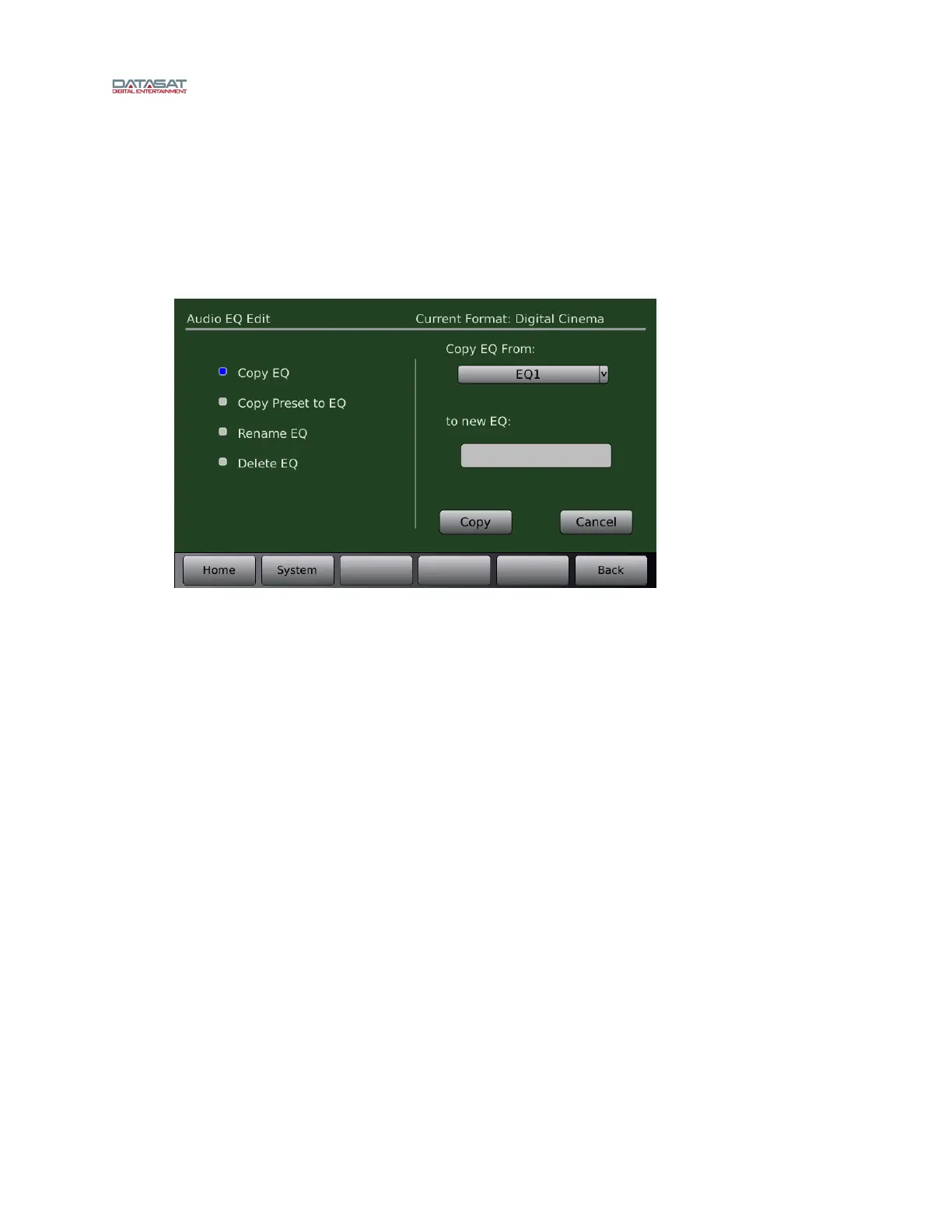
on from the Audio EQ Setup screen will open the screen below.
Menu (System) > Formats > Audio EQ > Edit EQs
Figure 55. Audio EQ Edit Screen
Available options are:
Copy EQ – Use an existing EQ setup as a template for a new one. Select the EQ you wish to
copy from by selecting it from the dropdown box. Then, touch the “to EQ” box to bring up
the virtual keyboard and enter a name for the new EQ. Press the Copy button to complete the
process, or press Cancel to quit.
Copy Preset to EQ – Select a preset EQ setup and use it as a template for a new one. Press
the Copy button to complete the process, or press Cancel to quit.
Rename EQ – Give an existing EQ setup a new name. Select an existing EQ setup from the
drop-down list on the right side of the screen. Touch the “To” box to bring up the virtual
keyboard and enter a new name for the EQ setup. Press the Rename button to complete the
process, or press Cancel to quit.
Note: The EQ name is changed for all formats that use the EQ.
Delete EQ – Select an existing EQ setup from the drop-down list on the right side of the
screen. Press the Delete button to complete the process, or press Cancel to quit.
4.3.7.3


 To Next Page