268
| Dell Document Hub
1 In the Dell Document Hub screen, tap Scan.
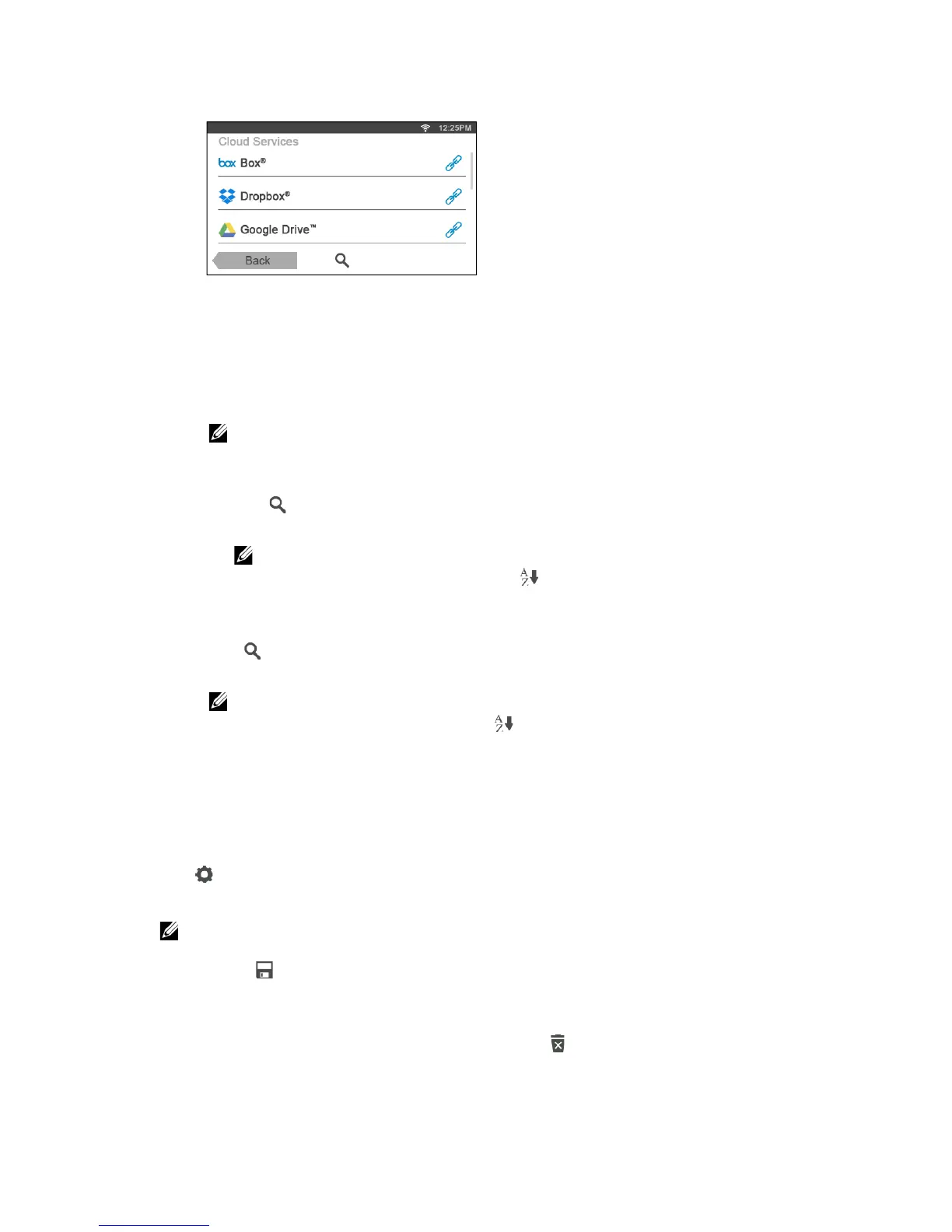
2 Select the destination you want to save the scanned data to by performing either of
the following:
• Tap a cloud service you want to save the scanned data to, and then perform
either of the following:
– Tap the location you want to save the scanned data to.
• If the location is not displayed, swipe the screen.
– Search the files in the selected cloud service.
a Tap .
b Enter the file name or keywords, and then tap Search.
• You can sort the results by tapping and selecting the sorting order.
c Tap Back to return to the previous screen.
• Search the files across multiple cloud services.
a Tap .
b Enter the file name or keywords, and then tap Search.
• You can sort the results by tapping and selecting the sorting order.
c Tap Back to return to the previous screen.
3 Tap Next.
4 Tap the File Name text box, and then enter the file name.
5 Tap the File Format box, and then select a file format.
6 Tap , and then check and change the scan settings.
See "Scan Settings."
• You can save your print settings and file path to the cloud service as a favorite.
1 Tap in the Scan Settings screen.
2 Name your favorite in the Save Favorite screen, and then tap Save.
• If you choose a name for a favorite that is the same as an existing favorite, the settings and the
file path will be overwritten.
• You can delete an unnecessary favorite by tapping .
• Once you save your settings as a favorite, you can recall those settings the next time you sign
in to Dell Document Hub from any printer of the same model.


 To Next Page