274
| Printing and Scanning Directly From SharePoint
®
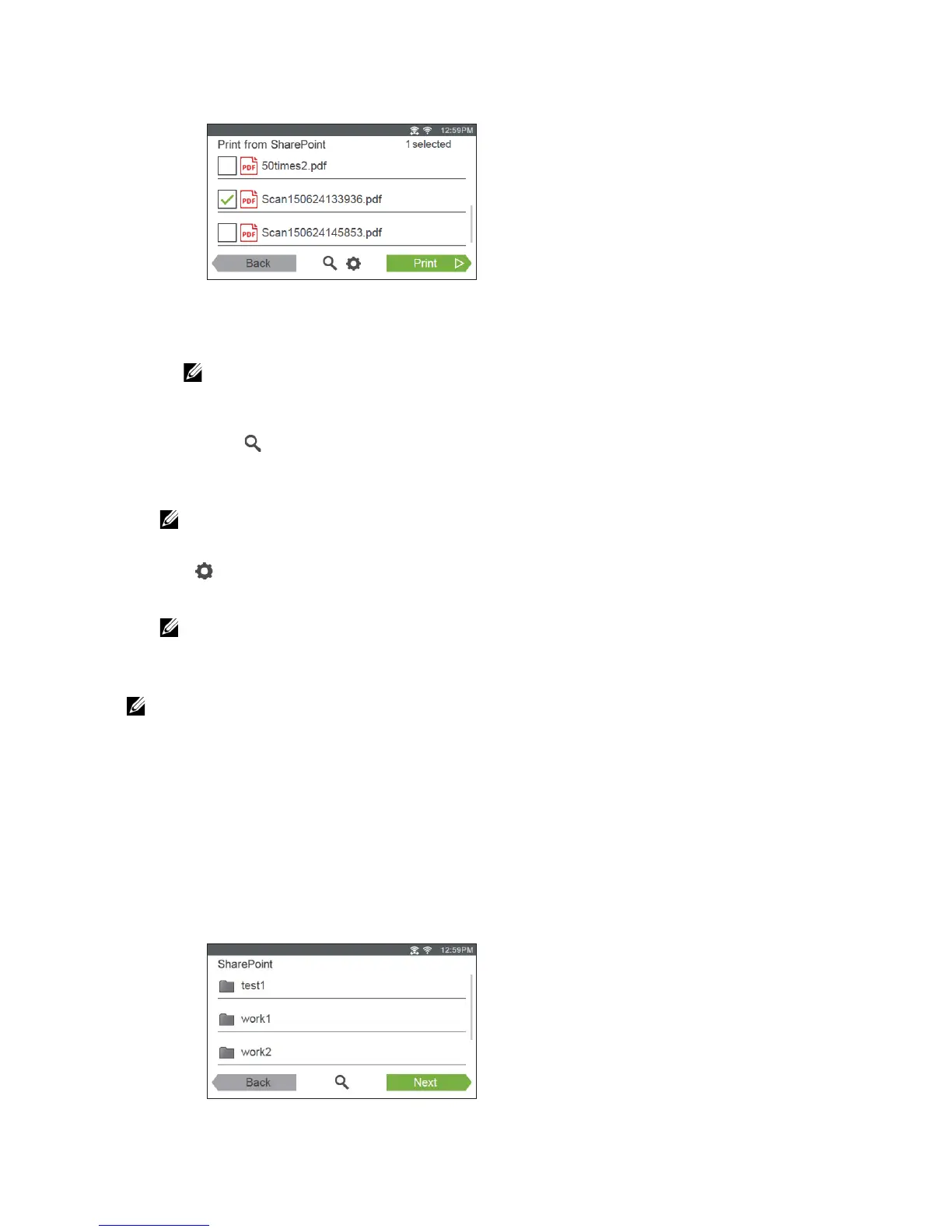
The Print from SharePoint screen is displayed.
2 Select the file you want to print by performing either of the following:
• Tap the file you want to print.
• If the desired file is not displayed, swipe the screen.
• Search the files in the selected SharePoint
®
server.
a Tap .
b Enter the file name or keywords, and then tap Search.
c Tap the file you want to print.
• You can select up to 10 files.
3 Tap , and then check and change the print settings.
See "Print Settings."
• You cannot save your print settings to print documents in the SharePoint
®
server.
4 Tap Print.
• To cancel printing, tap Stop.
• You can start printing by tapping Print in any screens of Print from SharePoint, Search
Results, or Print Settings.
Scanning
You can scan the document and save the scanned data in the selected SharePoint
®
server.
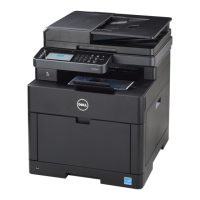
1 In the SharePoint screen, tap Scan.
The following SharePoint screen is displayed.


 To Next Page