Removing the palmrest
1. Follow the procedure in Before working inside your computer.
2. Remove the:
a. battery cover
b. battery
c. base cover
d. hard drive
e. keyboard
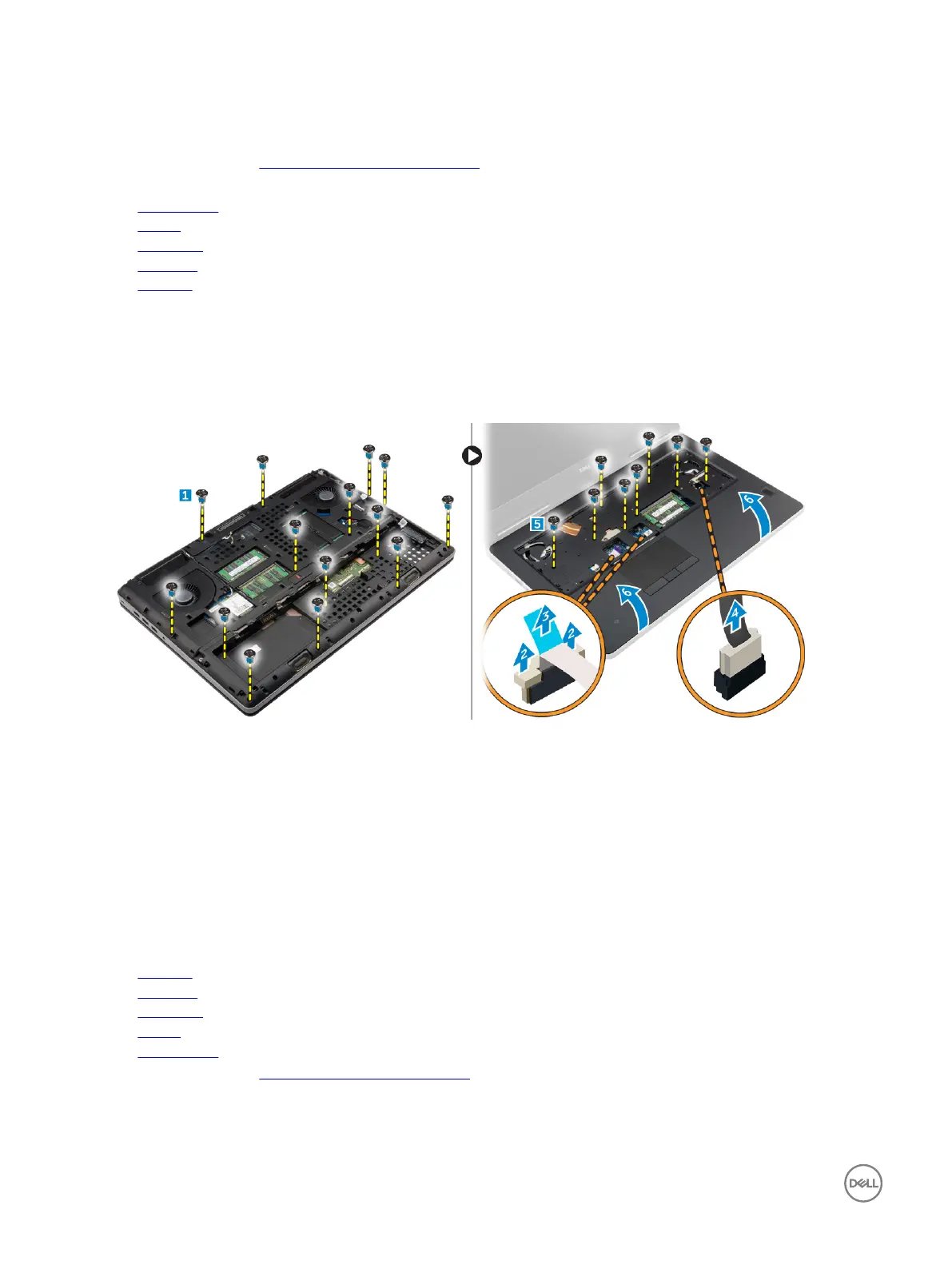
3. Perform the following steps as shown in the illustration:
a. Remove the screws (M2xL3) at the bottom of the computer which secure the palmrest to the computer [1].
b. Lift the tab and disconnect the touch-pad cable and security board cable [2, 3].
c. Disconnect the power-switch cable [4].
d. Remove the screws that secure the palmrest to the computer [5].
e. Release the tabs on the edges of the palmrest and remove the palmrest from the computer [6].
Installing the palmrest
1. Align the palmrest on the computer and press on the positions indicated until it snaps in place.
2. Tighten the screws that secure the palmrest to the computer.
3. Connect the following cables:
a. security board
b. power-switch cable
c. touchpad
4. Flip the computer and tighten the screws at the bottom of the computer.
5. Install the:
a. keyboard
b. hard drive
c. base cover
d. battery
e. battery cover
6. Follow the procedure in After working inside your computer.
22



 To Next Page