Home
Dell
Laptop
P34E
Page 95 (Installing the Display Panel)
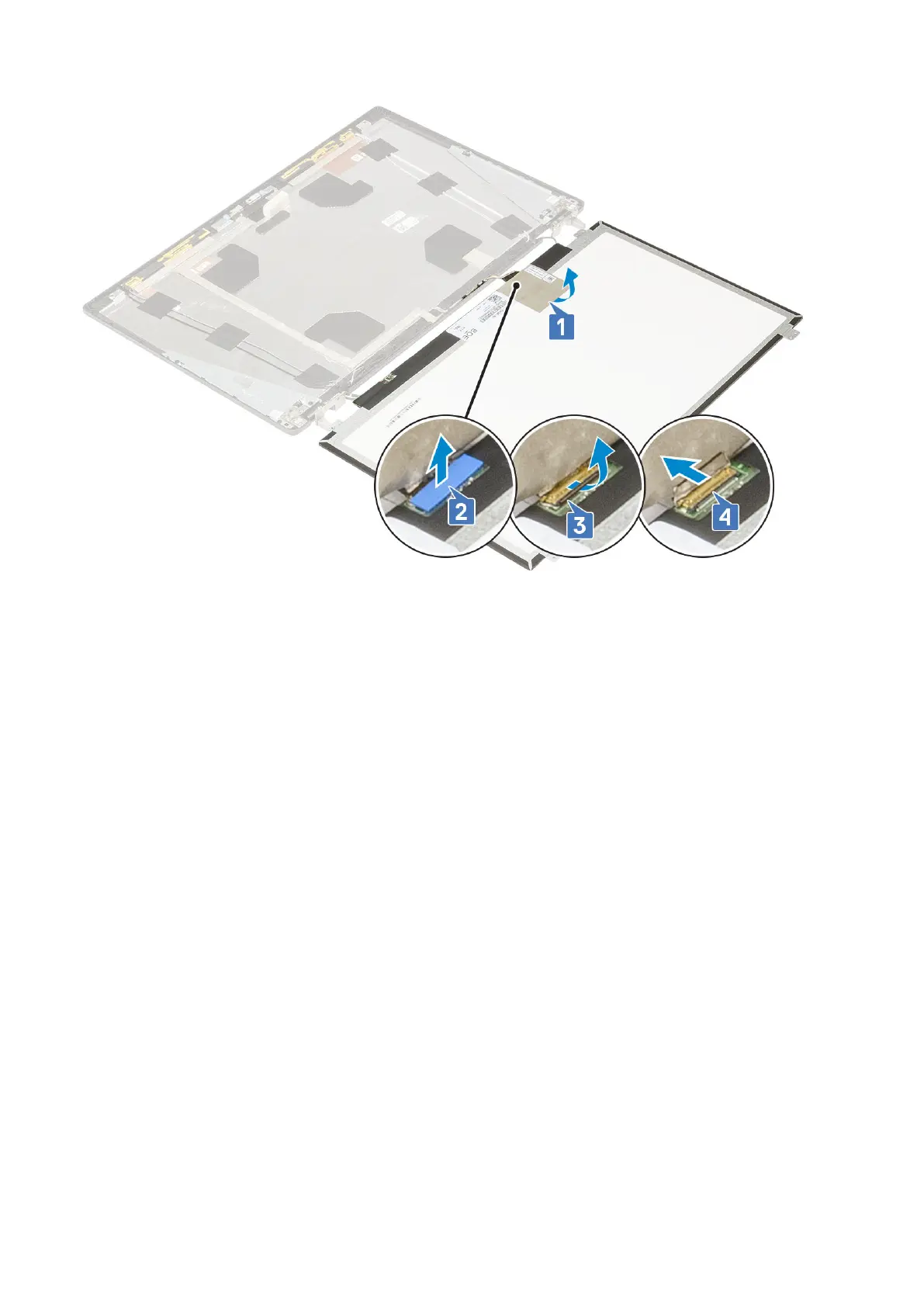
Dell P34E - Installing the Display Panel
125 pages
Manual
Save Page as PDF
To Next Page
To Next Page
To Previous Page
To Previous Page
Loading...
5
.
R
e
m
o
v
e
t
h
e
d
i
s
p
l
a
y
p
a
n
e
l
.
I
n
s
t
a
l
l
i
n
g
t
h
e
d
i
s
p
l
a
y
p
a
n
e
l
1
.
To
i
n
s
t
a
l
l
t
h
e
d
i
s
p
l
a
y
p
a
n
e
l
:
a
.
C
o
n
n
e
c
t
t
h
e
e
D
P
c
a
b
l
e
t
o
t
h
e
c
o
n
n
e
c
t
o
r
o
n
t
h
e
b
a
c
k
o
f
t
h
e
d
i
s
p
l
a
y
p
a
n
e
l
a
n
d
a
f
f
i
x
t
h
e
a
d
h
e
s
i
v
e
t
a
p
e
[
1
,
2
,
3
,
4
]
.
R
e
m
o
v
i
n
g
a
n
d
i
n
s
t
a
l
l
i
n
g
c
o
m
p
o
n
e
n
t
s
9
5
94
96
Table of Contents
Main Page
default chapter
3
Table of Contents
3
Chapter 1: Working on Your Computer
7
Safety Instructions
7
Turning off Your Computer - Windows 10
7
Before Working Inside Your Computer
8
After Working Inside Your Computer
8
Chapter 2: Technology and Components
9
Hdmi 2.0
9
USB Features
10
USB Type-C
12
Chapter 3: Removing and Installing Components
14
Recommended Tools
14
Screw Size List
15
SD Card
16
Removing SD Card
16
Installing SD Card
16
Battery Cover
17
Removing the Battery Cover
17
Installing the Battery Cover
18
Battery
19
Lithium-Ion Battery Precautions
19
Removing the Battery
20
Installing the Battery
21
Hard Drive
23
Removing the Hard Drive Assembly
23
Installing the Hard Drive Assembly
24
Hard Drive Interposer Board
25
Removing the Hard Drive Interposer Board
25
Installing the Hard Drive Interposer Board
26
Keyboard Lattice and Keyboard
27
Removing the Keyboard
27
Installing the Keyboard
31
Base Cover
33
Removing the Base Cover
33
Installing the Base Cover
34
Memory Modules
35
Removing the Primary Memory Module
35
Installing the Primary Memory Module
36
Removing the Secondary Memory Module
37
Installing the Secondary Memory Module
38
WWAN Card
39
Removing WWAN Card
39
Installing the WWAN Card
40
WLAN Card
41
Removing the WLAN Card
41
Installing the WLAN Card
42
Solid State Drive - Optional
43
Removing the M.2 Solid State Drive-SSD Module
43
Installing the M.2 SSD Module
46
Coin-Cell Battery
49
Removing the Coin Cell Battery
49
Installing the Coin Cell Battery
50
Power Connector Port
51
Removing the Power Connector Port
51
Installing the Power Connector Port
53
Palm Rest
55
Removing the Palmrest
55
Installing the Palmrest
58
Touchpad Button
60
Removing the Touchpad Buttons
60
Installing the Touchpad Button
61
SIM Card
62
Removing SIM Card
62
Installing SIM Card
63
Smart Card Cage
64
Removing the Smart Card Cage
64
Installing the Smart Card Cage
65
Speaker
66
Removing the Speakers
66
Installing the Speakers
67
LED Board
68
Removing the LED Board
68
Installing the LED Board
69
Heat Sink Assembly
70
Removing the Heat Sink Assembly
70
Installing the Heat Sink Assembly
73
Graphics Card
75
Removing the Graphics Card
75
Installing the Graphics Card
76
Removing the Discrete Graphics Card
77
Installing the Discrete Graphics Card
78
System Board
79
Removing the System Board
79
Installing the System Board
82
Display Assembly
84
Removing the Display Assembly
84
Installing the Display Assembly
87
Display Bezel
89
Removing the Display Bezel
89
Installing the Display Bezel
90
Display Hinges
91
Removing the Display Hinge
91
Installing the Display Hinge
92
Display Panel
93
Removing the Display Panel
93
Installing the Display Panel
95
Camera
97
Removing the Camera
97
Installing the Camera
98
Edp Cable
99
Removing the Edp Cable
99
Installing the Edp Cable
100
Display Bracket
101
Removing the Display Support Bracket
101
Installing the Display Support Bracket
102
Chapter 4: BIOS Setup
104
BIOS Overview
104
Entering BIOS Setup Program
104
Navigation Keys
104
One Time Boot Menu
105
System Setup Options
105
General Options
105
System Configuration
106
Video Screen Options
108
Security
109
Secure Boot
110
Intel Software Guard Extensions Options
111
Performance
111
Power Management
112
Post Behavior
113
Virtualization Support
114
Wireless Options
114
Maintenance
115
System Logs
115
Updating the BIOS
115
Updating the BIOS in Windows
115
Updating the BIOS in Linux and Ubuntu
116
Updating the BIOS Using the USB Drive in Windows
116
Updating the BIOS from the F12 One-Time Boot Menu
116
System and Setup Password
117
Assigning a System Setup Password
117
Deleting or Changing an Existing System Setup Password
118
Clearing CMOS Settings
118
Clearing BIOS (System Setup) and System Passwords
118
Chapter 5: Troubleshooting
119
Handling Swollen Lithium-Ion Batteries
119
Enhanced Pre-Boot System Assessment - Epsa Diagnostics
120
Running the Epsa Diagnostics
120
Built-In Self-Test (BIST)
120
M-Bist
120
LCD Power Rail Test (L-BIST)
121
LCD Built-In Self Test (BIST)
121
Diagnostic LED
122
Recovering the Operating System
122
Real-Time Clock (RTC Reset)
123
Battery Status LED
123
Backup Media and Recovery Options
123
Wifi Power Cycle
123
Drain Residual Flea Power (Perform Hard Reset)
124
Chapter 6: Getting Help
125
Contacting Dell
125
Related product manuals
Dell P35E
115 pages
Dell P36E
21 pages
Dell P30E
101 pages
Dell P32E
89 pages
Dell P33S
18 pages
Dell P35E002
21 pages
Dell P35E001
22 pages
Dell P30T001
18 pages
Dell P33S001
18 pages
Dell P75F
123 pages
Dell P77F
23 pages
Dell P90F
104 pages



 To Next Page