Steps
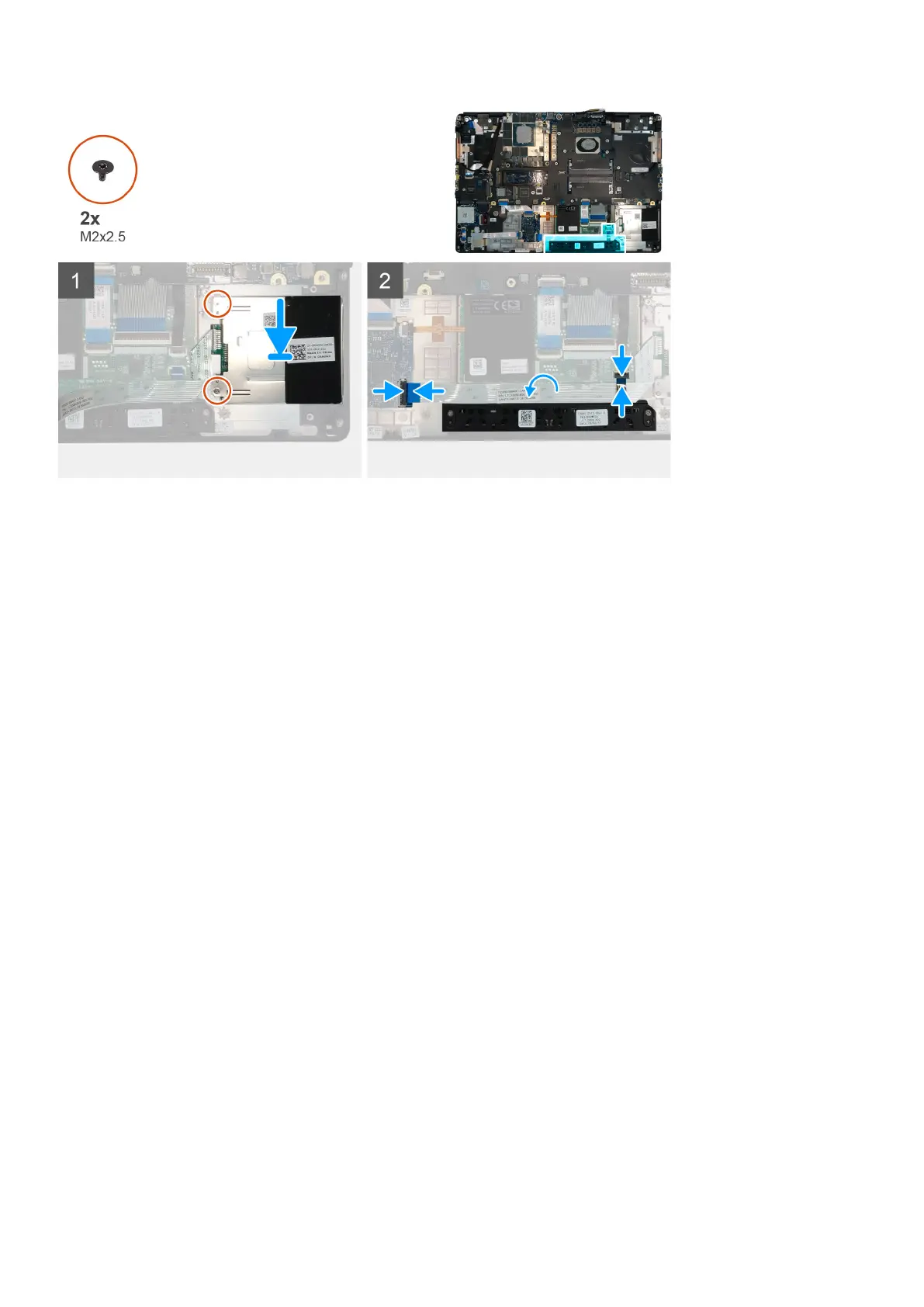
1. Align and place the smart-card reader into its slot on the computer.
2. Replace the two (M2x2.5) screws to secure the smart-card reader in place.
3. Adhere the smart-card reader cable to the touchpad.
4. Connect the smart-card reader cable to the connector on the USH daughter board.
5. Connect the touchpad button cable to the connector on the touchpad.
Next steps
1. Install the primary M.2 SSD.
2. Install the inner frame.
3. Install the battery.
4. Install the base cover.
5. Install the SD card.
6. Follow the procedure in after working inside your computer.
Touchpad button
Removing the Touchpad buttons
Prerequisites
1. Follow the procedure in before working inside your computer.
2. Remove the SD card.
3. Remove the base cover.
4. Remove the battery.
5. Remove the primary M.2 SSD.
6. Remove the inner frame.
About this task
The figure indicates the location of the touchpad buttons and provides a visual representation of the removal procedure.
Disassembly and reassembly
53






 To Next Page