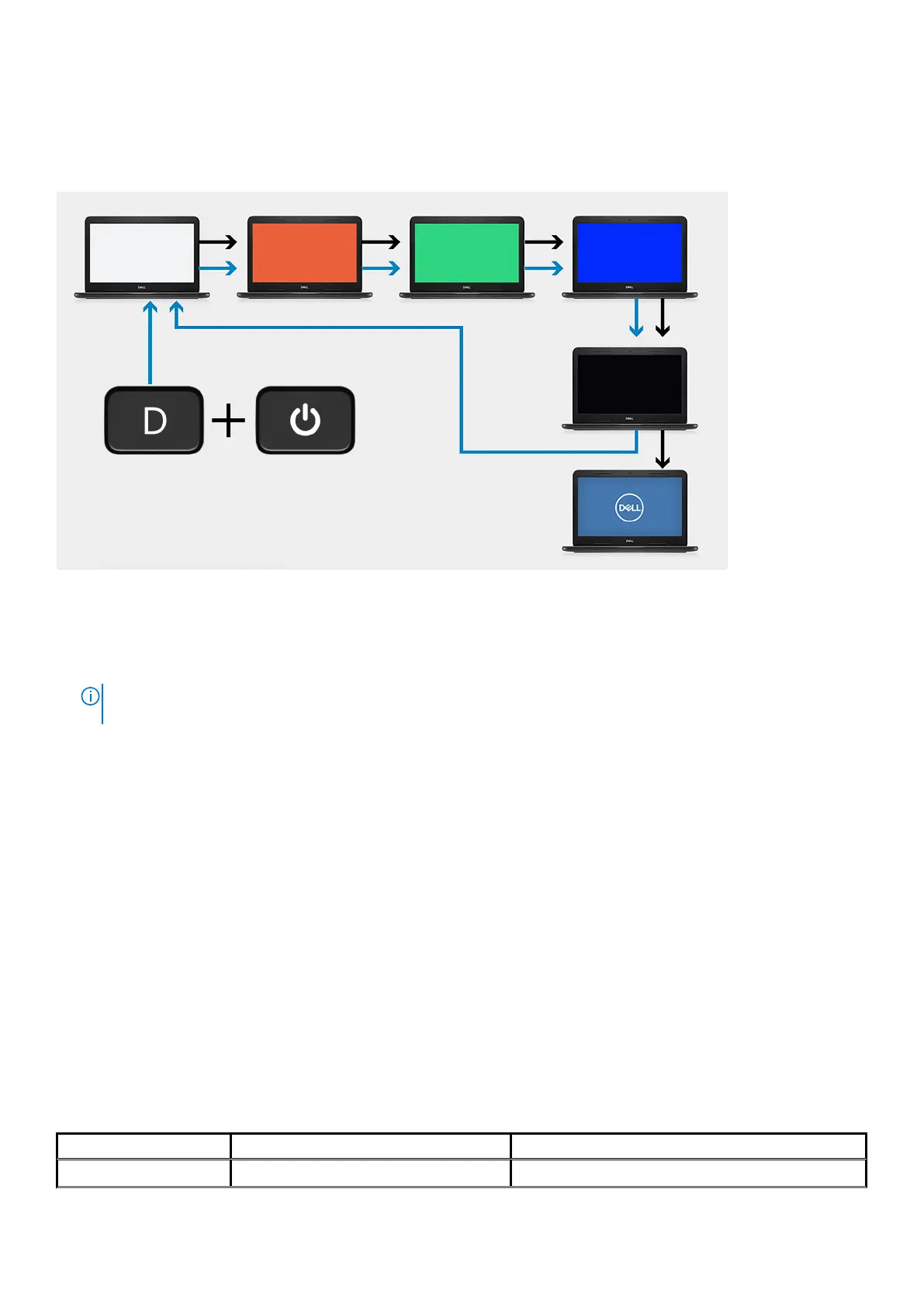
Display panel built-in self-test (LCD-BIST)
About this task
Steps
1. Press and hold the D key, and then press the power button.
2. Release both the D key and the power button when the computer begins POST.
3. The display panel begins to display a solid color, or cycling through different colors.
NOTE:
The sequence of colors may vary depending on the different display panel vendors. The user only must ensure
that the colors are being displayed correctly without distortion or graphical anomalies.
4. The computer reboots at the end of the last solid color.
System diagnostic lights
Battery-status light
Indicates the power and battery-charge status.
Solid white — Power adapter is connected and the battery has more than 5 percent charge.
Amber — Computer is running on battery and the battery has less than 5 percent charge.
Off
• Power adapter is connected, and the battery is fully charged.
• Computer is running on battery, and the battery has more than 5 percent charge.
• Computer is in sleep state, hibernation, or turned off.
The power and battery-status light blinks amber along with beep codes indicating failures.
For example, the power and battery-status light blinks amber two times followed by a pause, and then blinks white three times followed by
a pause. This 2,3 pattern continues until the computer is turned off indicating no memory or RAM is detected.
The following table shows different power and battery-status light patterns and associated problems.
Table 7. LED codes
Diagnostic light codes Problem description Recommended Solution
1,1 TPM Detection Failure Replace System Board
Troubleshooting 99






 To Next Page