EasyManua.ls Logo

Dell S2830dn - User Manual

Dell S2830dn
153 pages
Print Icon
To Next Page IconTo Next Page
Loading...
Dell Printer S2830dn
User's Guide
May 2016
Trademarks
Information in this document is subject to change without notice.
© 2016 Dell, Inc. All rights reserved.
Reproduction of this material in any manner whatsoever without the written permission of Dell Inc. is strictly forbidden.
Trademarks used in this text: Dell and the DELL logo are trademarks of Dell Inc.; Microsoft and Windows are registered trademarks of Microsoft Corporation; AirPrint,
the AirPrint logo, Mac, and the Mac logo are trademarks of Apple, Inc.; Mopria®, the Mopria® logo, and the Mopria® Alliance logo are registered trademarks and service
marks of Mopria Alliance, Inc. in the United States and other countries. Unauthorized use is strictly prohibited. Google Cloud Print is a trademark of Google Inc.
Other trademarks and trade names may be used in this document to refer to the entities claiming the marks and names of their products. Dell Inc. disclaims any
proprietary interest in trademarks and trade names other than its own.

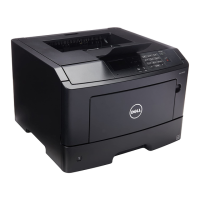
Table of Contents

Questions and Answers

  • R
    reynoldsheatherSep 1, 2025
    What to do if Dell Printer says 'Load [paper source] with [paper size] [orientation]'?
    • K
      Karen SmithSep 1, 2025
      If your Dell Printer displays a 'Load [paper source]' message: * Load the tray or feeder with the correct size of paper. * From the printer control panel, press the designated button to clear the message and continue printing. * You can also cancel the current job.
  • C
    Christopher GentrySep 12, 2025
    What does 'Unformatted flash detected [53]' mean on Dell S2830dn?
    • T
      Tina RobinsonSep 12, 2025
      If your Dell Printer displays an 'Unformatted flash detected' message: * From the printer control panel, press the designated button to stop the defragmentation and continue printing. * Format the flash memory device.
  • D
    David MooreAug 30, 2025
    What to do if my Dell Printer says 'Replace unsupported imaging unit [32.xy]'?
    • T
      Taylor PruittAug 31, 2025
      To address the 'Replace unsupported imaging unit' message on your Dell Printer, remove the current imaging unit and install a supported one to clear the message and continue printing.
  • A
    Amy KellySep 15, 2025
    What does 'Printer had to restart. Last job may be incomplete.' mean for Dell S2830dn Printer?
    • A
      Angela MooreSep 15, 2025
      If your Dell Printer had to restart, from the printer control panel, select Continue to clear the message and continue printing.
  • G
    Garrett Allen PhDSep 14, 2025
    What does 'Standard USB port disabled [56]' mean on Dell S2830dn Printer?
    • L
      Lisa DavisSep 14, 2025
      If your Dell Printer displays a 'Standard USB port disabled' message: * From the printer control panel, press the designated button to clear the message and continue printing. * From the printer control panel, set USB Buffer to Auto.
  • H
    hthompsonSep 22, 2025
    What does 'Insufficient memory, some held jobs will not be restored [37]' mean on Dell S2830dn Printer?
    • C
      Crystal WeberSep 22, 2025
      If your Dell Printer displays an 'Insufficient memory, some held jobs will not be restored' message: * Press the designated button on the printer control panel to clear the message. * Delete other held jobs to free up additional printer memory.
  • S
    Sara JohnsonAug 27, 2025
    What to do if my Dell S2830dn says 'Imaging unit very low, [x] estimated pages remain [84.xy]'?
    • S
      Summer SandovalAug 27, 2025
      If your Dell Printer displays an 'Imaging unit very low' message, you may need to replace the imaging unit very soon. If necessary, press the designated button on the printer control panel to clear the message and continue printing.
  • J
    Joshua HudsonAug 27, 2025
    What to do if my Dell S2830dn says 'Cartridge very low, [x] estimated pages remain [88.xy]'?
    • C
      christopher18Aug 27, 2025
      If your Dell Printer displays a 'Cartridge very low' message, you may need to replace a toner cartridge very soon. If necessary, press the designated button on the printer control panel to clear the message and continue printing.
  • D
    David HaysAug 26, 2025
    How to fix 'Reinstall missing or unresponsive imaging unit [31.xy]' error on Dell Printer?
    • R
      Ryan GallagherAug 27, 2025
      To address the 'Reinstall missing or unresponsive imaging unit' error on your Dell Printer: * Check if the imaging unit is missing. If it is, install the imaging unit. * If the imaging unit is installed, remove it and then reinstall it. * If the message continues to appear after reinstalling, the imaging unit is defective and needs replacement.
  • L
    Laura RamosAug 25, 2025
    How to fix 'Reinstall missing or unresponsive cartridge [31.xy]' error on Dell S2830dn?
    • K
      Kevin NelsonAug 26, 2025
      To fix the 'Reinstall missing or unresponsive cartridge' error on your Dell Printer: * First, check if the toner cartridge is missing. If it is, install the toner cartridge. * If the toner cartridge is already installed, remove it and then reinstall it. * If the message persists after reinstalling, the cartridge is likely defective and needs to be replaced.

Summary

Safety Information

Conventions

Defines terms and symbols used in the guide for clarity and safety.

Learning About the Printer

Finding Information About the Printer

Details how to access documentation and support resources for printer usage.

Selecting a Location for the Printer

Guidance on choosing an optimal placement for the printer for proper operation.

Printer Configurations

Options for customizing the printer with additional trays for increased capacity.

Additional Printer Setup

Installing Internal Options

Instructions for installing internal hardware components like memory for expanded functionality.

Installing Hardware Options

Steps for adding optional hardware, such as paper trays, to enhance printer capabilities.

Networking

Steps for connecting the printer to a network, including Ethernet and wireless setup.

Loading Paper and Specialty Media

Setting Paper Size and Type

Procedures for configuring paper settings for various media types for optimal printing.

Loading Trays

Instructions on how to load paper into the printer's paper trays correctly.

Loading the Multipurpose Feeder

Steps for feeding paper or specialty media through the multipurpose feeder.

Paper and Specialty Media Guide

Paper Guidelines

Characteristics of paper that affect print quality and reliability.

Using Specialty Media

Tips and guidelines for printing on card stock, envelopes, and labels.

Supported Paper Sizes, Types, and Weights

Tables detailing compatible paper specifications for different printer components.

Printing

Printing from a Computer

Standard procedure for sending print jobs from a PC or Mac.

Printing from a Mobile Device

Methods for printing wirelessly from smartphones and tablets.

Understanding the Printer Menus

Paper Menu

Settings related to paper handling, sizes, and types for print jobs.

Network;Ports Menu

Configuration options for network connections, ports, and protocols.

Security Menu

Settings for securing the printer, including PIN protection and audit logs.

Settings Menu

General configuration options for display language, timeouts, and eco-modes.

Saving Money and the Environment

Saving Paper and Toner

Tips to reduce paper and toner consumption for cost and environmental benefits.

Saving Energy

Methods to reduce power consumption, including Eco-Mode and quiet mode.

Adjusting Sleep Mode

How to configure the printer's idle time before entering low-power sleep mode.

Securing the Printer

Statement of Volatility

Information about the printer's memory types and data retention policies.

Erasing Non-Volatile Memory

Procedure for securely wiping device settings and data from permanent memory.

Maintaining the Printer

Cleaning the Printer

Steps for cleaning the exterior and interior of the printer for optimal performance.

Replacing Supplies

Instructions for replacing consumables like toner cartridges and imaging units.

Moving the Printer

Safety precautions and procedures for safely relocating the printer.

Managing the Printer

Accessing the Remote Control Panel

How to control the printer remotely via a web browser interface.

Restoring Factory Default Settings

How to reset printer configurations to their original factory state.

Creating a Printer Control Panel PIN

Setting a PIN to restrict access to printer menus and settings.

Clearing Jams

Avoiding Jams

Best practices to prevent paper jams during loading and printing.

Identifying Jam Locations

Visual guide to common locations where paper jams occur within the printer.

Paper Jam in the Front Door

Step-by-step instructions for clearing jams from the front door area.

Paper Jam in the Standard Bin

Instructions for clearing paper jams from the main paper input tray.

Troubleshooting

Understanding Printer Messages

Explanations and solutions for common printer error messages displayed on the panel.

Solving Printer Problems

Comprehensive guide to resolving various printing issues and errors.

Basic Printer Problems

Troubleshooting steps for when the printer is not responding or is offline.

Paper Feed Problems

Guidance for resolving frequent paper jams and misfeeds.

Print Quality Problems

Common issues affecting print quality and their resolutions.

Embedded Web Server Does Not Open

Steps to diagnose and resolve issues preventing access to the printer's web interface.

Contacting Technical Support

Information on how to get assistance from Dell support for unresolved issues.

Dell S2830dn Specifications

General IconGeneral
Print TechnologyLaser
Print ResolutionUp to 1200 x 1200 dpi
Duplex PrintingYes
Memory512 MB
Processor Speed800 MHz
Printer TypeMonochrome Laser Printer
Operating System CompatibilityWindows, Mac OS, Linux
Standard ConnectivityUSB 2.0
Maximum Paper SizeA4
Paper Input Capacity250-sheet standard input tray, 50-sheet multipurpose tray

Related product manuals