EasyManua.ls Logo

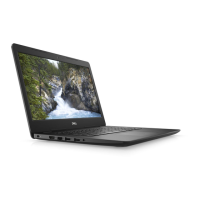
Dell Vostro 3425 - User Manual

Dell Vostro 3425
102 pages
Print Icon
To Next Page IconTo Next Page
Loading...
Vostro 3425
Service Manual
Regulatory Model: P152G
Regulatory Type: P152G002
February 2022
Rev. A00

Table of Contents

Other manuals for Dell Vostro 3425

Questions and Answers

  • R
    Rachel StanleyJul 28, 2025
    What to do if my Dell Vostro 3425 Laptop battery is swollen?
    • R
      Richard PrattJul 29, 2025
      If your Dell Laptop battery is swollen, immediately stop using the laptop. Disconnect the AC adapter and allow the battery to fully discharge. Replace the swollen battery and dispose of it properly. You may also contact Dell product support to explore options for replacing the swollen battery under your warranty or service contract.
  • P
    Paul BenitezAug 2, 2025
    What to do if my Dell Vostro 3425 says no memory/RAM detected (error code [2,3])?
    • G
      Gabrielle StephensAug 2, 2025
      If your Dell Laptop is not detecting memory/RAM, first ensure that the memory module is properly installed. If the problem continues, replace the memory module.
  • A
    amykingAug 7, 2025
    What to do if my Dell Vostro 3425 Laptop has Flash corruption detected by SBIOS (error code [3,6])?
    • A
      Amanda FreemanAug 8, 2025
      If your Dell Laptop detects flash corruption, press the power button for over 25 seconds to perform an RTC reset. Also, disconnect all power sources and drain flea power by pressing and holding the power button for 3-5 seconds. If the issue continues, replace the system board.
  • K
    Kevin MathisAug 12, 2025
    What to do if my Dell Vostro 3425 Laptop has a BIOS Recovery image not found (error code [3,3])?
    • R
      Robin AllenAug 12, 2025
      If your Dell Laptop displays a 'BIOS Recovery image not found' error, try flashing the latest BIOS version. If the problem persists, the system board may need to be replaced.
  • J
    Julie HaynesAug 17, 2025
    What to do if my Dell Laptop has a BIOS Recovery image found but invalid (error code [3,4])?
    • P
      perrymichaelAug 17, 2025
      If your Dell Laptop indicates that a BIOS Recovery image was found but is invalid, attempt to flash the latest BIOS version. If the issue remains, the system board may require replacement.
  • L
    Luis HowellAug 22, 2025
    What does it mean if my Dell Laptop has LCD Power rail failure (error code [2,8])?
    • E
      ellisonjustinAug 22, 2025
      If your Dell Laptop is experiencing an LCD Power rail failure, this is due to a failure on the LCD power rail of the system board, and the suggested solution is to replace the system board.

Summary

Working inside your computer

Before working inside your computer

Steps to prepare the computer before opening the case.

Safety instructions

Guidelines to protect your computer from potential damage and ensure personal safety.

Electrostatic discharge-ESD protection

Information on preventing damage from static electricity when handling components.

Removing and installing components

Recommended tools

Lists tools required for component removal and installation procedures.

Screw list

Identifies screws used for various components with their types and quantities.

Base cover

Procedure for removing and installing the base cover of the computer.

Battery

Precautions and steps for handling and replacing the battery.

System board

Instructions for removing and installing the system board.

BIOS setup

Entering BIOS setup program

Instructions on how to access the BIOS setup utility.

System setup options

Lists various system setup options available in the BIOS.

System and setup password

Information on setting system and setup passwords for security.

Troubleshooting

Handling swollen Lithium-ion batteries

Safety guidelines and procedures for dealing with swollen batteries.

System-diagnostic lights

Explanation of system diagnostic lights and their meanings.

Recovering the operating system

Information on using Dell SupportAssist OS Recovery for system recovery.

Drain residual flea power (perform hard reset)

Steps to drain residual power for troubleshooting or component replacement.

Getting help and contacting Dell

Self-help resources

List of resources available for self-help and product information.

Dell Vostro 3425 Specifications

General IconGeneral
ProcessorAMD Ryzen 5 5625U
RAM8GB DDR4
Display14-inch FHD (1920 x 1080)
CPUAMD Ryzen 5 5625U
Storage512GB SSD
GraphicsAMD Radeon Graphics
Operating SystemWindows 11 Pro, 64-bit
Weight1.48 kg
Battery3-cell, 41Whr
Ports1 USB 2.0 port
WirelessWi-Fi 6 (802.11ax), Bluetooth 5.1
Camera720p HD
AudioStereo speakers

Related product manuals