90
BHT-604Q
Setting the QRcode Reading Test Options
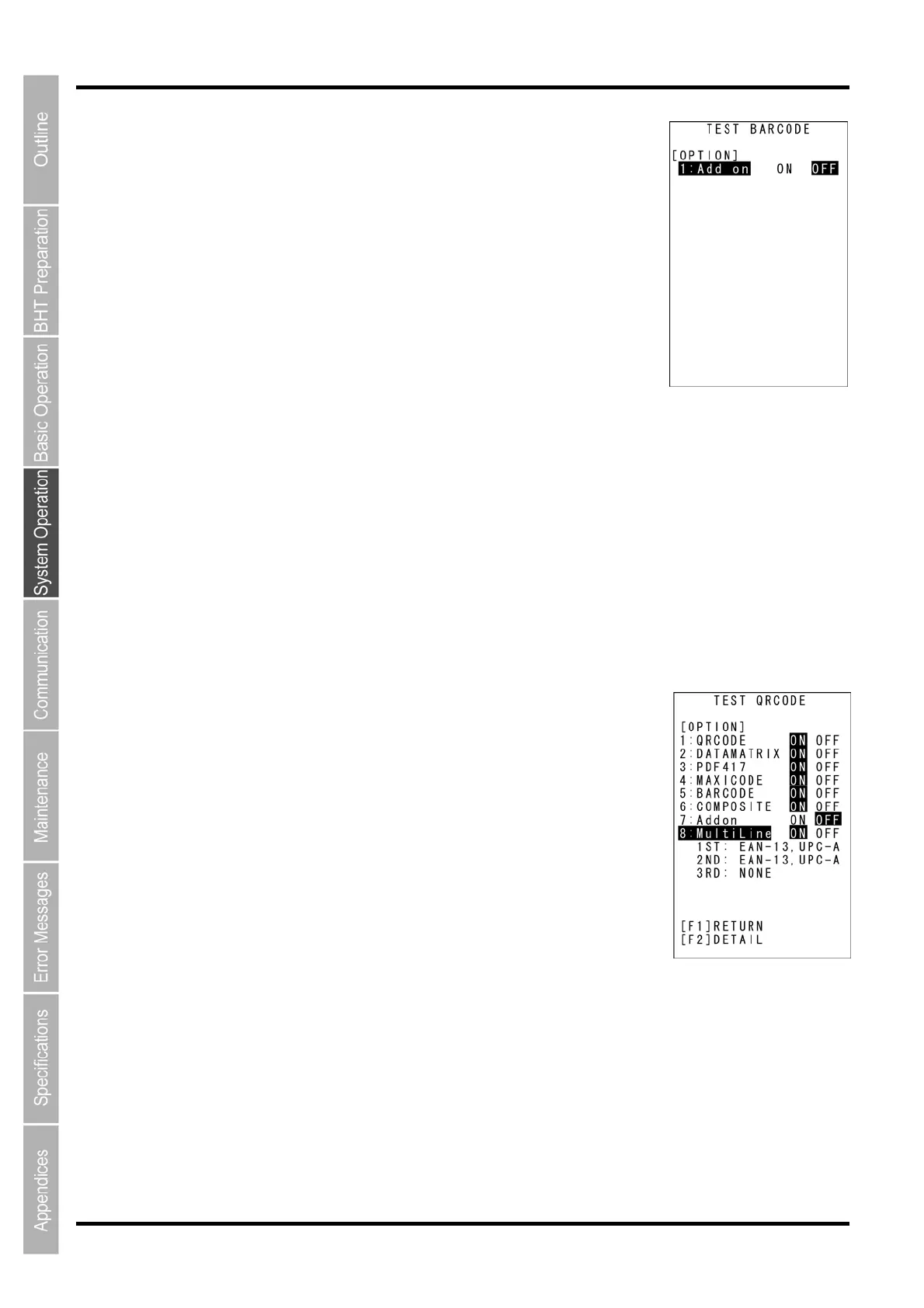
When performing the QR code reading test, press the F1 key to display the
screen on the right, allowing QR code reading test options to be set.
The highlighted settings will be the current settings.
To change the setting, use the cursor keys ([▲] [▼]) or numerical keys
([1][2][3][4][5][6][7][8]) to highlight the item to be set and highlight the setting
value using the cursor keys ([◄] [►]).
Press the [F1] key or the [ENT] key to return to the code reading test.
“1: QRCODE”:
Enable/disable QR code.
“2: DATAMATRIX”:
Enable/disable DATAMATRIX.
“3: PDF417”:
Enable/disable PDF417.
“4: MAXICODE”:
Enable/disable MAXICODE.
“5: BARCODE”:
Enable/disable BARCODE.
“6: COMPOSITE”:
Enable/disable Composite.
“7: Add-on”:
Enable/disable Add-on.
It is not possible to enable both Add-on and Multiline.
“8: Multiline”:
Enable/disable Multiline.
When Multiline is enabled, the screen displays as shown on the right and
the reading code can be set for the Multiline code.
To change the setting, use the cursor keys ([▲] [▼]) to highlight 1S
T,
2ND, or 3RD and change the barcode using the cursor keys ([◄] [►]).
1ST: Set the first line of the barcode to be read.
2ND: Set the second line of the barcode to be read.
3RD: Set the third line of the barcode to be read.
Note: Multiline is limited to 3 lines, and is compatible with 9 types of reading code.
(Common product codes (4 types), ITF, codabar, Code39, Code93, and Code128)
Press the [F1] key or the [ENT] key to return to the code reading test.



 To Next Page