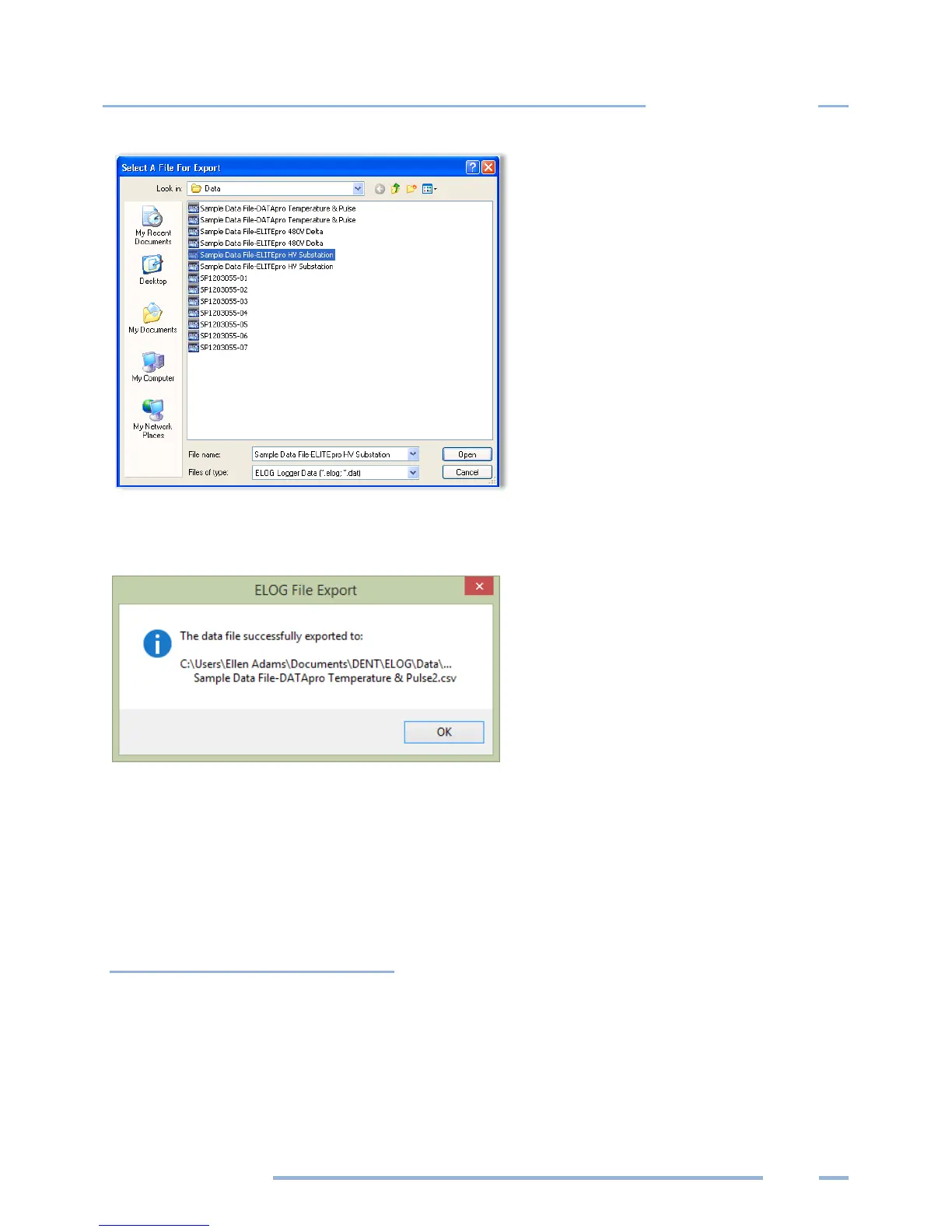
3) Select a file and click Open. The ELOG File Export dialog box displays when the file data completes
exporting to a .csv file format.
4) Start a spreadsheet program such as Excel™.
5) Use the File > Open command in the spreadsheet and select All Files in the Files of type drop-down
list.
6) Open the .csv data file from the folder you specified, for example:
C:\Users\UserName\Documents\DENT\ELOG\Data
Import CSV File
This feature imports a previously saved .csv file into ELOG 15 for use. Select the file you wish to import,
and then choose Open.



 To Next Page