62 Using the Dexcom Share2 App
with a current Follower. The following table explains the
different icons and statuses that can be displayed in the
Follower Dashboard:
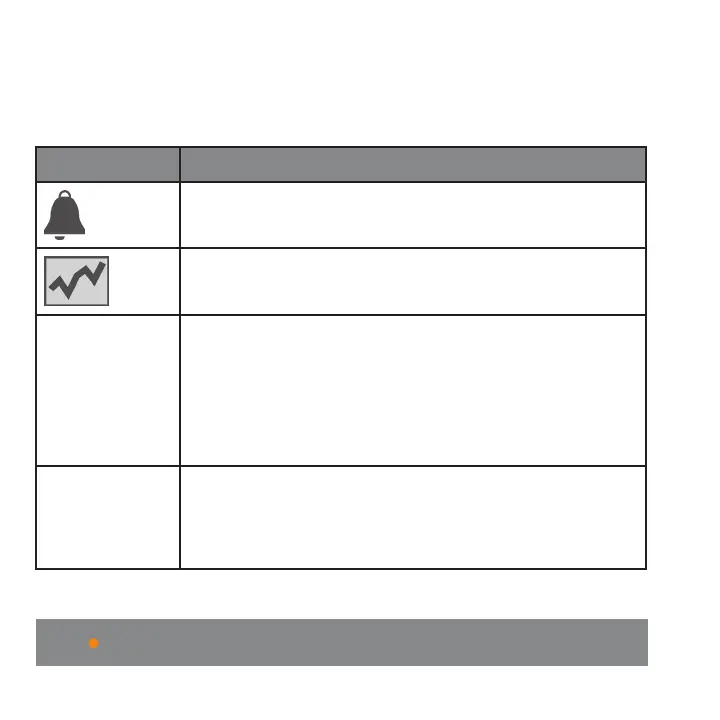
Icon/Status Definition
Follower is set to receive notifications from their
Sharer.
Follower is able to view their Sharer’s trend graph.
Removed by
Follower
Follower removed the Sharer from the Dexcom
Follow app. The Follower will not receive any of the
Sharer’s glucose information, notifications or trend
graph updates. The Sharer can remove the Follower
from their list by pressing on the “Remove” button,
found in the Follower’s notification settings.
Invitation
Expired
Follower did not accept their Sharer’s Follow
Invitation e-mail within 7 days. The Sharer can invite
their Follower again by pressing on the + icon in the
top right corner of the screen.



 To Next Page