DG-PS1010U User Manual
12
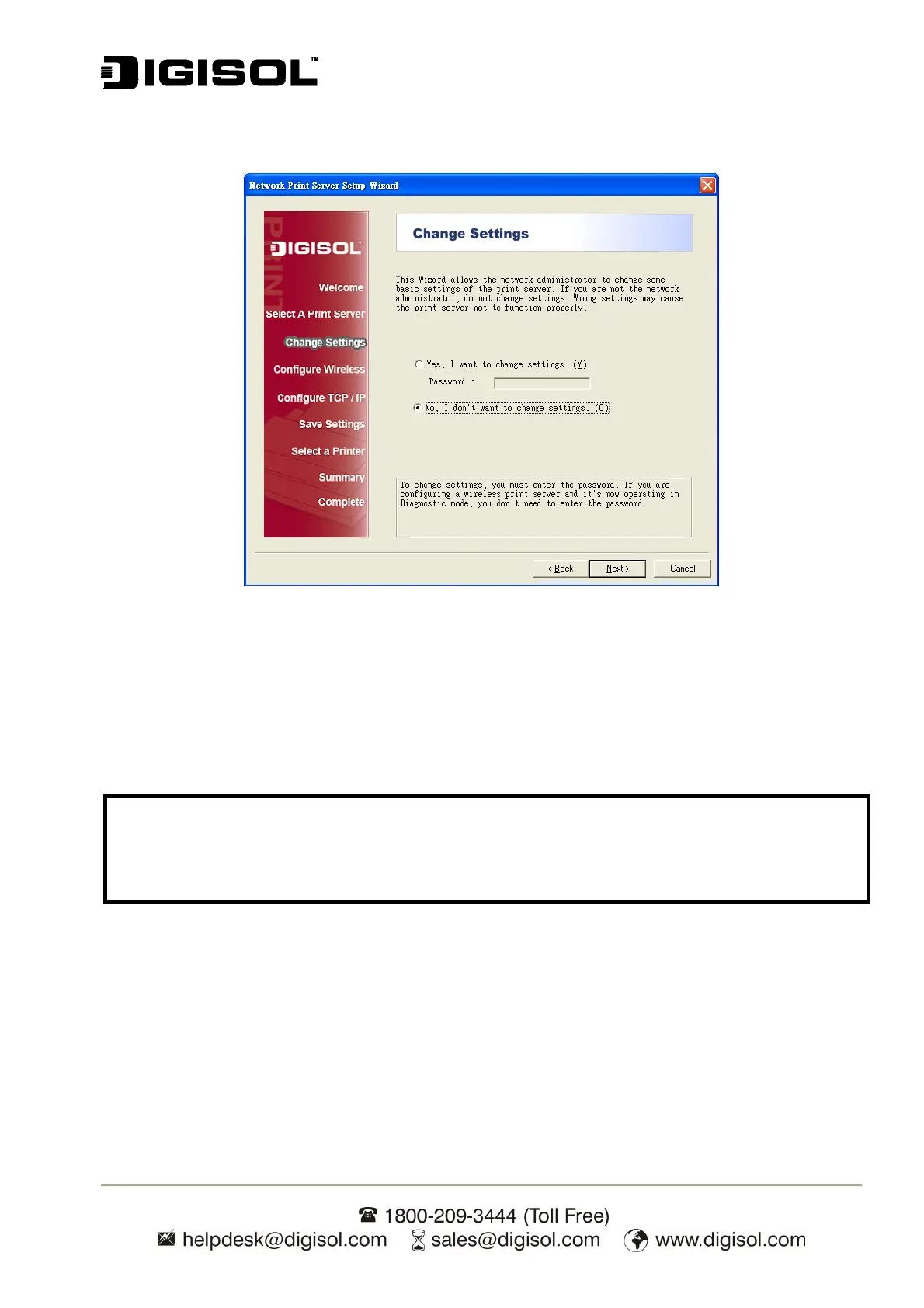
6. In “Change Settings” screen (Fig 4), you can select No or Yes:
Fig 4
Select No, if you want the print server to keep using the default IP address and settings, then click
Next.
IP address: 192.168.0.10
Subnet Mask: 255.255.255.0
Select Yes if you want to change IP address of the print server and then click Next.
7. In “Select A Printer” screen, select an already configured printer from the list, click Next
and then Finish to complete the installation (Fig 5).
Or Select Add New Printer if the print server is connected to a printer that is not installed
before and does not appear in the list.
Note:
1. The IP address of print server must be within the same subnet as your network adapter.
2. After you save the new IP address, the print server will automatic reboot once and will be
active with new IP address. It may take a couple of seconds to boot.


 To Next Page