DISPLAYS AND MENUS: DATA TRANSFER 21
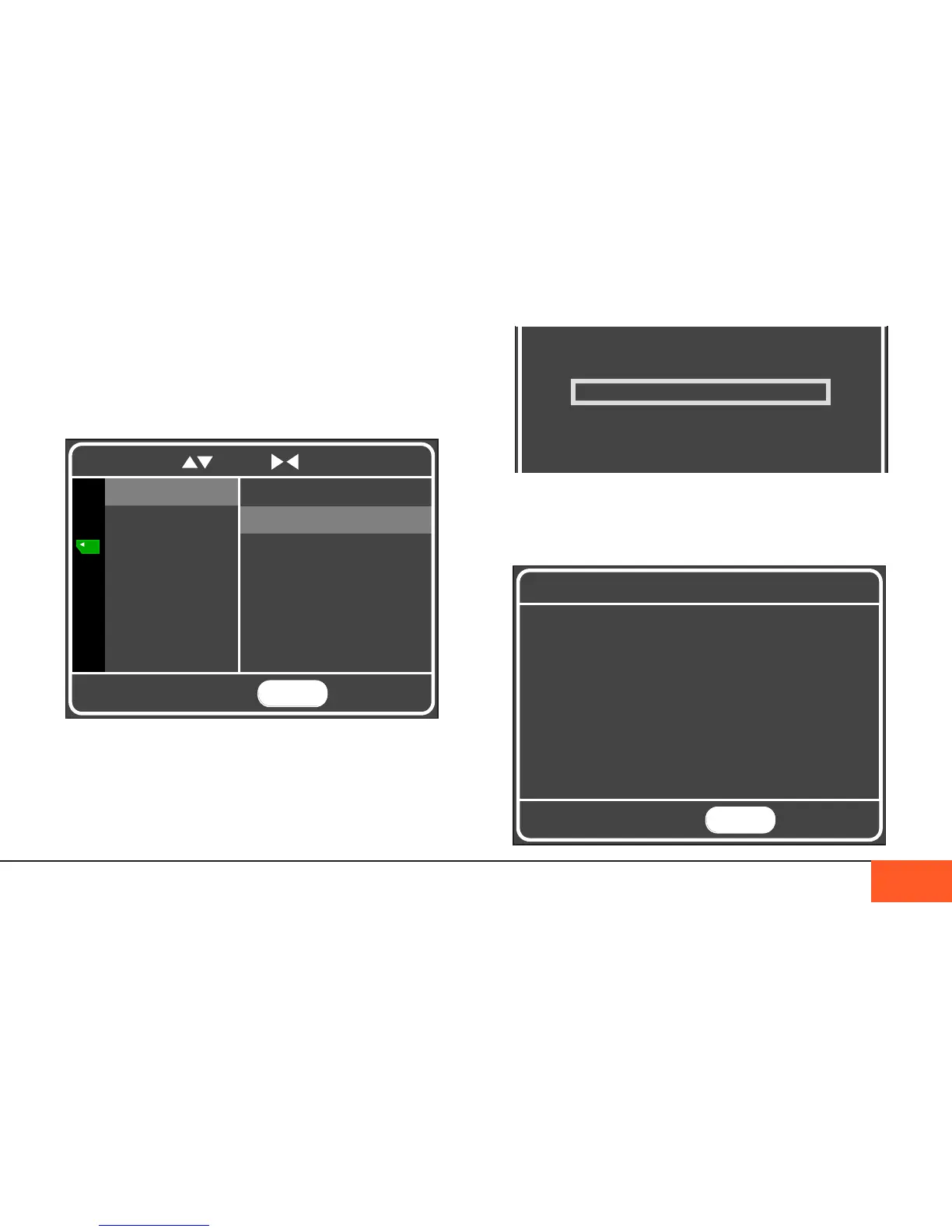
TRANSFERRING TO CF CARDS
Clips will not automatically transfer from the SSD to the CF
cards. However, you can choose to transfer footage to the CF
cards after you shoot by using the COPY DATA option.
In the DATA menu, navigate to COPY DATA, and select to
transfer data from the internal SSD drive to CF cards. Your copy
will start immediately, and continue until all footage is copied.
Make sure you are using empty CF cards of an appropriate
size, so that you won’t have an error copying your footage.
You may cancel the copy any time, however you will not be able
to pick up where you left off if you cancel. If you ll your CF card
but there is still footage to be copied, you will be prompted to
enter a new card. The copy will then pick up where it left off.
MENU
TO EXIT
SSD to PC by USB 3
SSD to CF Cards
COPY DATA
SSD FORMAT
CF FORMAT
DIR NAME
To navigate, use to scroll to select and return


 To Next Page