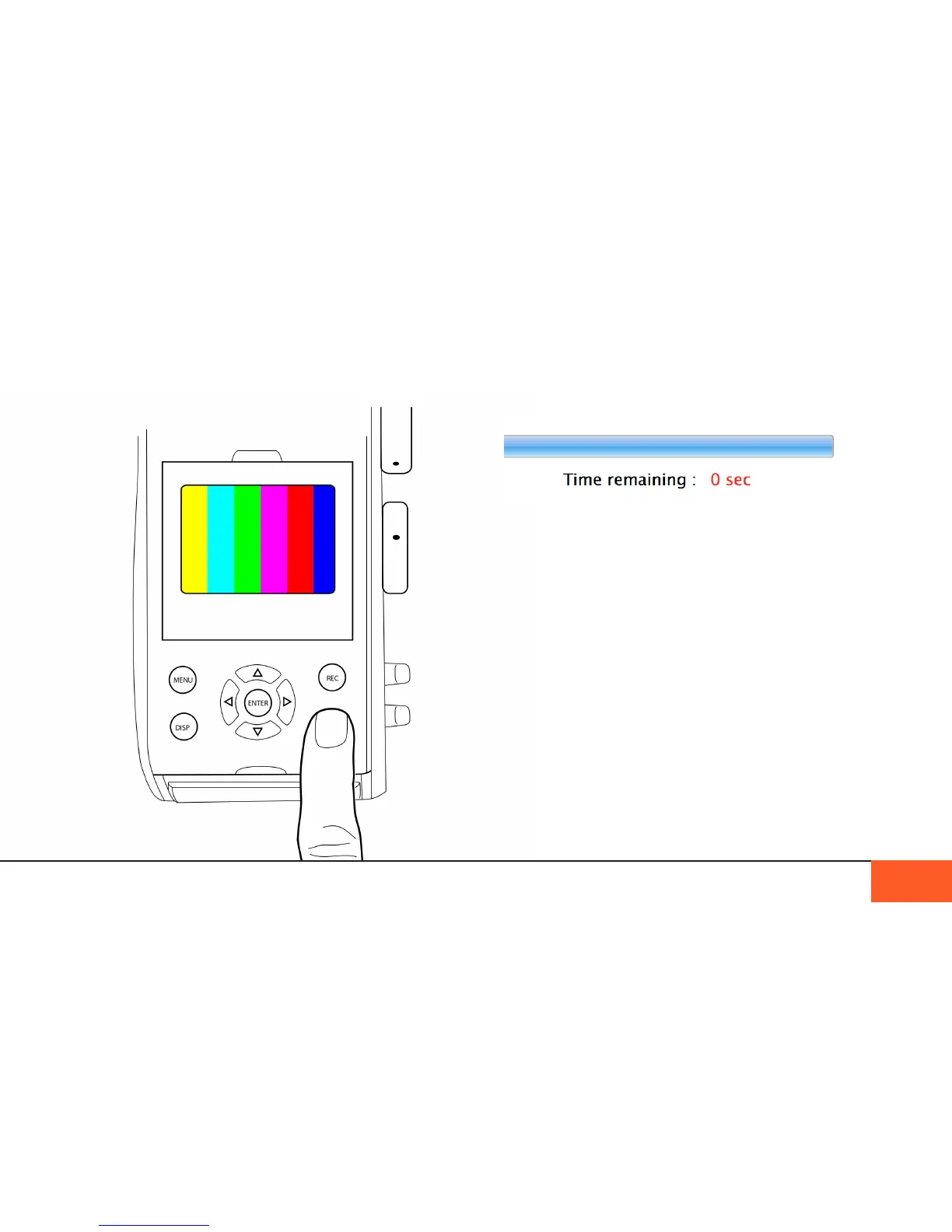
If you have switched into Update Mode properly, color bars will
appear on your onboard LCD in place of the normal D16 startup
screen.
UPDATING THE FIRMWARE 27
The rmware will automatically begin to download onto your
camera. The progress bar on the Firmware Updater software
willt tell you how fast the update is occuring andwill give you a
time estimate remaining on the update.
Please make sure not to power down the camera or unplug the
USB2 cable until the rmware has been installed successfully
and you exit the Updater software.
When the rmware has been installed, your camera will
automatically power down. Now is the time to unplug the USB2
cable, reset the Update switch to Normal Mode, and replace
the plastic cover with your screwdriver. You may also close out
of the Digital Bolex Utilities application.
Power your camera back on to access the new features and
changes available in the latest rmware.
Additional menus and special features may become active in
later versions of the rmware so be sure to make sure your
camera is always up to date with the latest version, available for
download at www.digitalbolex.com/downloads.


 To Next Page