DS5 Isolated Bipolar Constant Current Stimulator DS5 Operator's Manual 5.0
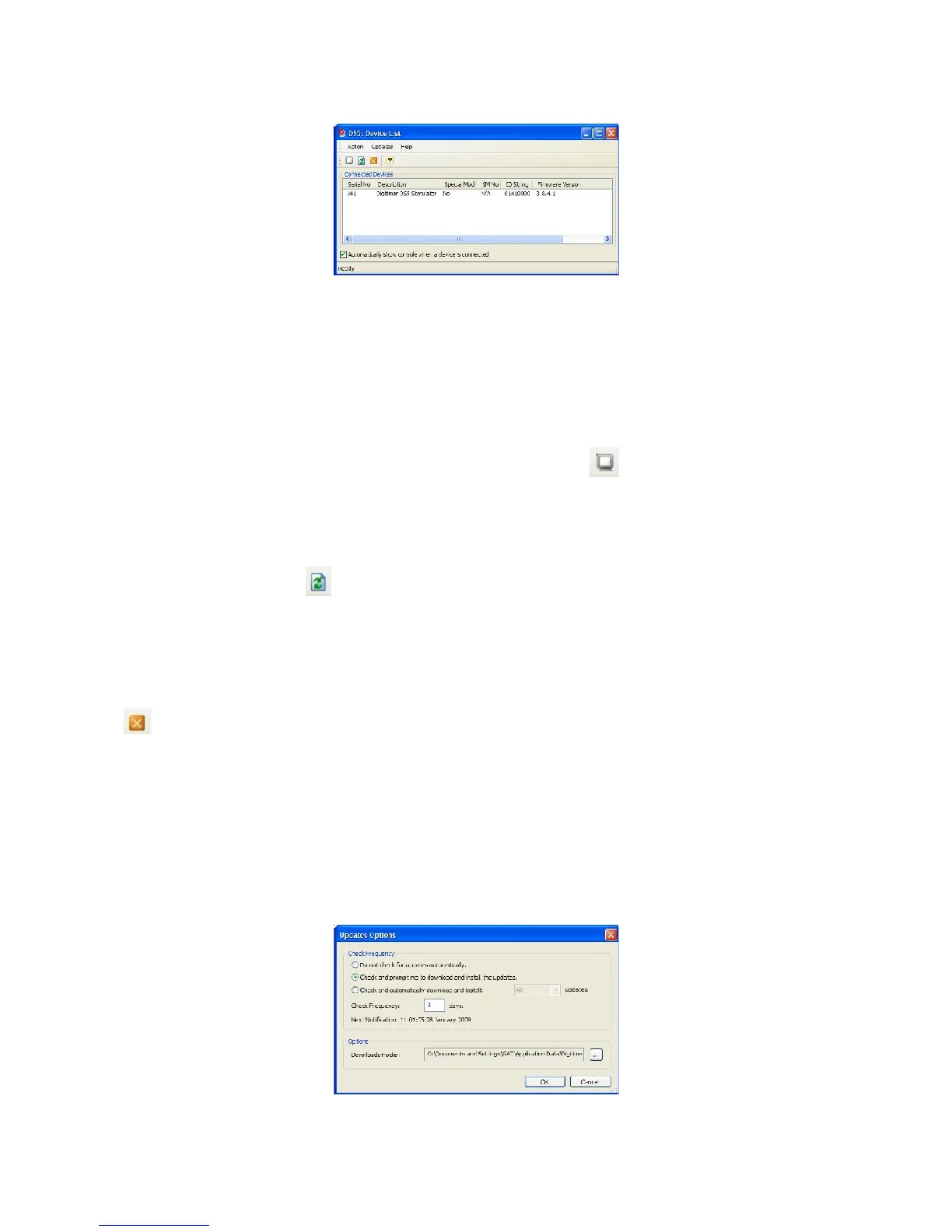
In the bottom left hand corner a tick box allows the operator to configure the software to show the DS5
Console whenever a DS5 is connected to the computer (or when the Refresh action is used). The DS5
Device List Window has three menu bar commands, Action, Updates and Help and four icons which are
described below.
Action > Show DS5 Console (Ctrl + S)
Once a DS5 is selected from the “Connected Devices” list, the Console Window can be displayed by selecting
this item from the menu bar or clicking on the Show DS5 Console icon . It is also possible to show the
console by double-clicking on the DS5 within the device list.
Action > Refresh (Ctrl + R)
The display of “Connected Devices” can be refreshed at any time by selecting this item from the menu or
clicking on the Refresh icon .
If the “Automatically show the console when a device is connected” is ticked, the device list will be
minimized to the task bar when the refresh action is used.
Action > Exit
The DS5 UI software may be exited by selecting this option from the menu bar or clicking on the exit icon
.
Updates > Check for Software Updates...
This menu option connects to the Digitimer server and checks if there is an update available for the DS5 UI
software.
Updates > Configure Automatic Software Update Checks...
Allows the operator to set their own software update preferences.
Digitimer Ltd. 41 of 52 Copyright © 2009


 To Next Page