DS5 Isolated Bipolar Constant Current Stimulator DS5 Operator's Manual 5.0
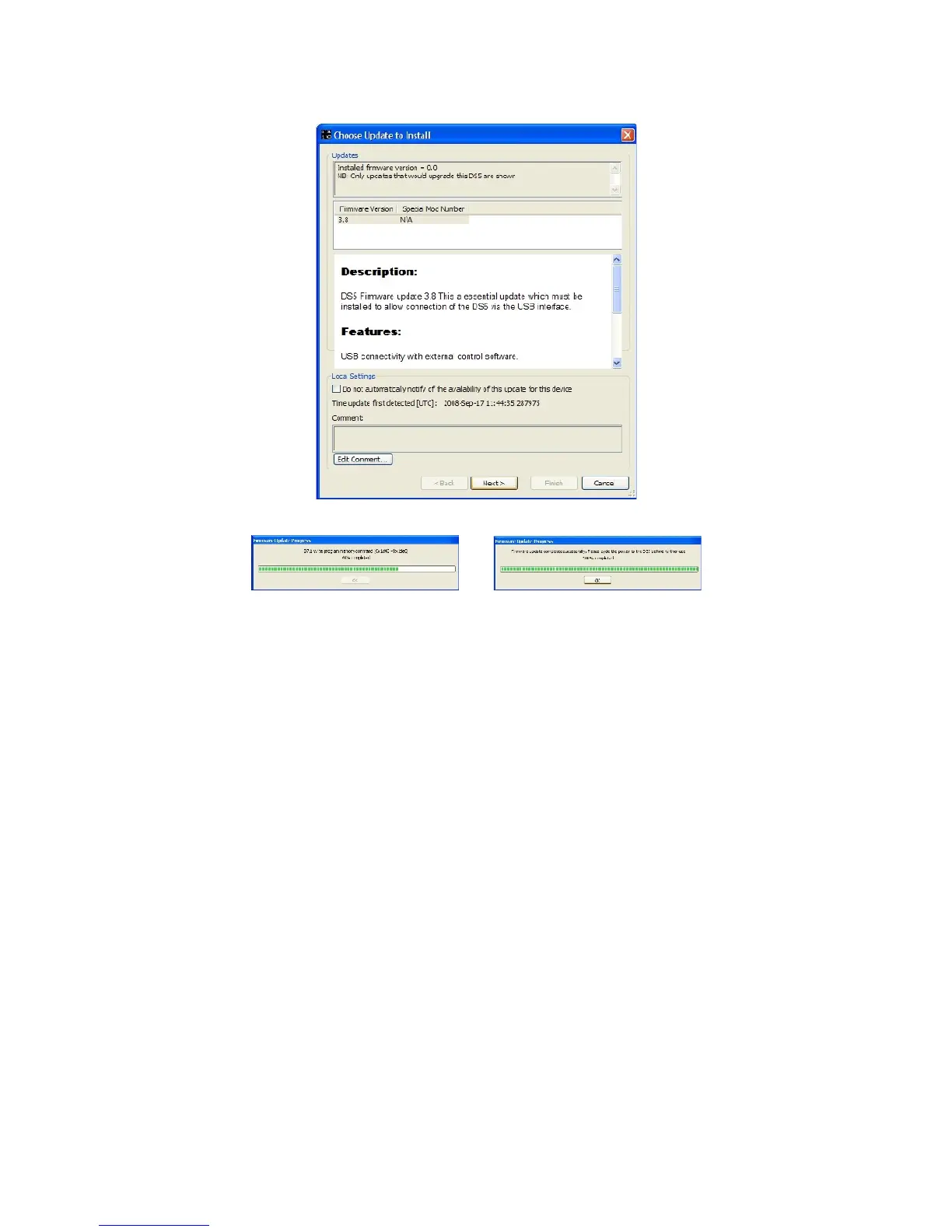
9. Once the firmware update has been complete, the DS5 should be powered off and back on again.
The restarted DS5 should be listed in the Device List window with the updated firmware indicated. It
should now be possible to use the DS5 UI to adjust the settings and control some features of the
DS5.
If you encounter any problems during the software/firmware update process, please contact Digitimer or
your local representative.
Using the DS5 UI Software
This section describes the features of the DS5 User Interface Software. The DS5 UI software is started from
the Windows Start Menu using START > All Programs > Digitimer DS5 Control Software > DS5UI
Two windows are opened, the DS5 Console and the DS5 Device List. The DS5 Console provides the
“vitual front panel” of the connected DS5 and the DS5 Device List, which minimizes to the Digitimer
D
D
taskbar icon, provides the operator with information about the DS5 itself, including the firmware status.
DS5 Device List
Displays the serial number and certain other characteristics relating to any DS5 stimulators connected to the
computer via the USB connection. The DS5 Device List also provides the operator with the ability to update
the DS5 UI software and configure automatic updates.
Digitimer Ltd. 40 of 52 Copyright © 2009


 To Next Page