4 XR150FC/ XR550FC User’s Guide Introduction
Entering Alpha Characters
Some options d uring programming require you to enter alpha
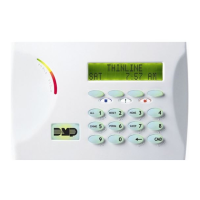
characters. To enter an alpha character, press or touch the key that
has that letter written below it. The k eypad displays the number
digit of the key. Next, pressthe Select key/ area that correspondsto
the location of the letter under the key. Pressing a different Select
key/ area changesthe letter. When another digit key is pressed, the
last letter displayed is retained and the process starts over.
Entering Non-Alpha Characters
To enter a space in an alpha entry, pressthe 9 digit key followed by
the third Select key/ area. The three characters on the 9 digit key
are Y, Z, and space. You can also enter the following characters:
– (dash), . (period), * (asterisk), and # (pound sign) using the 0
(zero) key and the four Select keys/ areas from left to right. For
example, to enter a – (dash), press the 0 (zero) key and then the
left Select key/ area. Adash now appears in the keypad display. The
tab le b elow shows the character locations for DMPkeypads.
Key
n umber
Select Key
1
Select Key
2
Select Key
3
Select Key
4
1 A B C (
2 D E F )
3 G H I !
4 J K L ?
5 M N O /
6 P
Q
R &
7 S T U @
8 V W X ,
9 Y Z space _
0 - . * #
Using the Keypad
Mul t i-li gual Displ ay o pt i
Your system may be programmed to display the User Menu and
Status Display text in multiple languages. When the COMMAND
key is pressed, the option to choose the language displays. The
language chosen continues to display at this keypad until another
language is chosen.
Keypad Di splay s Cu r re t Pr gr am m i g
Most User Menu options displayed at the keypad show the currently
selected option in the panel memory. These options are either
shown as a number, a blank, or a NO or YES. To change a number
press any top row Select key. The current option is replaced with a
dash. Press the number(s) on the keypad you want to enter as the
new number for that option.
It is not necessary to enter number s with leading zeros. The panel
automatically right justiÀes when you press the COMMAND key.
To change an option that requires a NO or YES response, press the
top row Select key under the response not selected.
For example, if the c urrent option is YES and you want to change
it to NO, press the third top row Select key. The display changes to
NO. Press the COMMAND key to go to the next option.
Mul t ipl e Displ ays
For many User Menu options on burglary keypads of combination
burglary and Àre systems, such as Access Areas, there are several
displays containing lists. For example, in Access Areas, areas 1
through 32 display on four separate displays. First, areas 1 through
8 display. Press the COMMAND key to display areas 9 through 16.
Press the COMMANDkey again to display areas 17 through 25. Press
the COMMAND k ey one more time to display areas 26 through 32.
Note: Only areas pre-programmed at installation can display.






 To Next Page
