dormakaba USA Inc. System User Guide 7040.0320 | 42
5.2 Install a User into the Keypad
Follow these steps to install a User from the LA GARD Software client into the Keypad:
1. From the LA GARD software main menu, select System.
2. Select the applicable System from the middle sub-menu.
3. From the top-right menu, select the PC Link icon.
4. Double-check the COM port or select a different port with the drop-down menu.
5. Select Program from the left-hand column.
6. Check the box beside User Changes.
7. Plug the USB cable into the USB port of the computer and the other end into the mini USB port of the Keypad.
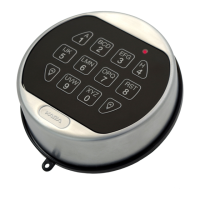
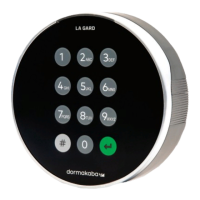
8. Using the Arrow buttons on the Keypad, navigate through the Main Menu and select PC Link by pressing the Return Key. The
top of the Keypad will illuminate red.
9. In the software client, select the Send icon located at the top-right of the screen. A progress bar will appear on screen. The
Keypad will beep three times and flash a green LED once complete.
5.3 Firmware Update
There are four firmware files that can be updated:
• Bootloader for the Keypad
• Application for the Keypad
• Bootloader for the Lock
• Application for the Lock
If there is ever an update, dormakaba will create the necessary files and distribute them appropriately. For entries with a display,
navigate through the menus to find the current application FW levels of both the Keypad and any locks. Via a PC and software, the
current levels of all four parts can be determined when doing a ‘Compare’ operation from the PC-Link dialog. On the ‘Additional Info’
tab, you will find this information.
Follow these steps to update the Firmware from the LA GARD software client to the Keypad:
1. From the LA GARD Software Main Menu, select Settings.
2. Fill out the following information in the Firmware Update sub-menu:
• Port – From the drop-down menu, select the applicable comms port
• Firmware File – Use the Select File button to navigate through the computer to find the firmware update file.
Select Open in the browser window when the file is located
• If lock firmware is selected, another option will be presented to select which lock to update
3. Plug the USB cable into the USB port of the computer and the other end into the mini USB port of the Keypad.
4. If using a Keypad with a display, do the following:
• Using the Arrow buttons on the Keypad, navigate through the Main Menu and select System by pressing the
Return Key.
• In the System menu, navigate through the options and select FW Update by pressing the Return Key. Start FW
Update will appear on the display screen.
5. If using a Keypad without a display, use the #99 command to set the Keypad into the FW Update Mode.
6. In the software client, select the Upload button. A progress bar will appear on screen. The Keypad will beep three times and
flash a green LED once complete.



 To Next Page