19/57
Open and start
Control your heating
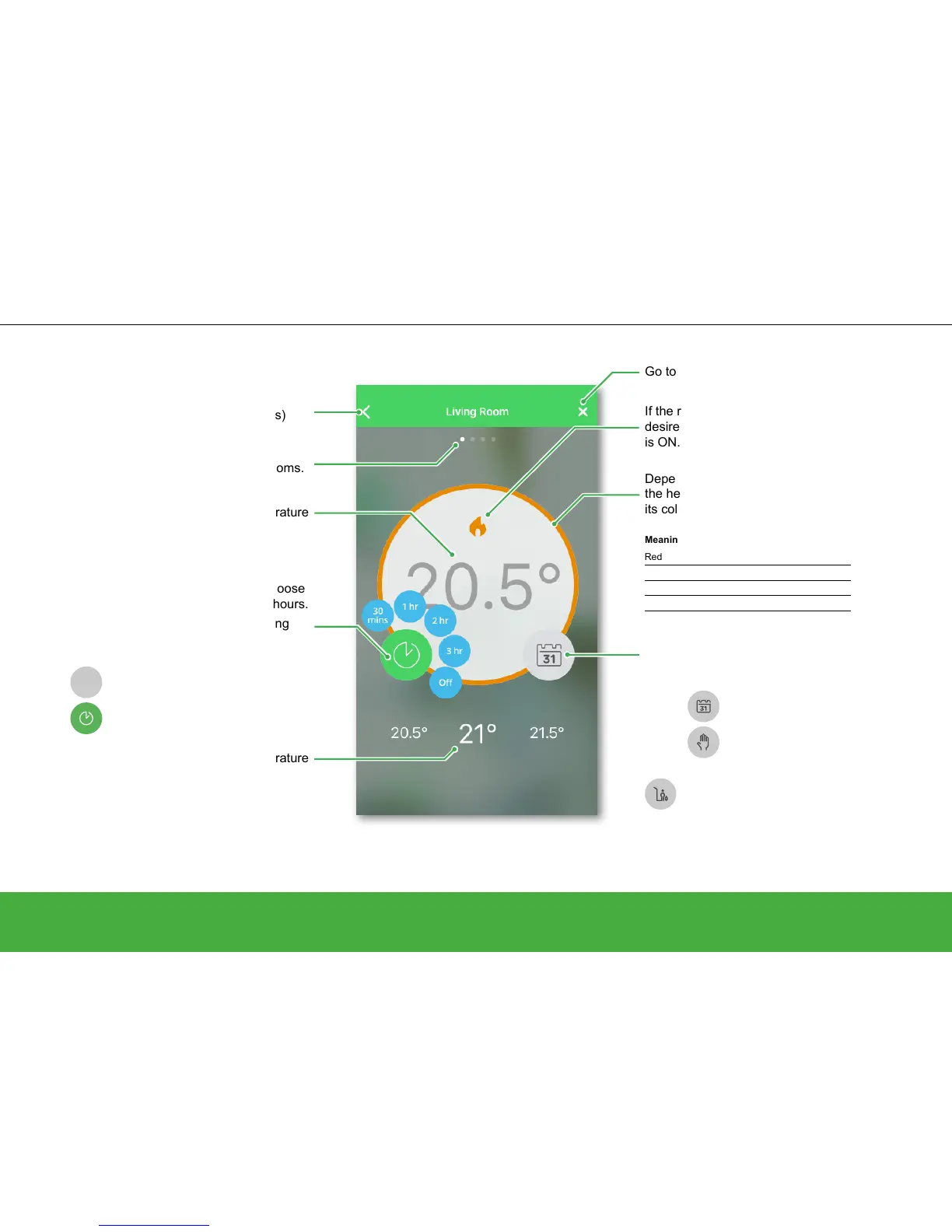
Room view and what it displays
Tap to open the boost menu.
With the boost feature you can temporarily
increase the room temperature by 2°C. Choose
between 30 minutes, 1 hour, 2 hours or 3 hours.
Boost can be stopped at any time by tapping
the time icon again.
Boost
OFF
Boost = OFF
Boost = ON
Go back to previous screen
(only on iOS devices)
Current room temperature
Current set-point temperature
Room/Area to control.
Swipe to the left/right to switch between rooms.
Tap to open the schedule or to toggle between
Auto and Manual Mode.
If the room temperature is lower than the
desired set-point temperature, the heating
is ON.
Go to Home screen
Depending on the room temperature and
the heating status, the circle line will change
its colour.
Heating = Auto Mode
Heating = Manual Mode
Meaning of the colours:
Red Warm 21.5 – 30 °C
Orange Comfort 17.5 – 21 °C
Yellow Cool 5 – 17°C
Grey Heating Off
Note: As long as Away Mode is active,
you cannot select Auto or Manual Mode.
Tap on the X to go back to the Home
view to de-activate Away Mode.


 To Next Page