53/57
More on Installation
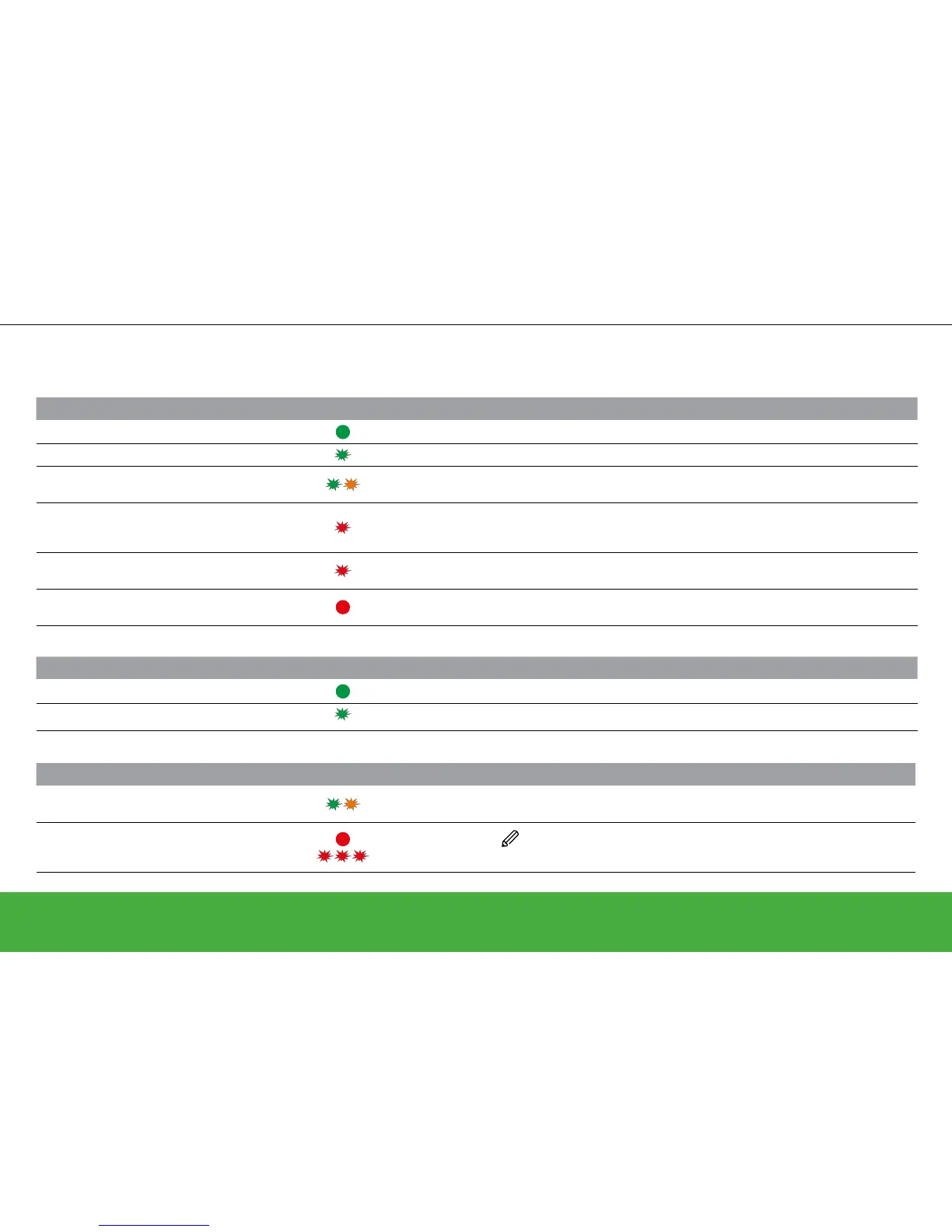
LED behaviour of the Heat Hub
R
Set-up
State Button Press LED Description
Normal
Indicates the Heat Hub
R
is powered ON and operating as normal.
Set-up Single press
In this mode, it is possible to connect directly to the Heat Hub
R
via Wi-Fi and make changes to the system.
Adding a device
Press and hold for > s
(or initiate from the app)
Indicates the Heat Hub
R
is open to new devices joining the network.
Wi-Fi Error
The Heat Hub
R
is unable to connect to the Wi-Fi Network. Check the Wi-Fi router is powered ON and
connected to the internet. If you have changed your Wi-Fi credentials (password) or if you have a new
router, you must connect to your Heat Hub
R
in Set-up Mode and update your Wi-Fi network details.
Firmware upgrade
During a rmware upgrade cycle, the hub disconnects from the internet for a number of seconds to
upgrade the rmware
Wiser Cloud connection
lost
The Heat Hub
R
is currently unable to contact the Wiser Cloud service. You will still be able to use the
Wiser Heat app at home when connected to the same Wi-Fi network as your Heat Hub
R
Heating and hot water
State Button Press LED Description
Normal
Indicates the respective heating or hot water relay is currently active.
Emergency Heat/Test Single press
This will manually switch the relay ON. Hot Water: ON for 1 hour Heating: ON for 2 hours
Others
State Button Press LED Description
Adding a RF range
extender
Press and Hold ‘Set-up’
for longer than 2 s
Heat Hub
R
Set-up
LED
Indicates the Heat Hub
R
is ready to pair a range extender.
Reset
Press and Hold for
longer than 20 s
Set-up LED Red
followed by all LEDs
ashing once
Indicates the Heat Hub
R
has been returned to factory settings.
This will remove all devices from the system instantly. To re-use the devices,
you must perform a device reset on all products.


 To Next Page