40/57
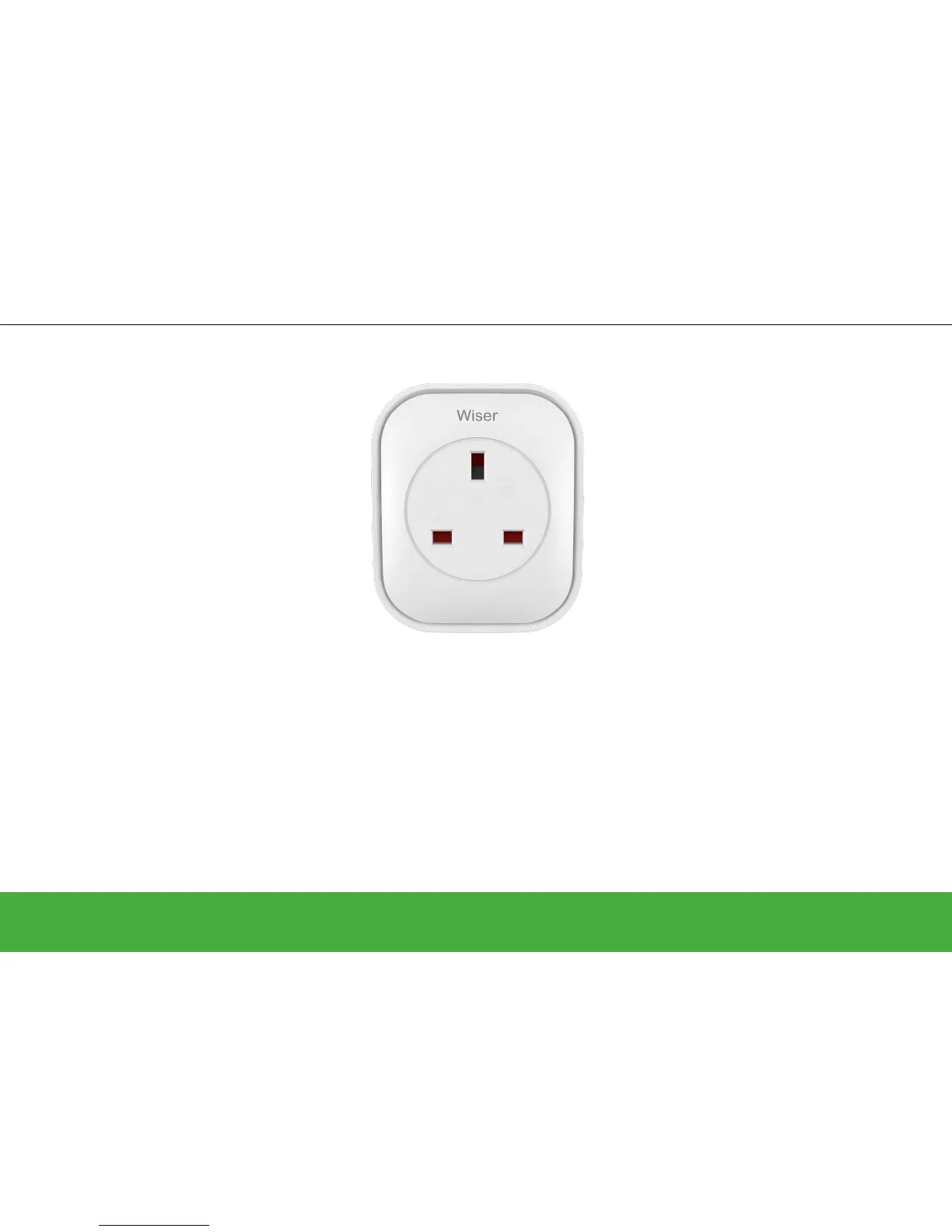
Wiser Plug
Operate
Getting to know the Wiser Plug
Enabling you to set schedules for electrical
appliances from the Wiser Heat app, the smart
plug can be controlled from your mobile device
or by using voice activation with the Google
Assistant and Amazon Alexa.
The smart plug may be toggled ON and OFF
from the smart plug pull-up menu of the Wiser
Heat app Home screen. When toggled ON, the
switch or its background in the Wiser Heat app
will be green and the smart plug will provide
power to the electrical appliance connected
to it. When toggled OFF, the switch or its
background in the Wiser Heat app will be grey
and the smart plug will not provide power to
the electrical appliance connected to it. When
supplying power to the electrical appliance
connected to it, the smart plug will illuminate
its blue LED, and when not supplying power
to the electrical appliance connected to it, the
smart plug LED will be OFF. Have a look at:
Scheduling the smart plug -> page 41
Smart plugs can be run in Auto Mode where
they are controlled by a user-dened schedule.
The schedule is accessible via the Settings
screen at the top the Wiser Heat app Home
screen or by tapping on the clock icon of a
smart plug visible in the smart plug pull-up
menu on the Home screen. Have a look at:
Scheduling the smart plug -> page 41
IFTTT
Each individual smart plug can be used in
applets created with the IFTTT service. In this
case, another device/service/app is used as the
trigger of the applet and the smart plug can be
turned ON/OFF as the action. Have a look at
the IFTTT section -> page 56
RANGE EXTENDER
As well as being able to control your electrical
appliances remotely, the smart plug also has
a built in RF signal range extender to enable
connectivity to devices further away from the
Heat Hub
R
.
Detailed instructions for how to add the
smart plug as an RF signal range extender
are included in the installation guide that
accompanies the product.
Selected smart plugs can be coupled to Away
Mode to turn OFF the electrical appliance
connected to them when Away Mode becomes
active. This is congured on the ‘Away Mode’
screen using a toggle switch for each smart
plug individually. The ‘Away Mode’ screen is
accessible from the ‘Settings’ screen. Settings
are accessed at the top of the Home screen
of the Wiser Heat app. Have a look at: Away
Mode -> page 27


 To Next Page