8/57
Set up a system
Connect the Heat Hub
R
Step 2: Connect your mobile
device to the Heat Hub
R
The following instructions show you how to
connect your mobile device to the Heat Hub
R
via a temporary Wi-Fi network set-up by the
Heat Hub
R
.
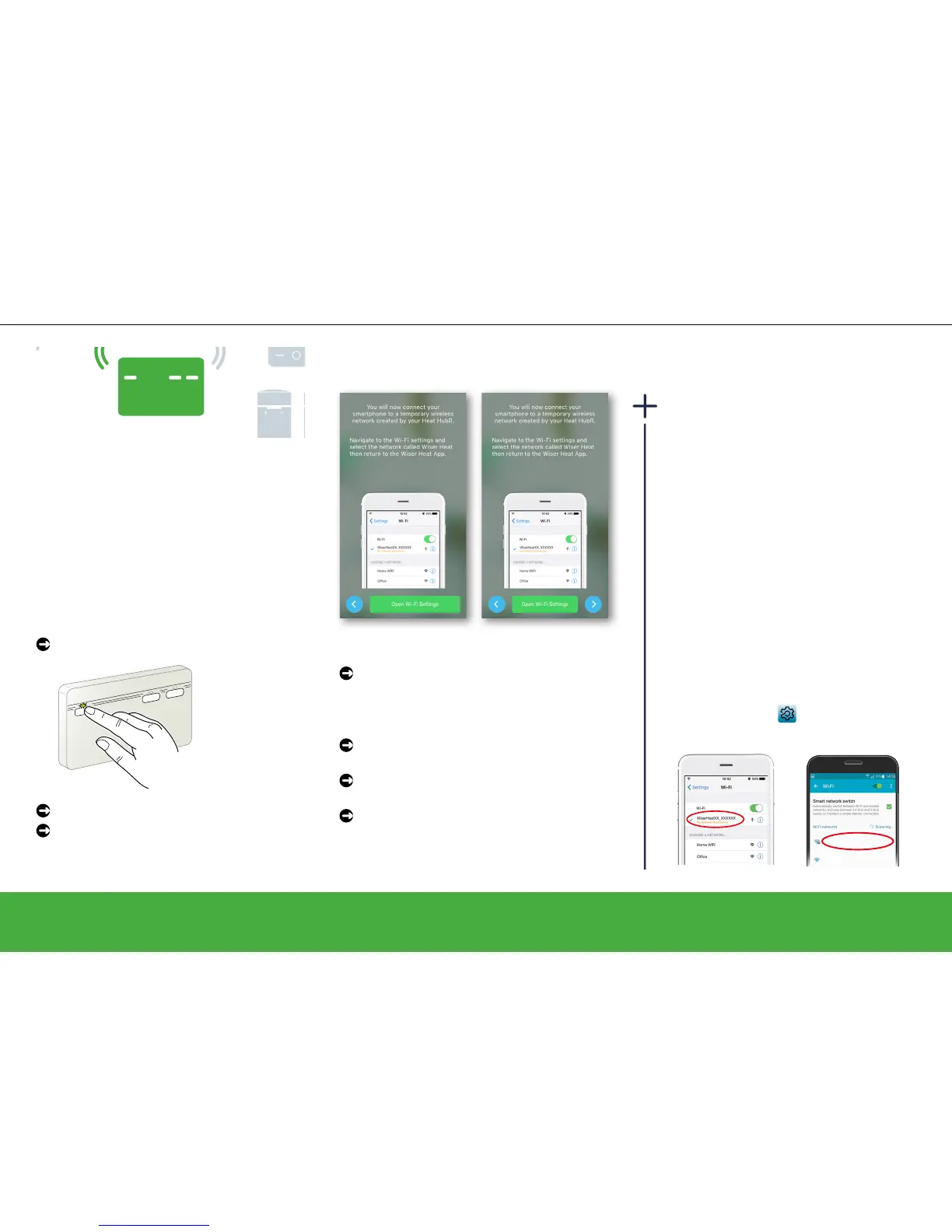
First select the Heat Hub
R
you wish to set up.
Do the following to activate set-up Mode:
Press the Set-up button.
Setup
Hot Water
Heating
The LED will
ash green
when Set-up
Mode is active.
Return to the Wiser Heat app
Tap Next
Heat Hub
R
Set-up Mode
The Heat Hub
R
Set-up Mode stays active for
15 minutes. After 15 minutes of no activity,
the Heat Hub
R
goes back to the normal
operating mode.
If you are still setting up your system when
this happens, go through the set-up steps
again. You can activate the Heat Hub
R
Set-
up Mode at any time.
Do you need to change your Wi-Fi
network? Do you have a new broadband
provider? Have a look here: How to change
the Wi-Fi network -> page 46
Navigate to the Wi-Fi settings
In most cases, you will nd the Wi-Fi
settings as a sub-menu in the settings of
your mobile device
.
Apple® Android™
Wiser HeatXX_XXXXXX
Secured
guest
Open
Open the Wi-Fi settings on your mobile
device (for Android users the Wiser Heat
app will take you to the Wi-Fi settings
automatically
Select the network called
WiserHeat XX_XXXXXX and connect to it
Switch back to the Wiser Heat app (not
necessary for Android users)
Tap Next
The mobile device and the Heat Hub
R
are now
connected.
iOS Android


 To Next Page