22.5°
Set Delete Cancel
Edit Event
11 05
25/57
Operate
Control your heating
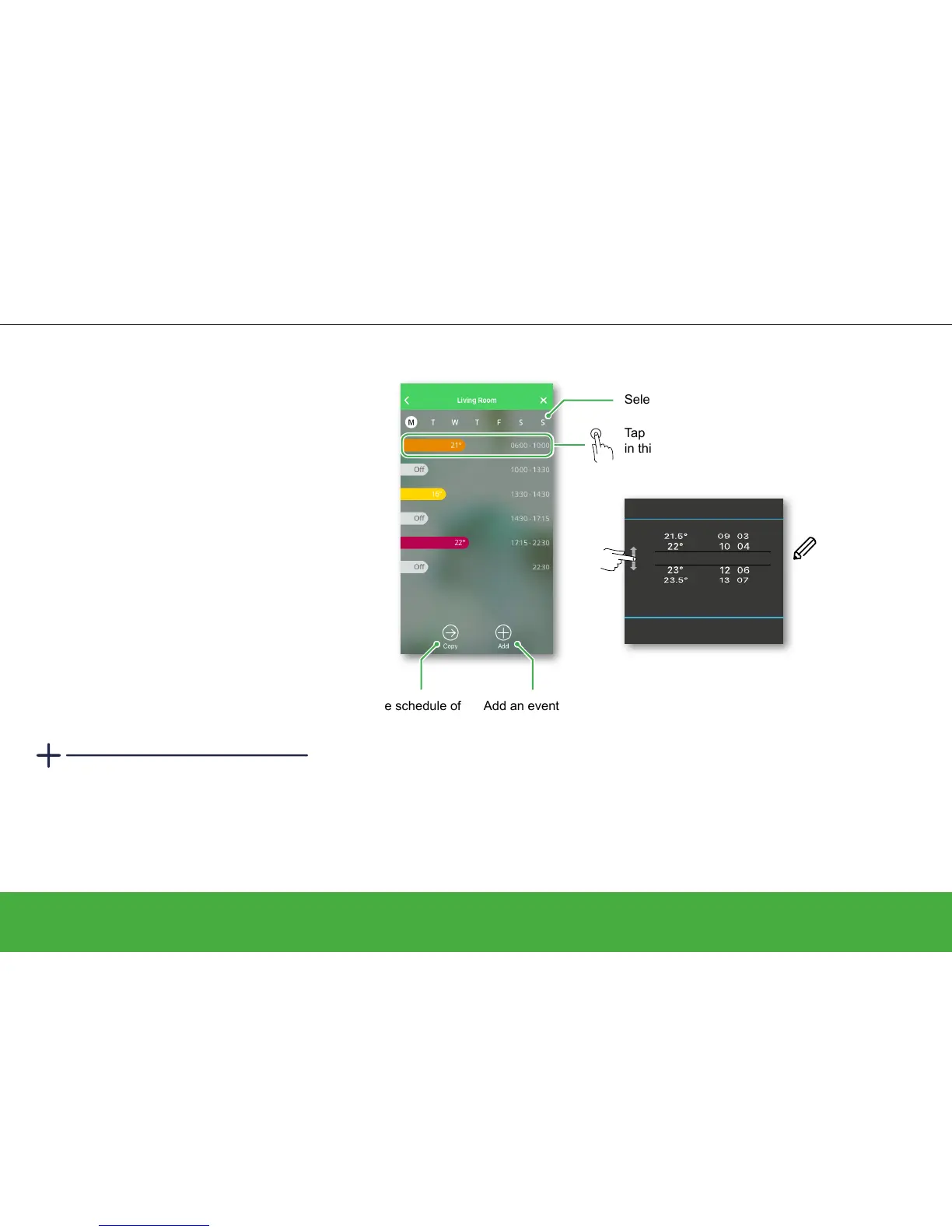
You dene the start
time. The end time
will be set to the
start time of the next
schedule event.
Copy the schedule of
a day
• Select the days to
which you would like
to apply the same
schedule and Save.
Add an event
• Edit your desired
room temperature
and set the start
time.
Select the day
How to edit the schedules
As part of the set-up process, you added rooms
and assigned devices to them. Each room
has its own schedule, which is independent of
the other rooms. If your daily routine is similar
throughout the week, you can set the schedule
for the room for the whole day then use the
Copy function to copy the schedule to each day
you select for this room. Alternatively a different
schedule can be dened for each day.
Set an event
An event is a set change to the room
temperature for a specied amount of time. An
event consists of a start time and the desired
temperature. One day can have up to eight
events.
Smart plug schedules
Smart plug schedules are slightly different than
the other schedules. Have a look at: Scheduling
the smart plug -> page 42.
Defaults
With your rst access to the Wiser Heat
app, you will nd pre-dened events in all
schedules. If the events match your daily
routines, you do not need to change the
schedule. Have a look at: The defaults ->
page 17
Tap anywhere
in this area


 To Next Page