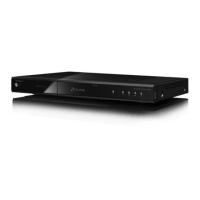
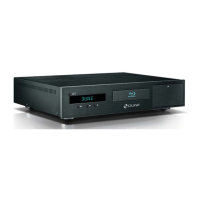
Execute the Create a network folder command using the contextual menu (MENU
button of the RC).
In pop-up dialog box adjust network folder parameters.
In Name area enter any name which you like. This name will be displayed in the file
browser for this external resource.
In Type area select SMB or NFS, depending on protocol supported by your network
disk.
If you wish to connect to a Windows-operated PC and do not know what is NFS
server, the easiest way is to use SMB protocol: in this case, you do not need instal-
lation of additional software, standard Windows tools will be sufficient (2000, XP
or Vista).
If you wish to connect to NAS (Network Attached Storage), and your NAS supports
NFS, use NFS protocol.
●
By default, there is no standard Windows software supporting NFS protocol. If
you wish to use NFS to access files on a Windows-operated PC, you need to
install and adjust NFS server software, e.g. HaneWin NFS Server (User Manual
available in English on developer’s web site).
Connection through SMB protocol:
In Server area enter IP address of your server. E.g.: 10.0.0.2.
In case of connection to Windows PC, you may find the required IP address in
network connection features on Windows PC (for example, in Windows XP you can
see the symbol of network connection in the right bottom corner of the display;
double click on it and you have a window with the connection status; choose “Sup-
port” folder here and you see the needed “IP Address”).
● Indication of Windows name of the server is currently not supported.
● If your LAN is adjusted for DNS resolution of names and the player network set-
tings contain correct DNS parameters, you may use the DNS name of your server
in the place of IP address.
In the Folder area enter name of common access folder at SMB server. E.g.: VID-
EO.
After connection to a Windows PC, the name of common access folder may be
found in folder properties (for example, in Windows XP file browser: right-click with
mouse on the shared folder name, choose “Sharing and Security…” and you have
the needed name in the “Share name” field of the appeared window. The same
window can be used to add new shared folder on your Windows computer for any
folder you need to share).
● Name of common access folder displayed in the network may not be the same as
its name on hard disk. You should use a network name. If SMB server requires user
name/password, enter these data in the relevant fields (usually not required).
2
3
5
4
1
2
Network disks operation
42
Chapter 8


 To Next Page