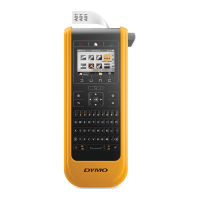
7
XTL
™
500
User Guide
You can change the amount of time the label maker remains in standby mode
before automatically shutting off. See Changing the Auto Shut-off Time on page
40.
When the label maker is turned off, the current label and settings are remembered
so you can continue working the next time the label maker is turned on.
If the battery is removed and the power adapter is disconnected, the label and
settings you are currently editing will be lost.
Home
The key returns you to the Home screen at any time. See Home Screen on
page 10 for more information about the Home screen.
Print
The key prints the currently displayed label.
Shift
The key when used with another key selects the function or symbol printed
above that key.
The key is also used with the navigation keys to select text in a text box. See
Navigation Keys on page 9.
Clear
The key clears a label of all text and formatting or, if in a list screen, removes
the selected item.
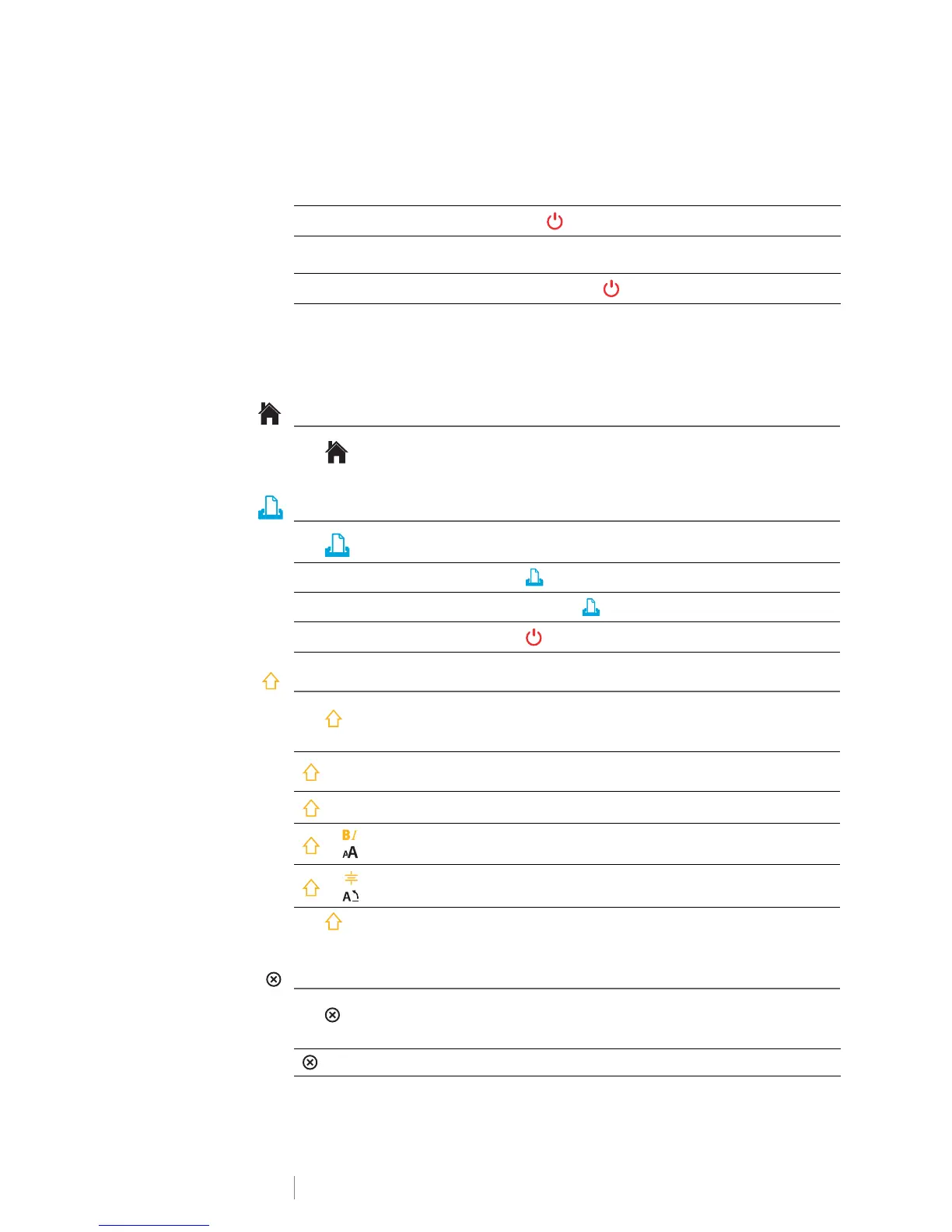
To turn power on
Press .
To turn on the display when in
standby mode
Press any key once.
To turn power completely off
Press and hold for five seconds.
To print immediately
Press
once.
To set print options
Press and hold
for several seconds.
To cancel printing
Press
once while label maker is printing.
+ a letter
Inserts an uppercase letter. Inserts a lowercase letter if
Caps Lock is turned on.
+ a number
Inserts the symbol over the selected number.
+
Opens the Style tool. See Changing the Text Style on
page 28.
+
Opens the Align tool. See Aligning the Text on page 29.
on label edit screen
Deletes all text and formating leaving a single blank label.







 To Next Page